


Thunderbird 143 or 151 cannot send Mails, because it does not connect to SMTP

After system complete reinstallation Ubuntu 24.04 it is not possible to send mails with SMTP Server. Receiving messages is possible!! Two fault Messages happen, I've two SMTP servers: 1. No connection to SMTP possible 2. Server timeout
And yes, I've checked nearly everything what's to find in the internet, reinstallation, change and check settings and passwords, together with the specialist from my provider. Also my provider is not able to find a mistake. As I've found out in the net, there are sometimes problems to connect to SMTP, but no solution found. Is there some security in the UBUNTU system, which blocks the SMTP connection or is this a bug from Thunderbird? Thanks in advance Andreas
All Replies (10)
it may help to post complete text of error messages and screenshot of the SMTP server settings pane. thank you
Error-Message SMTP1: Senden der Nachricht fehlgeschlagen. Die Nachricht konnte nicht gesendet werden, weil der Verbindungsaufbau mit dem SMTP-Server bsmpt.a1.net fehlgeschlagen ist. Der Server ist entweder nicht verfügbar oder lehnt SMTP-Verbindungen ab. Bitte kontrollieren Sie die SMTP-Server-Einstellungen und versuchen Sie es nochmals.
Failed to send the message. The message could not be sent because the connection to the SMTP server bsmpt.a1.net failed. The server is either unavailable or does not accept SMTP connections. Please check your SMTP server settings and try again.
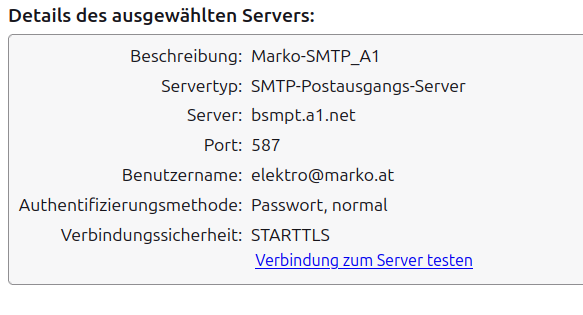
Error Message SMTP2: Senden der Nachricht fehlgeschlagen. Die Nachricht konnte nicht gesendet werden, weil der Verbindungsaufbau mit dem SMTP-Server securemail.a1.net fehlgeschlagen ist. Der Server ist entweder nicht verfügbar oder lehnt SMTP-Verbindungen ab. Bitte kontrollieren Sie die SMTP-Server-Einstellungen und versuchen Sie es nochmals.
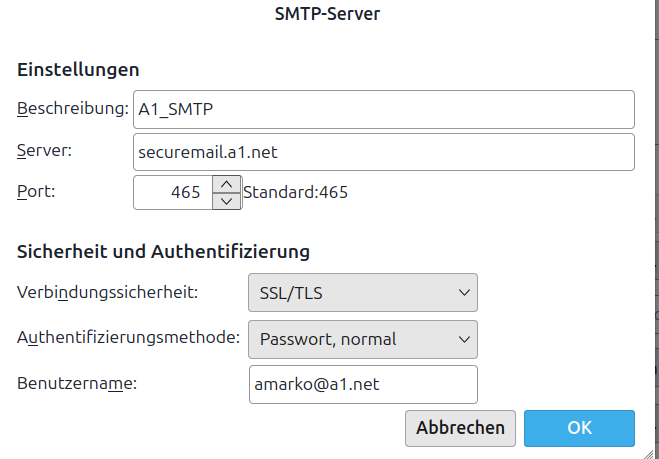
The Server is working, the password to receive and to send is the same, I can receive my mails, but cannot send. There is maybe some security setting, which prevent the connection to the SMTP
The recommended setup from Thunderbird is to set to STARTTLS, not SSL/TLS and port 587, not 465. That's the best I can do, since I am not familiar with that domain.
Hello David Thank's a lot, I've tried this also with the system admin from my provider, he is not so familiar with the Ubuntu System. Online, in the Internet browser access to my mailbox everything is working, Thunderbird has a problem with some SMPT servers, I've read, that Thunderbird 120.7.0 is maybe working, I'm not the only one with this problem.
Thunderbird does not have problems that I am aware of, and I've seen no others with that issue from that server. If many have that problem, I suggest contacting the email provider, as I can offer nothing more. Good luck.
Thank you! Interesting, that you cannot find such Problems.... https://askubuntu.com/questions/1521736/new-install-24-04-thunderbird-cannot-send-emails https://www.thunderbird-mail.de/forum/thread/97191-smtp-server-ist-nicht-mehr-erreichbar-ging-aber-vor-wenigen-stunden-noch/ https://askubuntu.com/questions/1564354/thunderbird-fails-to-send-email-using-an-smtp-server-claims-an-authentication-e and much more.....
Like others here, I am a volunteer. I do not spend my free time searching all thunderbird forums. Good luck.

Andreas223: I’ve spent hours and hours trying to find solution to not being able to send emails. I worked my way through Google’s AI. This worked. I can send emails now. I hope it does for you.
If clearing the password history did not stop the error, it means Thunderbird is still linked to a misconfigured or corrupted SMTP server profile, or your main email identity is mapped to the wrong outgoing slot.When you delete passwords but Thunderbird fails to send without popping up a fresh password request, it implies it isn't even attempting a handshake anymore because the internal profile is broken. Perform this complete physical reset of the Outgoing Server profile to clear the backend loop:
1. Completely Re-create the SMTP Server EntryEditing an existing profile can sometimes fail if the file data inside Thunderbird becomes corrupted. You must delete the entry entirely and build a fresh one.
Open Thunderbird and select ≡ (menu) > Account Settings. Scroll to the bottom of the left column and click Outgoing Server (SMTP). Select your mail.shaw.ca profile from the list. Click Remove. ( .Click Add... and type everything manually: Description: YOUR ISP Fresh MailServer Name: mail.YOUR ISP.ca Port: 587 Connection Security: STARTTLS Authentication Method: Normal password User Name: Your YOUR ISP username WITHOUT @YOUR ISP.ca (e.g., if your email is test@YOUR ISP.ca, type test).Click OK.
2. Formally Map Your Email Account to the New Server Building the server entry is not enough; you must explicitly link your specific @YOUR ISP.ca email address to the newly created profile.Stay inside the Account Settings window. Scroll back up the left column and click directly on your primary @YOUR ISP.ca account name (at the very top of the list). Look at the bottom-right side of that panel for the Outgoing Server (SMTP): dropdown box. Click the dropdown menu and select the YOUR ISP Fresh Mail profile you just built in Step 1. Close the Account Settings tab.
3. Clear and Force the New Session Handshake Close Thunderbird completely.Wait 10 seconds, then reopen Thunderbird. Compose a short test email to yourself and click Send. Thunderbird will now force a direct connection using the fresh profile path and will prompt you to enter your YOUR ISP webmail password. Type it in carefully, check the box to "Use Password Manager to remember this password", and hit enter.