


Bookmarks and their functionality wiped out by CCleaner

CCleaner wiped out my bookmarks and their functionality. I have repaired, then uninstalled CCleaner. I have refreshed, uninstalled then reinstalled Firefox. I have logged in and out of Firefox. I have made an HTML file of bookmarks from another device in order to try to import them. Firefox bookmarks will not proceed to an upload stage. I went into setting to add the HTML of bookmarks and it said "this is not a bookmarks file." Well, Firefox made that HTML bookmarks file so I have no idea how that could be. Nothing I have tried has worked.
Isisombululo esikhethiwe
Hey, thanks for your reply. In my case I got into the sqlite files only to see not that they were corrupted but seemingly had been nuked by CCleaner, entirely (see attached screenshot.)
Now, the good news is I was able to solve my issue by doing a DEEP uninstall and reinstall of Firefox.
(Your suggestions will not work with an SQLite area that has been basically destroyed by CCleaner.)
Funda le mpendulo ngokuhambisana nalesi sihloko 👍 0All Replies (3)
Show what you're trying to import. Have windows set to show the file types. You can also use Sync to get your bookmarks on the device. see screenshot https://support.mozilla.org/en-US/kb/how-do-i-set-sync-my-computer https://support.mozilla.org/en-US/kb/how-do-i-choose-what-information-sync-firefox

Isisombululo Esikhethiwe
Hey, thanks for your reply. In my case I got into the sqlite files only to see not that they were corrupted but seemingly had been nuked by CCleaner, entirely (see attached screenshot.)
Now, the good news is I was able to solve my issue by doing a DEEP uninstall and reinstall of Firefox.
(Your suggestions will not work with an SQLite area that has been basically destroyed by CCleaner.)
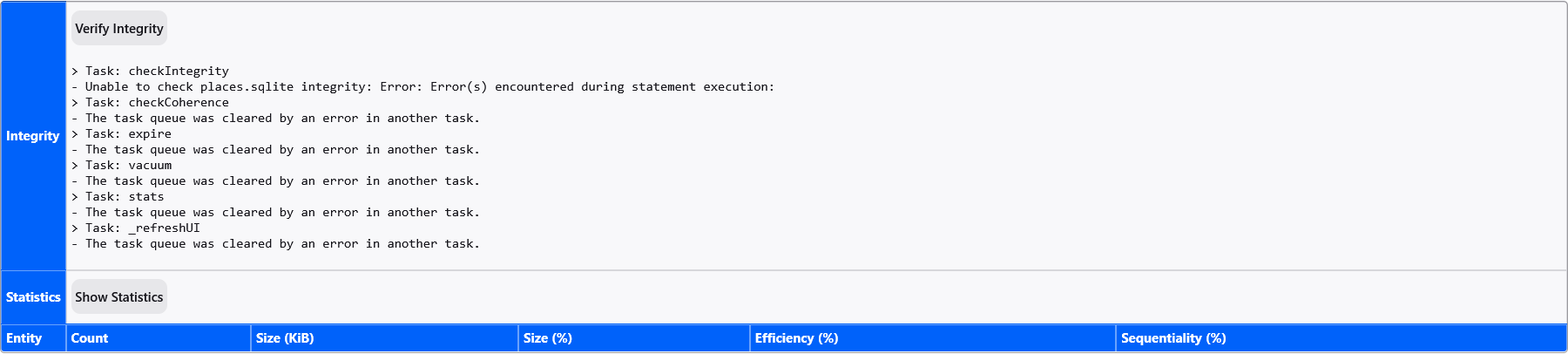
What I did to restore bookmarks functionality and transfer bookmarks successfully in detail after CCleaner nuked them:
A DEEP uninstall of Firefox, then a totally new re-download, install.
A usual uninstall re-install will do nothing to restore a corrupted or wiped SQLite file area. I tried. That means if you go to your list of APPs and click "uninstall" to uninstall Firefox by the usual, conventional method. you are not going to get anywhere. That is not the way. Why? Because Firefox "remembers" you from the very first time you install it, even after you've uninstalled it, unless you deliberately delete the little remembering you file they put on your system. Unfortunately, contained in that little remembering you area are the messed up files (sqlite) that won't let your bookmarks work, no matter how many times you uninstall/reinstall versions of Mozilla Firefox.
This fix then, involves removing Mozilla Firefox's "tag" which it uses to remember you in your device.....
- Here is the way****** For this method, it's great if you have another device where the Firefox bookmarks are all right. (Otherwise you can't bring your old bookmarks, but at least you'll be able to make new ones and have full bookmarks functionality going forward.)
[1] Set up a Mozilla account on a device where the bookmarks are functional, which saves the bookmarks to your Mozilla Firefox account at their end. Now, forget the scary techy "sql" words: Just...
[2] go into your file system on your device (the one where the bookmarks for Firefox are NOT functioning) and delete all file folders called "Mozilla." As explained above this is NOT a conventional uninstall/reinstall This is a DEEP uninstall, brand new reinstall.
(For those who may not know how to get to their program files to do a deep uninstall, here are step-by-step instructions: Click on the Window icon, bottom left. Type R in the search pane which then appears. This will cause a little box titled "Run" to appear, bottom left. Type %appdata% into that little box, bottom left. This will magically take you to a list of files and folders. One will be called "Mozilla" - DELETE this folder.)
[3] Restart your system.
[4] Now re-download and re-install Firefox. This time you'll see everything looking like the very first time you downloaded and installed Firefox in terms of prompts.
[5] Sign into the Mozilla account that you created in step 1
[6] Verify that your bookmark functionality is indeed restored, old bookmarks are indeed there once again
[7] perform celebratory dance, whoop or cry
Okulungisiwe ngu Znon