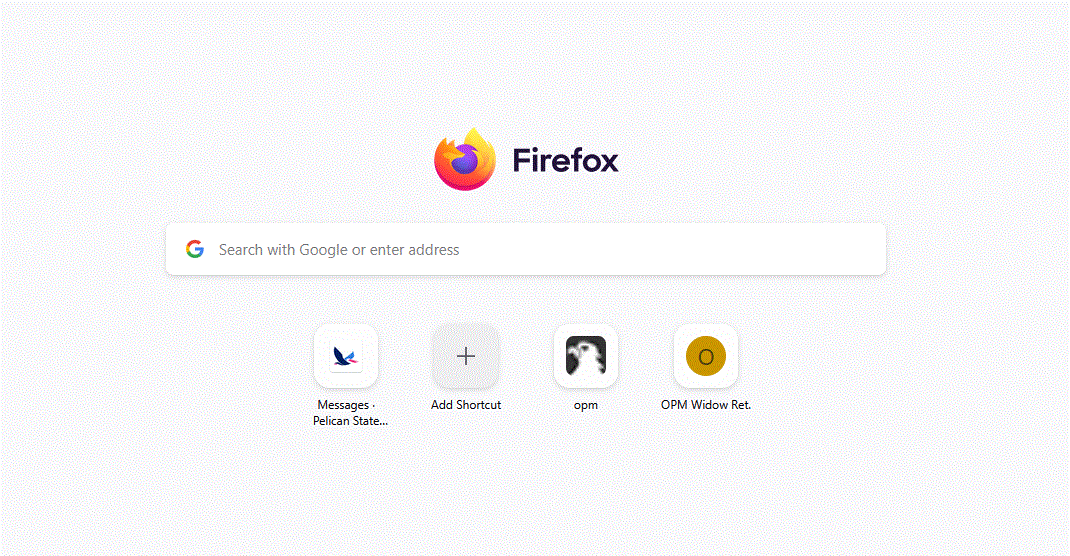
Where are all my quick links?

I used to have about 40 quick links, or bookmarks on my home page. I had pinned several. Others appeared according to how often I used them. The latest update deleted all but 3. I am very unhappy. How can I get rid of this update and bring back my quick links? I guess I will have to go back to Brave.
Krejt Përgjigjet (2)

Hello, I know it is very problematic to have no quick links. it's usually because a new profile was created or the old one got mixed up.
Here are some ways to restore them : Restore automatic backups :
- Open Library: Click the Menu button (three lines) > Bookmarks > Manage Bookmarks (or press Ctrl + Shift + B).
- Find Backup: In the Library window, click the "Import and Backup" button.
- Select Restore: Choose "Restore" and pick a date from the list (choose one before the update).
- Confirm: Click "OK" to restore your bookmarks from that backup.
Check for profiles :
- Open about:profiles: Type about:profiles in the address bar and press Enter.
- Look for Other Profiles: See if there's another profile listed (e.g., default-release) that isn't your main one.
- Launch Other Profile: Click "Launch profile in new browser" for any other profiles; if your bookmarks appear, you've found the right one.
- Set as Default (If found): Click "Set as Default Profile" for the correct profile and restart Firefox.
Manual restoration :
- Navigate to Profile Folder: Type about:support in the address bar, find "Profile Folder," and click "Open Folder".
- Find Backups: Inside your profile folder, open the bookmarkbackups folder.
- Restore File: Find the most recent .jsonlz4 file (a backup) and select it when prompted in the "Restore" menu (Method 1, Step 3).
Hope it helps!
Ndryshuar nga dessertdish
Hello dessertdish. That wasn't quite what I was trying to explain. I'm sorry I did such a poor job.
I have tried adding a couple pictures. You see the firefox one? It used to be more like my Brave browser one on the right. In Firefox I had half a screen of... links? I liked it that way. Now they are gone. I did try your suggestions, but all it did was change the stuff on my bookmarks bar. It didn't change my home page, sadly.
Thank you so much for trying to help!