


Thunderbird 68.10.1 auto-downgrades to 68.1
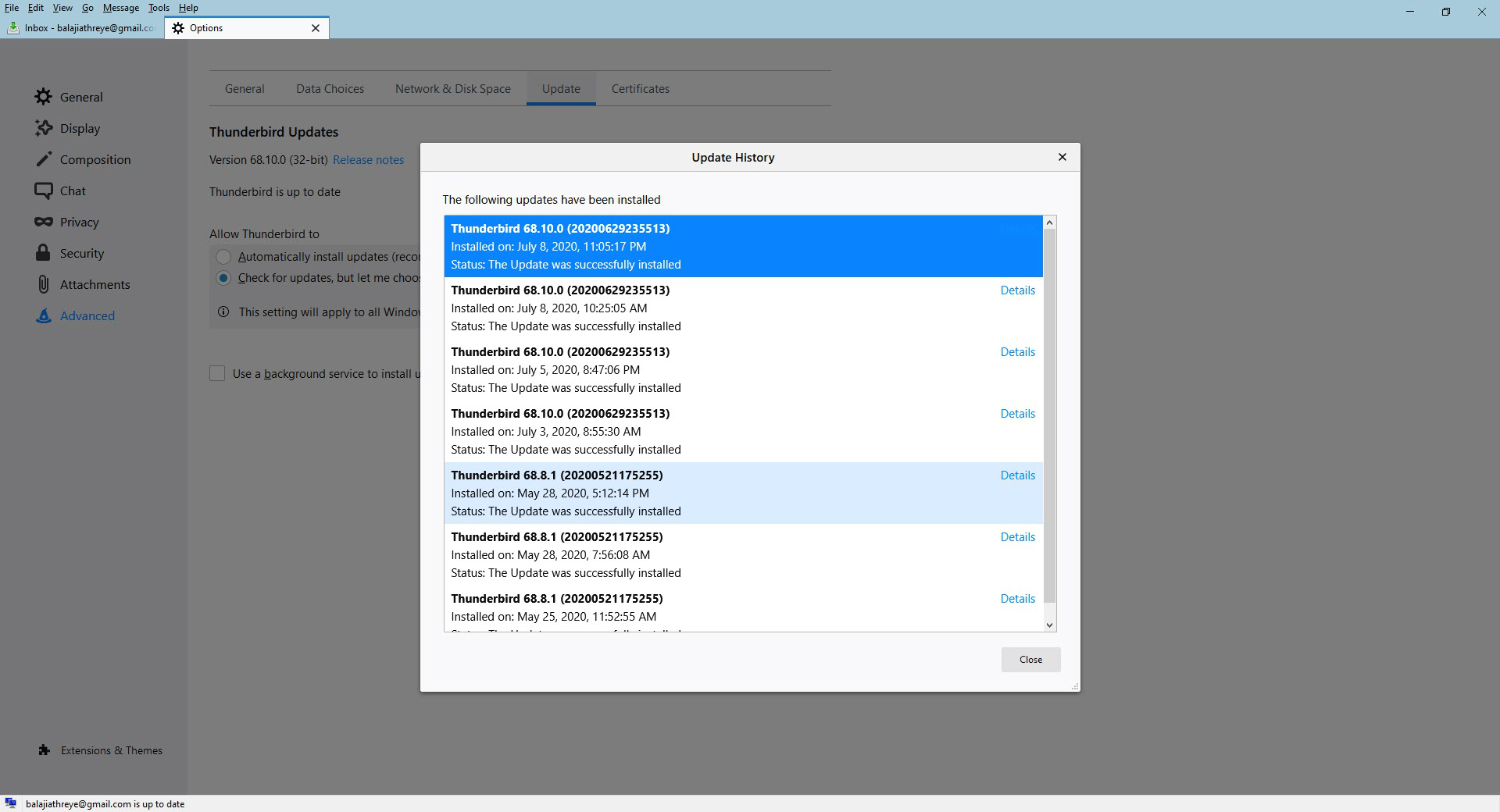
I have an installation of Thunderbird 68.10.1 and have my profile setup. Every few days the installation downgrades automatically to 68.1 and my profile does not launch. All my settings are lost. To recover I have to go to Options > Advanced > Update and update to 68.10.1. It starts working again. See screenshot attached that shows me updating to 68.10.1 over and over.
Krejt Përgjigjet (2)
BTW, this is on a Windows 10 laptop

Sometimes a clean reinstallation of Thunderbird is required to fix such problems. This involves deleting its program files and then installing it afresh. To do a clean reinstallation of Thunderbird, proceed as follows:
- Open https://thunderbird.net in a browser and download the Thunderbird setup package to your computer. Save it somewhere convenient, like the Downloads folder.
- Quit/Exit all open windows of Thunderbird via the File menu on the menu bar, or the hamburger menu icon (three horizontal lines stacked together)
- Uninstall ALL installations/versions of Thunderbird via Control Panel. Reboot if prompted to do so.
- Delete the Mozilla Thunderbird folder from the following locations:
- C:\Program Files (x86)
- C:\Program Files
- Right-click the downloaded Thunderbird Setup package and Run as Administrator to start the installation.
Warning! Do not use third-party uninstaller programs to uninstall Thunderbird. They can permanently delete your profile folder resulting in loss of your precious emails, addresses and other data! For good measure and peace of mind, backup your Thundebird profile folder before trying any of this. More information about Tbird profiles can be found here Profiles - Where Thunderbird stores your messages and other user data