


153 esr Changes to windows buttons
Hi.
Just had a not requested update to 153 esr, which in itself is generally fine, with a small exception.
The windows min, max and close buttons all come up with a code.
Probably just some weird setup I have but any ideas will be welcome.
I use userChrome.css to give a background colour, so maybe the ID of each has changes for any css
- titlebar-min{height:1.66em; background:#00b !important}
- titlebar-max{height:1.66em; background:#090 !important}
- titlebar-close{height:1.66em; background:#d00 !important}
but I don't see how that would effect the actual bare icon
Thank you

All Replies (7)
OK Update:
By removing the css I went back to 'normal' and the min,max,close icon were 'normal' so I edited out my font css
font-family: Candara, "Lucida Sans Unicode", "Lucida Grande", sans-serif !important; font-size:16px !important;
which sorted that.
Now I will try and get the formatting sorted:
Looks like the IDs for the buttons has changed as cannot format them. Will get back here when I have a solution
Thanks for being here
Modified by amoun
I think looking at the image that the "code" is the custom unicode for the item.
Looking in the developer tools, I found this
.titlebar-min {
  /* Even though we use appearance: none, -moz-default-appearance is necessary
   * for Windows 11's "snap layouts" feature, see
   * DealWithWindowsAppearanceHacks */
  -moz-default-appearance: -moz-window-button-minimize;
  content: "\e921"; /* ChromeMinimize */
  @media (prefers-contrast) {
    content: "\ef2d"; /* ChromeMinimizeContrast */
in messenger.css https://searchfox.org/comm-central/source/mail/themes/windows/mail/messenger.css
It looks like the image is mapped to a private glyph area of the Unicode font, but it is way over my head. .
Hi Matt
Thanks. Makes sense, so when I set a font it is not a happy bunny :)
Thanks again for your input, especially as I can't get Developer Tools to function :)
Re:Developer Tools Look for a small dialog that says OK hidden behind the developer tools opening screen.
I get a blank screen with this hidden behind it.
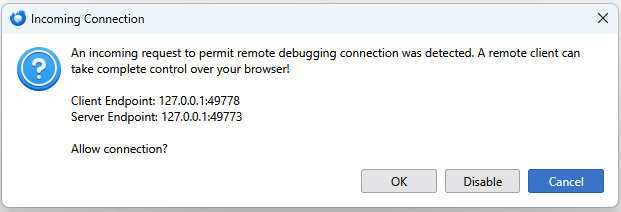
In my case that harks back to some work that was done perhaps 10 years ago to enable remote debugging where I modified a hidden preference. But I think the dialog has become more standard for everyone since. See https://wiki.mozilla.org/User:Kewisch/Thunderbird_Developer_Tools_Documentation
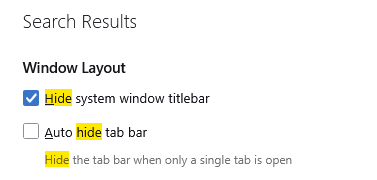
Try disabling this setting then you will not be using Thunderbird version of a windows title bar and your icons will look normal. But you will have a standard title bar with standard things on it. Not the global search
Hi Matt thank you for your continued support
However, in the last post, I have both options enabled. Unticking as you suggested does, as expected, bring up the Windows bar, but that just moves them, they stay with the same format, apart from size, they are smaller.
So I'm back to the userChrome issue which is why I am trying to get the Developer option working :)
On that issue
1. Using the 'burger' icon > Tools > Developer tools I get no effect, so no other window etc. 2. Using the [menu] > Tools > Developer tools I get three options
Developer tools :- again  no effect on clicking
Debug Add-ons:- which does open another window
Error console:- which does bring up a window
???
By the way I can use the layout fine, it's just I like to format the screen as I want and can't fix this Windows button format, which I can on Firefox and had on Thunderbird.
Whereas I really do appreciate your help I don't want you to use so much effort unless you are as crazy as I am :)
Have attached my css for Firefox The Thunderbird, as mentioned, is the same as with the Windows Title, but a bit larger
UPDATE:
Just removed my userChrome.css file :- No dif Used troubleshooting mode:- No dif
It must be some sort of Config setting I'm begining to think, but why Developer tools under the icon is different to that under the menu ??
UPDATE:
I have looked at this post, which is where I'm going but it doesn't work, that post is from 2019 :)

Modified by amoun
OK we are go.
Using this https://forums.mozillazine.org/viewtopic.php?f=39&t=3113240
I changed devtools.debugger.remote-enabled from flase to true
that brought up the box and hidden behind that was the request to connect
Phew, what a relief, and without your support i.e. encouragement I would have not stuck at it today or any time soon, so thank you again.
Now I hope I can look at the DOM to see what the ID's are for my css, that's the next part of this button formatting issue.

Modified by amoun