folder

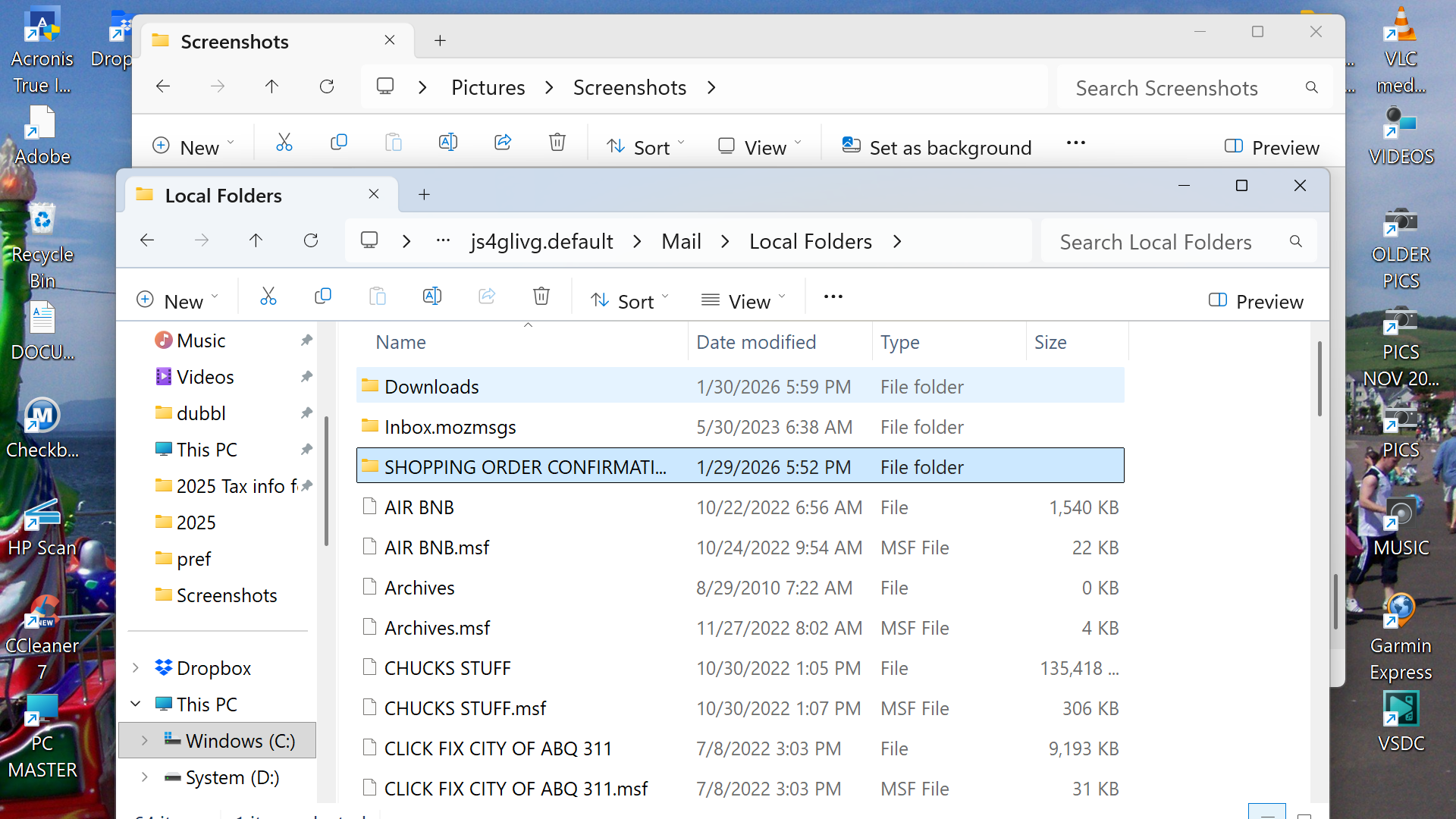
I inadvertently deleted a mail sub folder named Shopping Oder Confirmations I found the folder in my acronis backup and copied it to my desktop I then pasted it in to the profile window of thunderbird in hopes that when i restarted it would show up in my mail folders which it did not I can send you screen shots of the different windows where I dropped the folder Can you help please?! There is tons of information in these folders I reference often. Thank you! BTW I did just make a donation :)
All Replies (20)
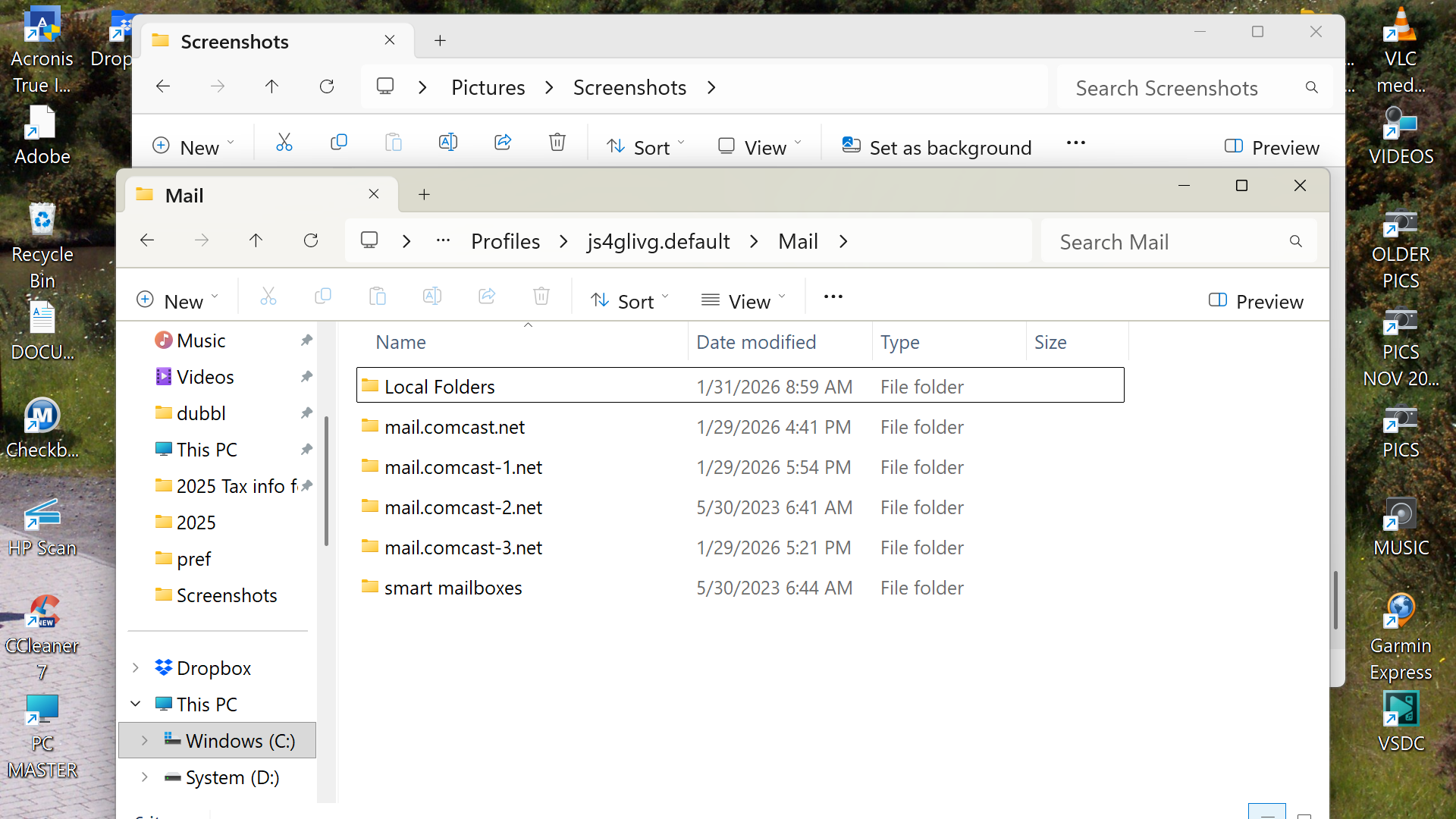
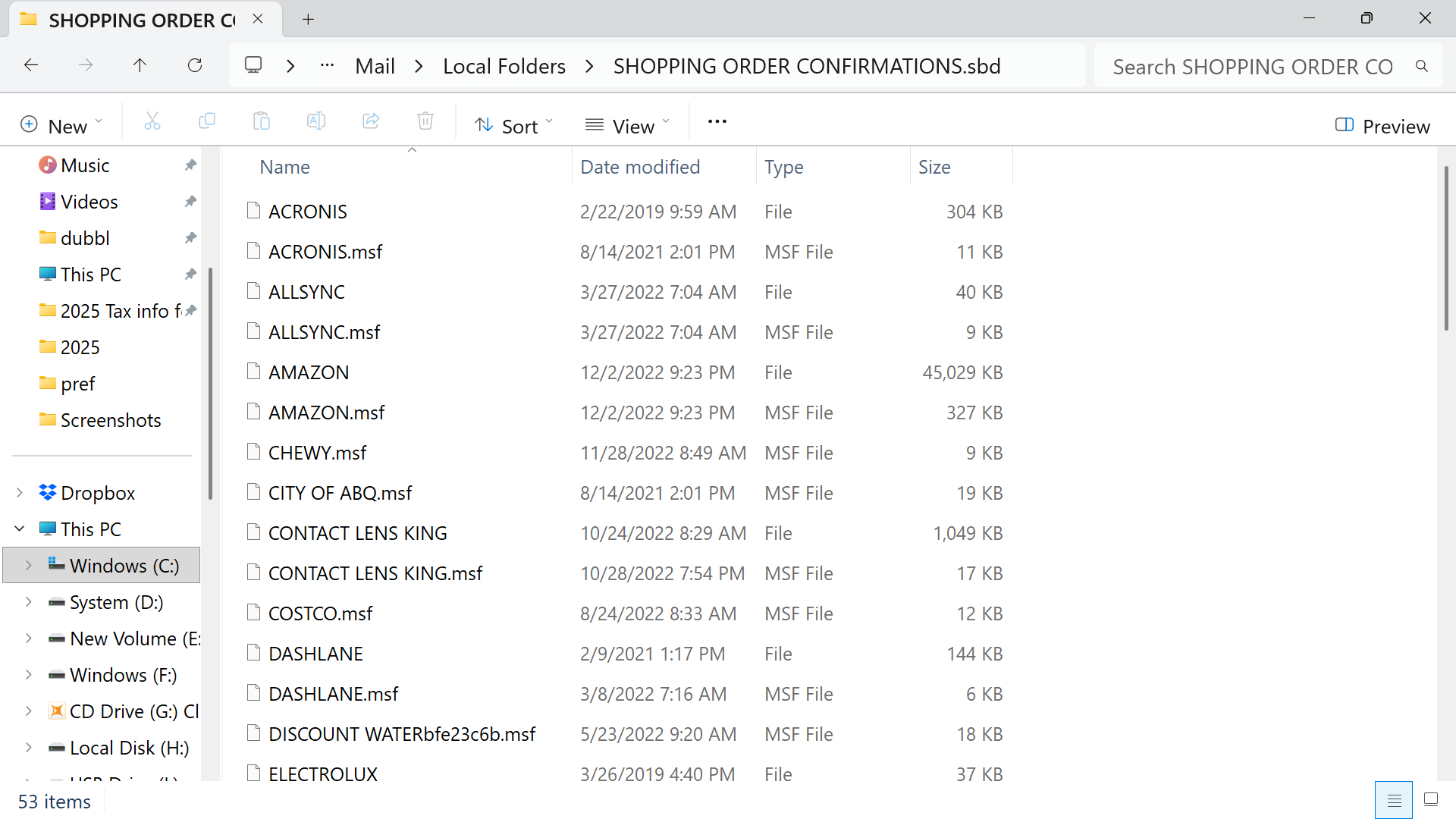
It may help to see the full name of the folder. And a screenshot of what is in the folder. Is there an msf entry as well? If thunderbird 'sees' an mbox file, it opens it. From your screenshots, it appears it is in the right place, so more info on the folder will help. thanks
I am not sure what an "msf" entry is....perhaps i can screen shot it if I know where to look....and thank you so much for the reply!
Click the shopping order confirmation folder and do a screenshot of its contents. that may help
I have included that here...the contents of the shopping order confirmations folder.....do I have to open it and have the individual folders there for Thunderbird to grab on to?....and if so....do I have to move them in to the "shopping order" folder again....or make that folder over?
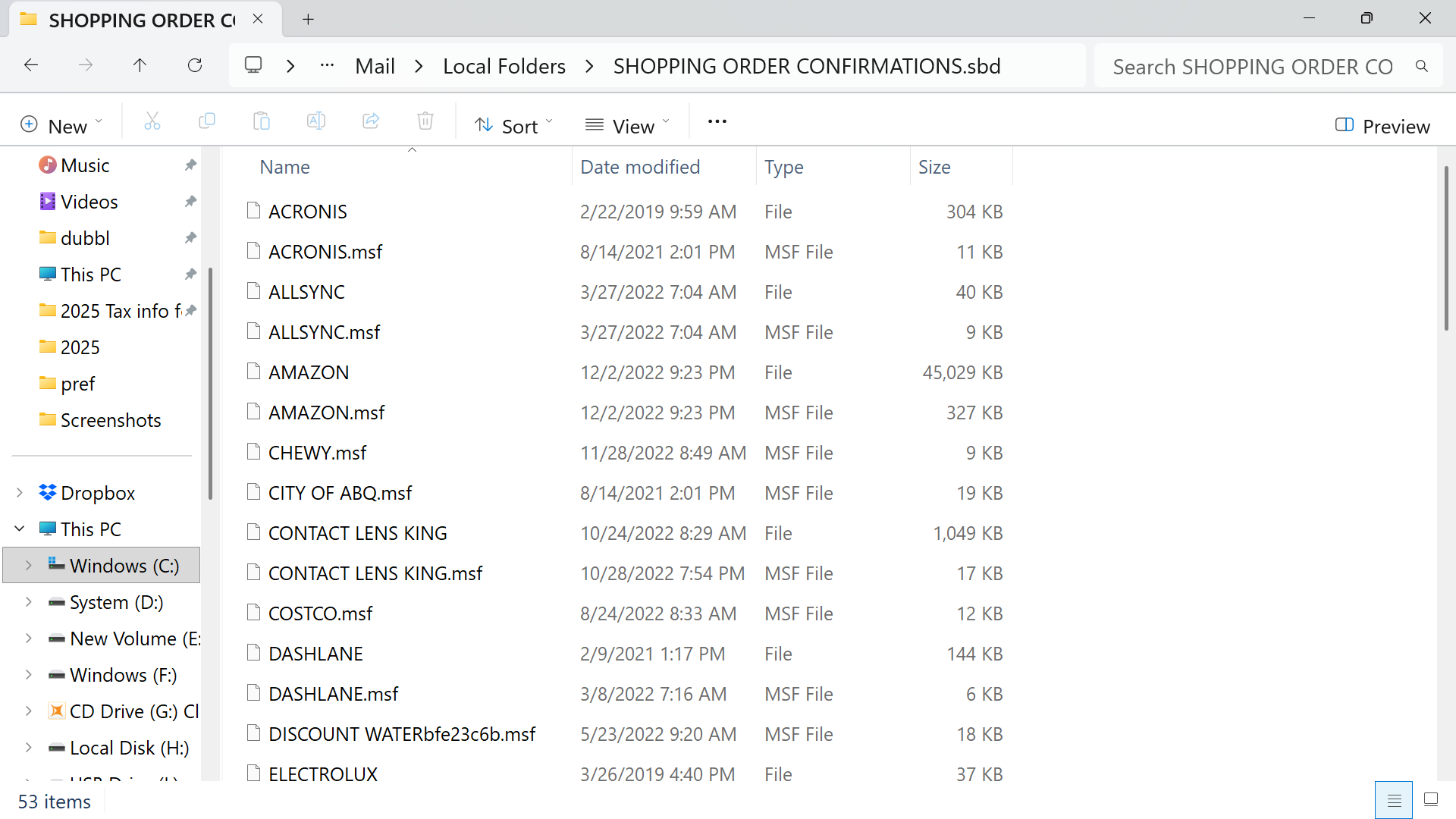
For a quick test, since you are comfortable with windows file explorer, do this: - exit thunderbird, - copy all of the items within the shopping folder to the Mail\Local Folders folder and restart thunderbird. DO NOT include the msf files. - let me know how it goes
Some information may be missing here. Thunderbird readily opens mbox files. Try it this way: - install the addon, importexporttools NG - highlight Local Folders - now, rightclick and select the importexport option to import mbox file. - next, highlight and select one of the files, such as AMAZON or ACRONIS (not the msf files)
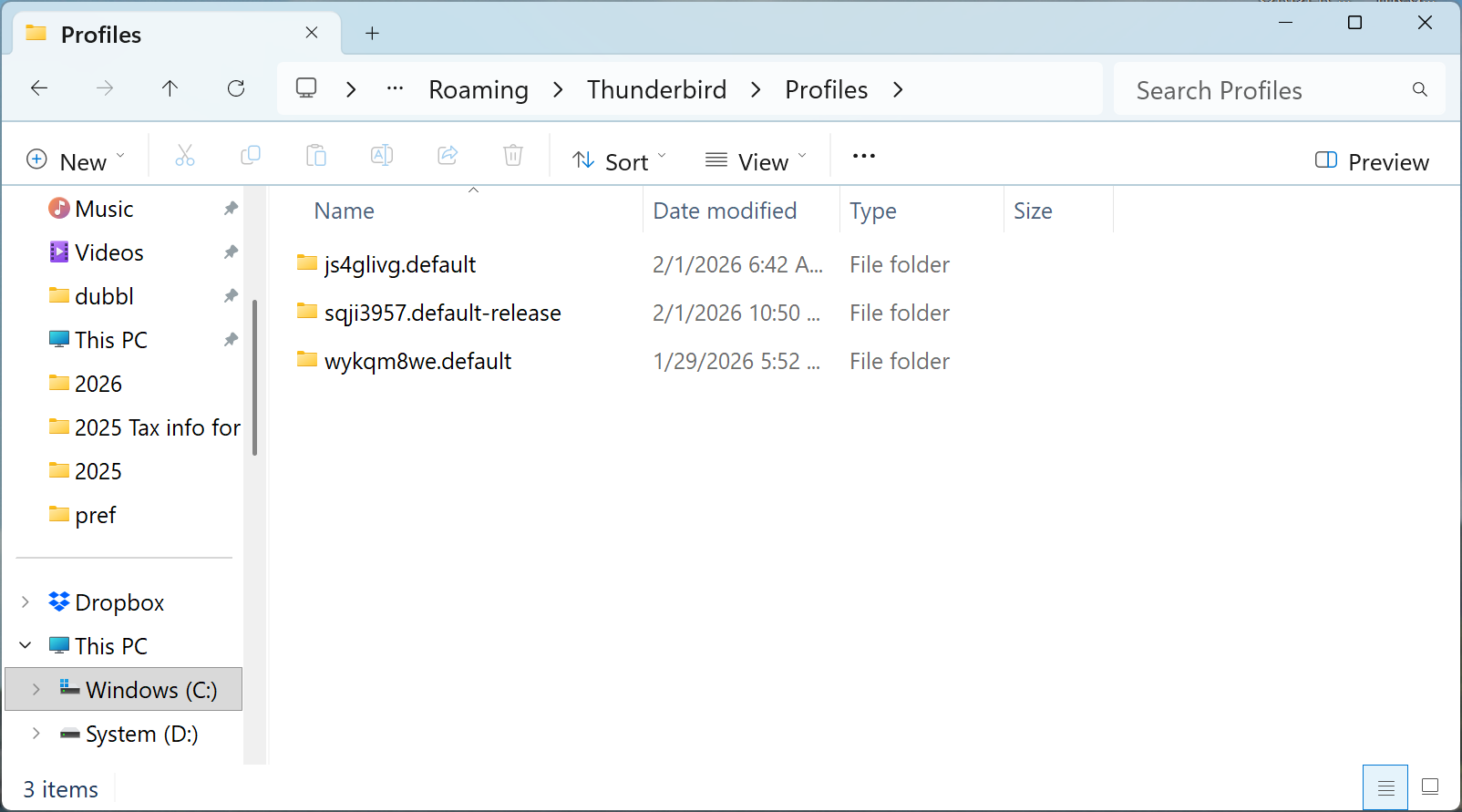
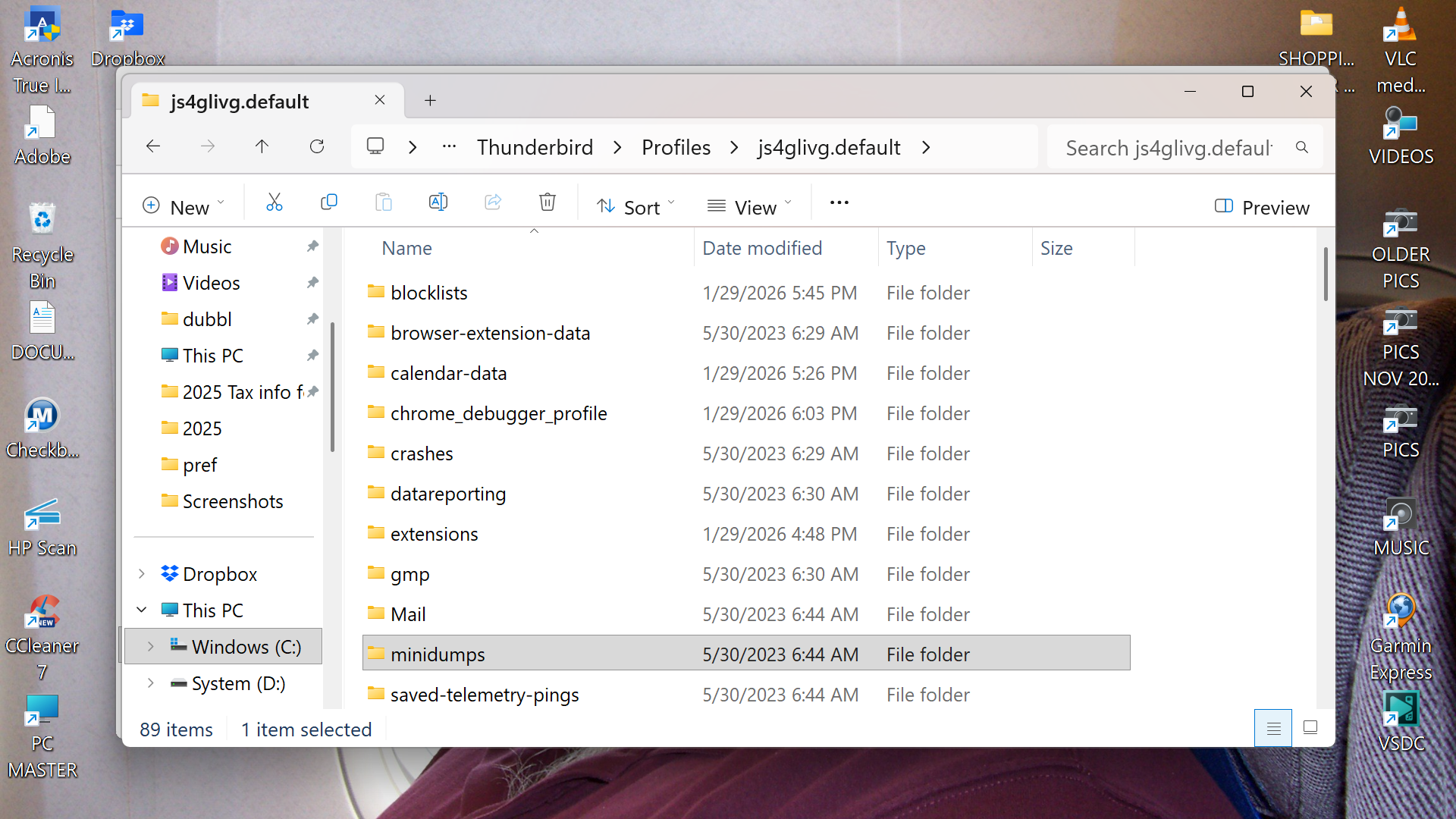
I think this is getting beyond my capabilities ...I dont find any mbd files and there are two places that contain Mail folders...there are 2 files that contain mail folders \js4glivg.default and \sqji3957.default-release There are duplicate mail folders in each of these
You can do this, as you know where the files are from your prior posts. After installing that addon, highlight Local Folders, rightclick and select the importexport option to import mbox file, just click one of those files as shown in your prior screenshots. Files such as AMAZON and ACRONIS. Doing that ensures that the files are placed into the active profile. It may be that your other efforts were moving the files into the wrong profile.
Apparently not....it seems I have made a bigger mess than I started out with....now some other folders are missing....my local folders in the mail file seem to have all the information in it....but they do not load in to the local folders on the left column menu ....
I have confidence. If Thunderbird is still handling email for you, then the only problem is collecting the various folders. This is usually just a pencil/paper project to document where everything is and then bring together. Here are my thoughts: - click help>troubleshootinginformation, scroll to 'profile folder' and click 'open folder' - write down the name of the profile folder. This is important, as you might otherwise copy files into the other profile folders and thunderbird won't see them there. - now, in windows file explorer, browse the folders where you had the missing entries. Write down the folder locations. Post screenshots if that helps. - once you have located the missing items and have a list of where they are, then pick up again with the importexport tool by highlighting Local Folders, right click, select importexport option to import mbox file, and then, one by one, import the items from the list. Tedious, yes, but it should work for you. Let us know.
I attempted to do the procedures you indicated and unfortunately the results were disastrous...somehow importing the profile resulted in thunderbird executing a complete download of a new installation and ALL of my emails were not to be found....I cannot seem to get the import feature to find the correct profile file to import.....I find it on my destop but for some reason cannot navigate the import function to find the same file...right now its basically at square one like downloading thunderbird for the first time...i dont know what to do at this point...for the moment i have lost everything
I didn't know you were trying to import the profile, but just selected files. Maybe just reinstall thunderbird and your email account and then review those missing items. And, if you rightclick an entry on desktop, and then click 'properties', it will show you where the file is located on the disk.
I reinstalled and now it won't even open saying the profiles are missing or inaccessible
OK, do this: - copy the appdata\roaming\thunderbird folder to a safe location away from the appdata folder - now, delete the appdata\roaming\thunderbird folder and then REINSTALL thunderbird - thunderbird will create a new, empty, profile. Set up your email account now. - next, look at the profile folders in the copied Thunderbird folder, using Windows File Explorer. Note which ones have the missing folders. Create screenshots of what you see and post it. Do not attempt to fix anything yet. As long as the files still exist, we can recover them.
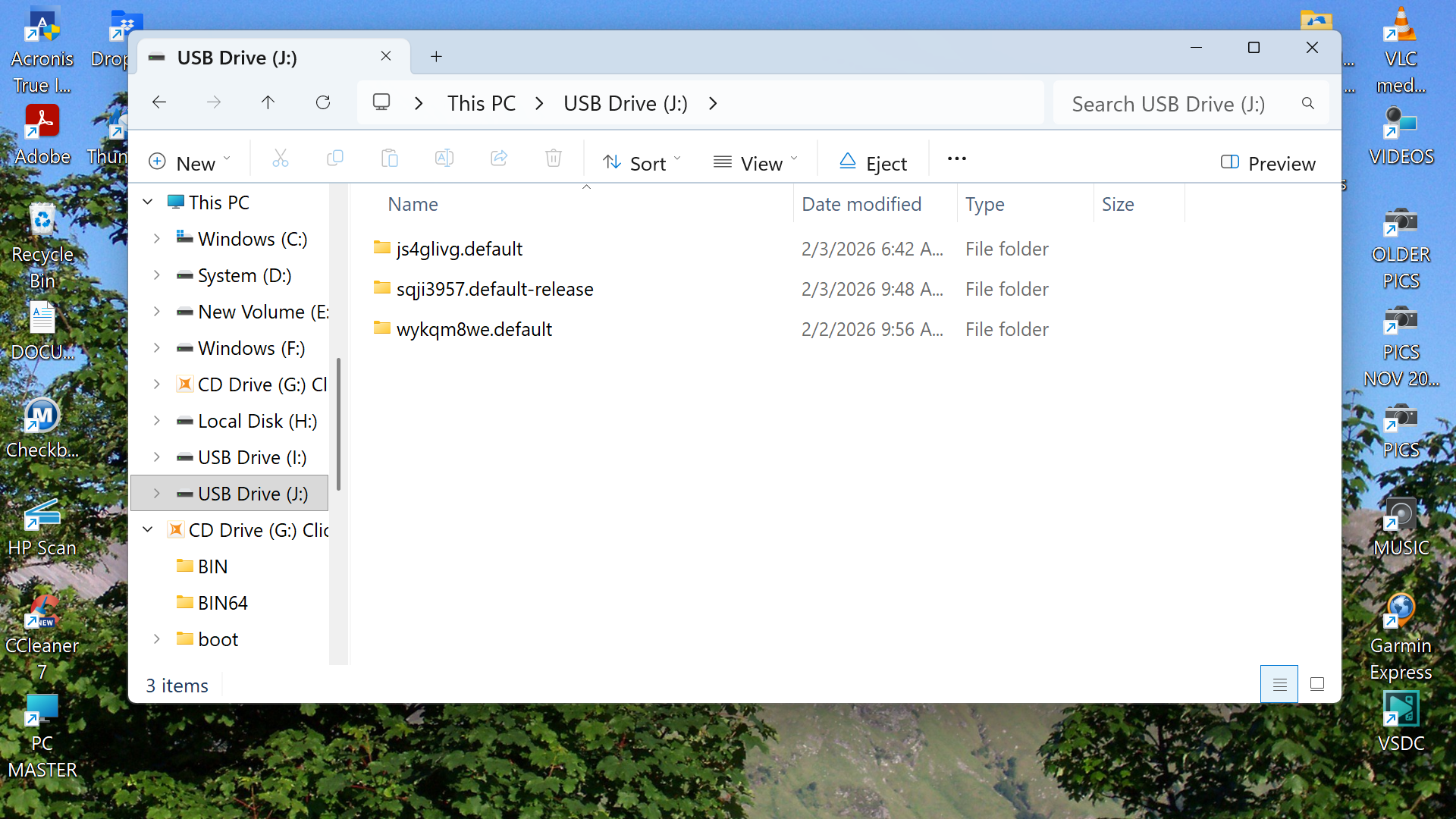
Here is a screen shot of the files i saved to a flash drive....is it safe now to delete them from C ?
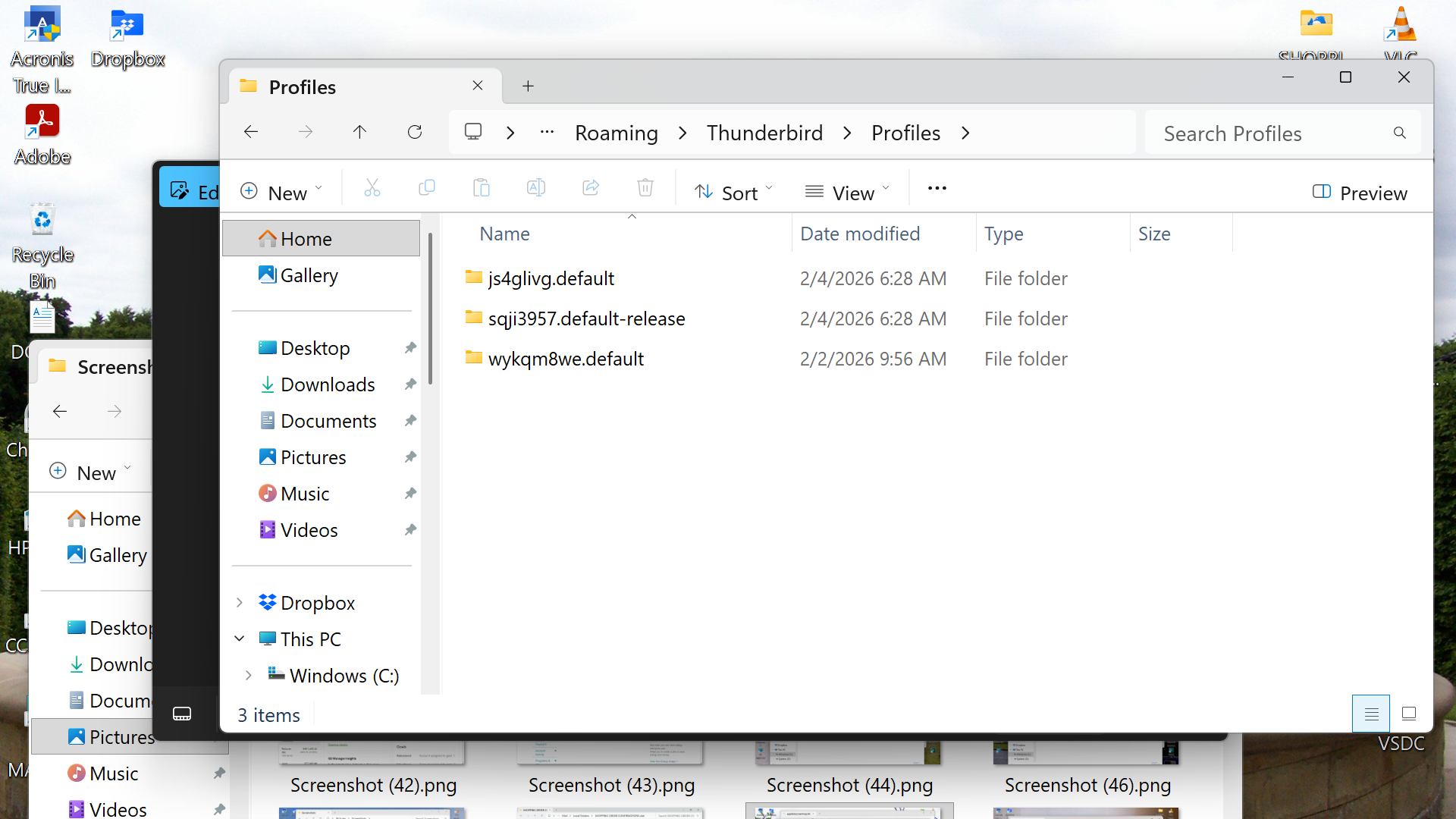
Yes, if that is all the profiles. Next, delete the thunderbird folder itself. On reinstall, Thunderbird will create a new Thunderbird folder. Click through the folders on flash drive to locate the missing files and note where they are located. After you setup email, they can be added back. Post back when you're ready to continue.
OK...i deleted thunderbird folder from my pc and reinstalled....(looks different...was there an update?)......I set up my original 3 email accounts...the screen shot shows the files the new installation installed....so far.....so good.....so when you open the the default release file....the list shows a mail folder which does not contain much.....that folder on my saved drive contains all the sub folders I had previously...is this the file i should replace?
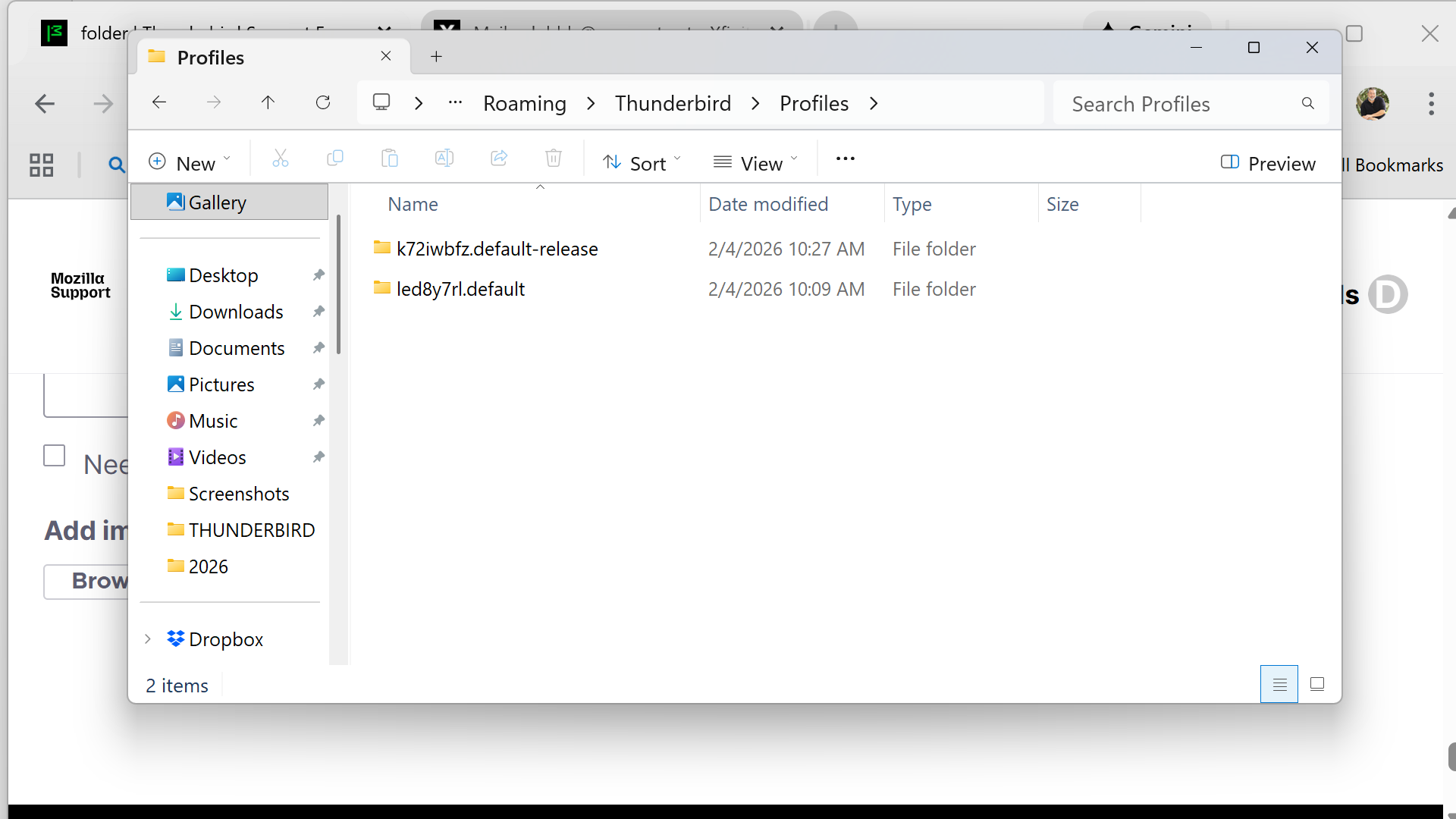
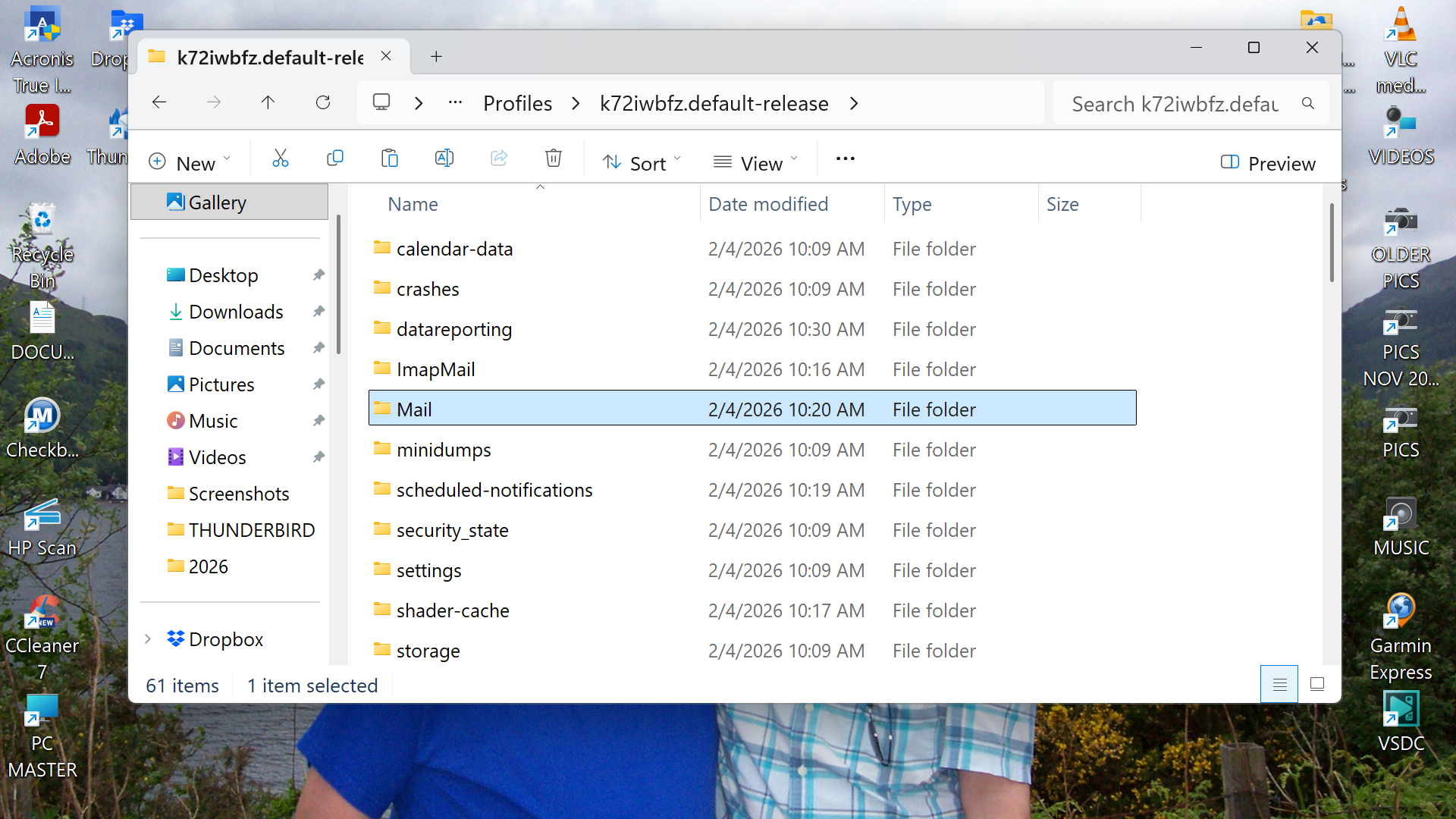
I think those screenshots are of the new installation. True? We do NOT want to touch those yet. Please post screenshot of the folder you copied to flash drive. That is where we want to find the missing data.