


Backup and store imap account

Hi,
I recently had to change my email accounts from pop3 to imap. I see there a lot of advantages, though I'd like to make sure I'm able to backup the emails from the remote folder. If I understand well, it is possible to do that by using the option "Synchronization and Storage" in Account Settings.
I'd like to know where the local folders are usually store on the PC (I would guess in the appData/Roaming/ .. folder), and whether it is possible to change the location manually in order to store it locally to a NAS drive.
Thanks for the answers.
EB
എല്ലാ മറുപടികളും (1)
Set up synchronising for all folders to get a copy in your Thunderbird Profile folder. You have a couple of options on what you want to backup and different methods.
Option 1: Manually backup entire profile folder name. This is not complicated and very quick to do. make hidden files and folders visible:
synchronise folders to get an up to date record. Help > Troubleshooting Information click on 'show folder' button a new window opens showing the contents of your profile folder name.
Close thunderbird now - this is important.
go up the directory and copy the profile folder name folder, which is usually xxxxxxxx.default, where the x's are letters and numbers. You can paste this into any external device.
Option 2: Use an addon to help backup the entire profile or just folders containing emails.
download the addon xpi file to desktop or downloads folder.
How to Install Add-on Extension: After downloading addon extension *.xpi file to desktop or downloads folder.
n Thunderbird 'Tools' > 'Add-ons' or 'Menu icon' > 'Add-ons'
- Click on gear wheel icon and select 'Install Add-on From File'.
- Locate the *.xpi file you downloaded and click on 'Open'.
- You many need to restart Thunderbird when prompted.
Synchronise folders to get an up to date record.
Go into 'Offline' mode to stop any further synchronising. You can click on the 2 blue screen icon located left in bottom status bar. It will change to 2 black screen icon when offline.
To backup profile: 'Tools' > 'Importexporttools' > 'Export Profile'. Please note this may take a little while - it is not as quick as doing it manually.
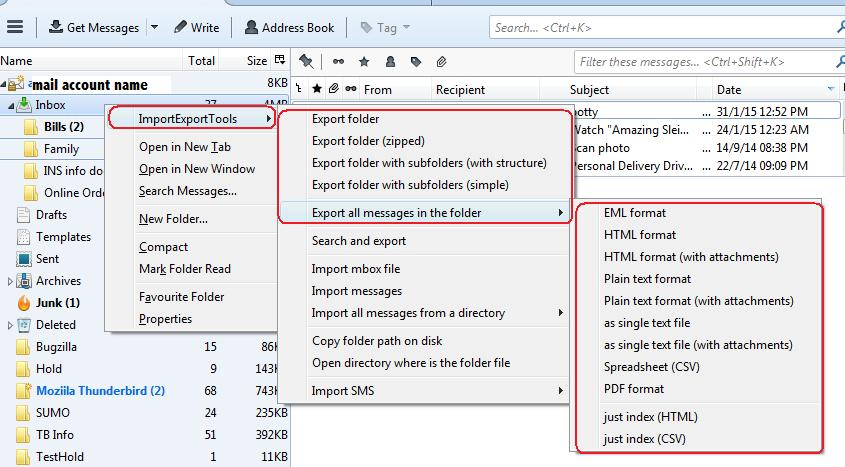
To only backup a folder of emails: right click on folder and select: ImportExporttools > Export Folder or other options such as : ImportExporttools > Export all messages in folder > Eml format This method saves each email as a separate *.eml file.
See image below showing options.
then go back into 'online' mode: You can click on the 2 black screen icon located left in bottom status bar. It will change to 2 blue screen icon when in online mode.
Modified by Toad-Hall