


Audio On Various Websites Not Working

Earlier today the audio on Firefox stopped working. I have tried disabling extensions, checked output devices, reinstalled and it still doesn't work. Please Help. The Version is 150.0.1
Chosen solution
You can read more here.
Read this answer in context 👍 1All Replies (9)
Enhanced Tracking Protection is a collection of Firefox features that protects your privacy by blocking trackers that follow you online to collect information about your browsing habits and interests. It also includes protection against harmful scripts.
If a site seems broken, you can try turning off Enhanced Tracking Protection for that website:
- Click the shield
 icon at the left of the address bar.
- At the top of the panel, toggle off the Enhanced Tracking Protection switch
 . The site will be added to your Enhanced Tracking Protection exception list, allowing trackers on it, and the page will reload automatically.
-
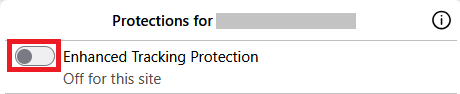
This will allow trackers to load on that website while keeping you protected on other sites. To learn more, see Enhanced Tracking Protection in Firefox for desktop.
One other fix I know of is a fresh install. Certain Firefox problems can be solved by performing a Clean reinstall. This means you remove your Firefox program files and then reinstall Firefox. This process does not remove your Firefox profile data (such as bookmarks and passwords), since that information is stored in a different location.
To do a clean reinstall of Firefox, please follow these steps: Note: You might want to print these steps or view them in another browser.
- Download the latest Desktop version of Firefox from mozilla.org (or choose the download for your operating system and language from this page) and save the setup file to your computer.
- After the download finishes, close Firefox.
- Windows: Click the Firefox menu
 , then click "Exit".
- Mac: Click the Firefox menu at the top of the screen, then click "Quit Firefox".
- Linux: Click the Firefox menu , then click "Quit".
- Windows: Click the Firefox menu
- Delete the Firefox installation folder, which is located in one of these locations, by default:
- Windows: (Note: Check both folders.)
- C:\Program Files\Mozilla Firefox
- C:\Program Files (x86)\Mozilla Firefox
- Mac: Delete Firefox from the Applications folder.
- Linux: If you installed Firefox with the distro-based package manager, you should use the same way to uninstall it - see Install Firefox on Linux. If you downloaded and installed the binary package from the Firefox download page, simply remove the folder firefox in your home directory.
- Windows: (Note: Check both folders.)
- Now, go ahead and reinstall Firefox:
- Double-click the downloaded installation file and go through the steps of the installation wizard.
- Once the wizard is finished, choose to directly open Firefox after clicking the Finish button.
More information about reinstalling Firefox can be found here.
WARNING: Do not use a third party uninstaller as part of this process. Doing so could permanently delete your Firefox profile data, including but not limited to, extensions, cache, cookies, bookmarks, personal settings and saved passwords. These cannot be easily recovered unless they have been backed up to an external device! See Manually back up and restore Firefox profile data.
Please report back to say if this helped you!
Thank you.
That option was muted. Thank You so much :) I have no idea how that happened. I'd never touched those options before.
I am glad to hear that your problem has been resolved. If you haven't already, please select the answer that solves the problem. This will help other users with similar problems find the solution.
Thank you for contacting Mozilla Support.