


Replying to HTML email: text and background color settings not working properly

As installed, TB would automatically choose a contrasting color for text when replying to an email with a dark or light background. But at some point I changed the text color for a given email. After that I am unable to restore the default behavior no matter what I do. I have gone through all the settings that pertain to text and background color and even after setting them all to the default it still doesn't work.
For example, now when I try to reply to an HTML email that has a white background, TB is defaulting to white text, which of course renders the text invisible. Using the compose toolbar I manually select black text and make it the default, but as soon as I type the first character, it switches itself back to white on white.
At the moment, the only way I can reply to an HTML email with a white background is to select the invisible text after the fact and change it to black. Not very practical.
Modificato da biz10 il
Tutte le risposte (11)
In Options/Composition/HTML Style, what are the Text and Background Colors settings?
Text black, background transparent.
Do the app or Windows modes in W10 Settings, Personalization, Colors, have any effect? Are you using the Default TB theme?
No changes to the Windows environment, personalization settings, etc. They are the same as they were before the trouble started. I did try out the TB dark theme at one point. I ended up switching back to the default. The theme change wasn't the trigger. The trigger was when I changed the text color to white (using the toolbar) for a specific message that had a black background, and it has been broken ever since. No matter what text or background color I choose, as soon as I start typing it switches back to white on white.
Modificato da biz10 il
Does the problem persist in safe mode (hold Shift when launching TB)? This will test for a broken layout, among other factors. If it isn't present in safe mode, you could launch again in safe mode, 'Reset toolbars & controls', 'Make changes & restart'. Also, see if hardware acceleration is enabled in normal mode, in Options/General/Indexing (acceleration is disabled in safe mode).
The problem persists in safe mode even after disabling all extensions and resetting toolbars & controls.
I wonder if the setting in Config. editor is not changing according to the Text Color setting. Check the value of msgcompose.text_color in Options/General/Indexing/Config. editor. If it's not #000000 (black), right-click, Reset.
It looks correct.

One other place to check is in the Options/General/Language & Appearance, Colors section (see picture). Note the override setting.
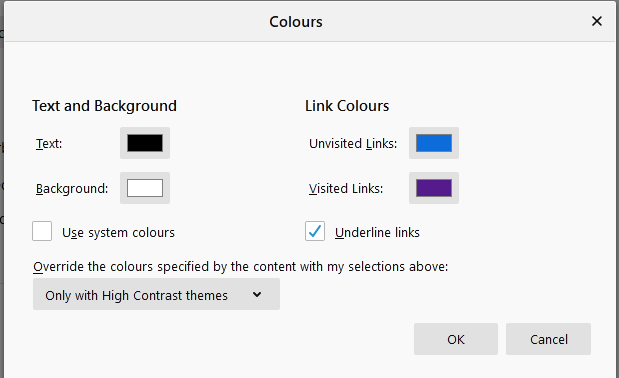
Mine are the same.
Under "Tools" select "Preferences" Drop down to the "Language & Appearance" section and click on "Colors" by the "Fonts' & Colors" section You should get a pop-up like the image attached.
At the bottom, select "Never" in the section labeled:
"Override the colors specified by the content with my selections above:"
The text colors will change once you make this change.
