


canot login to facebook from mozilla browser.
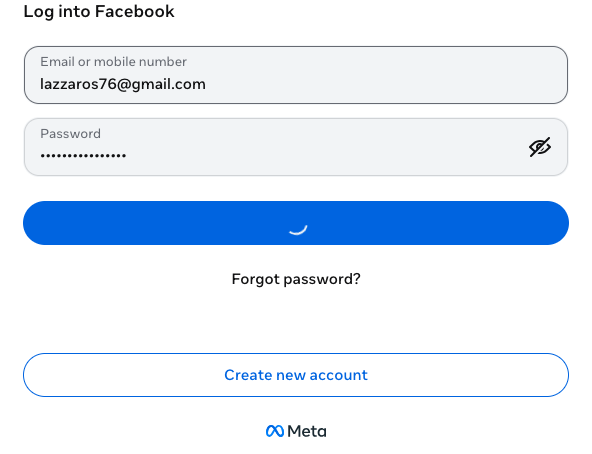
Hi. lately i canot login to facebook from mozilla browser. i can, from any other. The broblem started latelly. done everything internet sugests. I have used mozilla for years with everything clean up on exit and start fresh every time. My cash is cleaned Mozilla is updated My saved username and password are auto filled but the circle keeps spinning without logging in. I type my username and password the circle keeps spinning without logging in. I type my OTHER username and password the circle keeps spinning without logging in. I type my username and password in other browse and i log in imediately. what is this new problem?
Solusi terpilih
Hello,
Try Firefox Troubleshoot Mode to see if the problem goes away. Firefox Troubleshoot Mode (previously known as Firefox Safe Mode) is a special diagnostic mode that temporarily turns off hardware acceleration, disables add-ons (extensions and themes) and resets some settings. See the Use Troubleshoot Mode in Firefox article for details.
If Firefox is open, you can restart in Firefox Troubleshoot Mode from the Help menu:
- Click the menu button
 , click Help, select Troubleshoot Mode and click Restart in the "Restart Firefox in Troubleshoot Mode?" dialog that opens.
If Firefox is not running, you can start Firefox in Troubleshoot Mode as follows:
- On Windows: Hold the Shift key when you open the Firefox desktop or Start menu shortcut.
- On Mac: Hold the option key while starting Firefox.
- On Linux: Quit Firefox, go to your Terminal and run firefox -safe-mode
(you may need to specify the Firefox installation path e.g. /usr/lib/firefox)
When the Firefox Troubleshoot Mode window appears, select "Open".
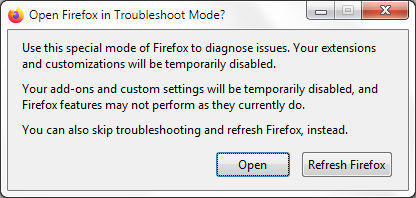
If the issue is not present in Firefox Troubleshoot Mode, your problem is probably caused by an extension, theme or hardware acceleration. Please follow the steps in the Troubleshoot extensions, themes and hardware acceleration issues to solve common Firefox problems article to find the cause.
To exit Firefox Troubleshoot Mode, just close Firefox and wait a few seconds before opening Firefox for normal use again. (If you can't exit Firefox Troubleshoot Mode, please see Firefox is stuck in Troubleshoot Mode).
When you figure out what's causing your issues, please let us know. It might help others with the same problem.
Baca jawaban ini dalam konteks 👍 0Semua Balasan (1)

Solusi Terpilih
Hello,
Try Firefox Troubleshoot Mode to see if the problem goes away. Firefox Troubleshoot Mode (previously known as Firefox Safe Mode) is a special diagnostic mode that temporarily turns off hardware acceleration, disables add-ons (extensions and themes) and resets some settings. See the Use Troubleshoot Mode in Firefox article for details.
If Firefox is open, you can restart in Firefox Troubleshoot Mode from the Help menu:
- Click the menu button , click Help, select Troubleshoot Mode and click Restart in the "Restart Firefox in Troubleshoot Mode?" dialog that opens.
If Firefox is not running, you can start Firefox in Troubleshoot Mode as follows:
- On Windows: Hold the Shift key when you open the Firefox desktop or Start menu shortcut.
- On Mac: Hold the option key while starting Firefox.
- On Linux: Quit Firefox, go to your Terminal and run firefox -safe-mode
(you may need to specify the Firefox installation path e.g. /usr/lib/firefox)
When the Firefox Troubleshoot Mode window appears, select "Open".
If the issue is not present in Firefox Troubleshoot Mode, your problem is probably caused by an extension, theme or hardware acceleration. Please follow the steps in the Troubleshoot extensions, themes and hardware acceleration issues to solve common Firefox problems article to find the cause.
To exit Firefox Troubleshoot Mode, just close Firefox and wait a few seconds before opening Firefox for normal use again. (If you can't exit Firefox Troubleshoot Mode, please see Firefox is stuck in Troubleshoot Mode).
When you figure out what's causing your issues, please let us know. It might help others with the same problem.