


Accounts don't save
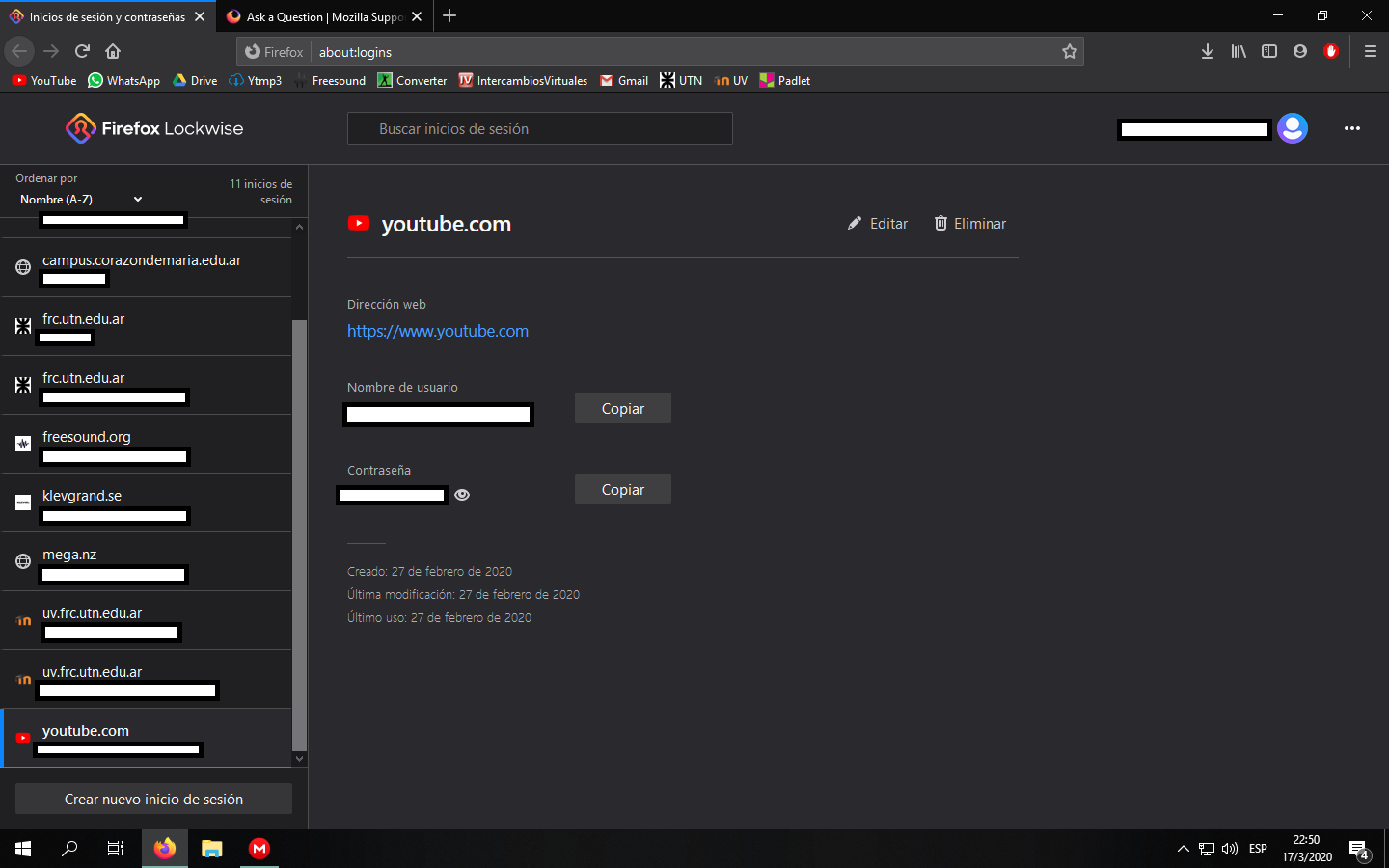
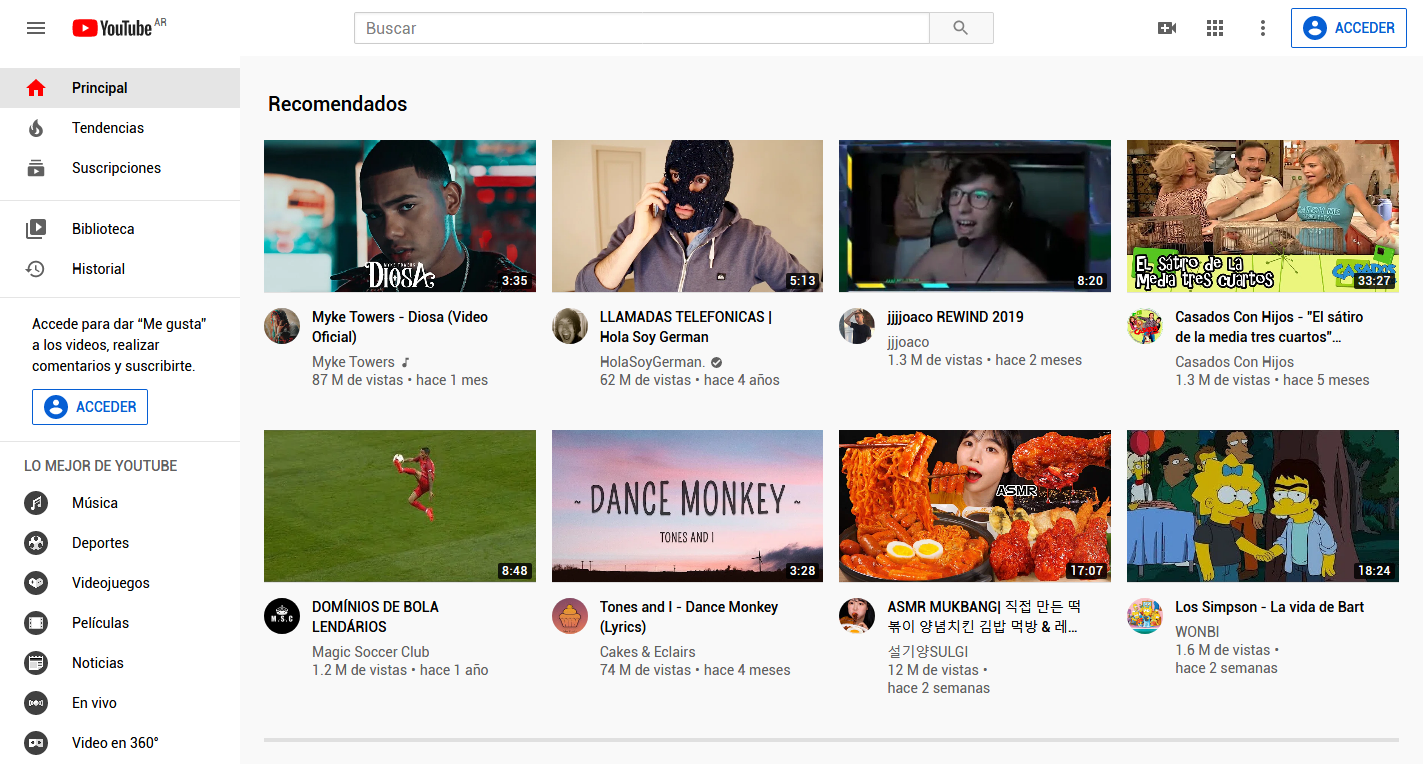
Hi! I don't know if my question is kind of simple, but I've tried everything and I'm still having the problem that Firefox doesn't remember any of my accounts and its passwords. If I want to log in, the auto fill works, but every time I open WhatsApp Web, Youtube, Gmail and other tabs I have to log in again. At the images you can see that YouTube, for exaple, says it has my account saved, but when I open it I have to log in. Thank you! Note: This just happens when I close Firefox, might I turn "Save cookies after closing Firefox" on?
Wot nic.dom2002 změnjeny
Wšě wotmołwy (1)

Wubrane rozrisanje
You are talking about two different things. The Password Manager saves all sign-in/log-in data. As to being logged in,
Your ‘logged-in’ status is stored in special cookies.
If the cookie is removed, you are logged out.
You may be in Private Browsing mode or told Firefox not to remember.
Type about:preferences#privacy<enter> in the address bar. The button next to History, select Use Custom Settings.
Turn off Always Use Private Browsing Mode Turn on Remember My Browsing And Download History At the bottom of the page, turn on Clear History When Firefox Closes. At the far right, press the Settings button. Turn on ONLY Cache and Form And Search History leaving the others off.