


Filelink

Hello I wish to send an email with a large attachment, and it suggests that I use Filelink. I have referred to the instructions, but just do not understand them. Is there a simple explanation as to how I can add Filelink, please? Colin
Svi odgovori (4)
Thanks Dave. I have spent so long in trying to set up and work this with Filelink that I have given up. It seems so complicated. I wish there was a simple guide - 1. Do this; 2. Do that, etc.

(a) It is not mandatory to use Filelink. You can still attach files in the ordinary, old way.
(b) However, if you really want to use Filelink:
I think the link provided by david is easy to understand.
I think the difficult part is to decide which add-on to install: https://addons.thunderbird.net/en-US/thunderbird/tag/filelink I use add-on "FileLink provider for Send": https://addons.thunderbird.net/en-US/thunderbird/addon/filelink-provider-for-send/
Then you have to decide which Send service instance you want to use: https://github.com/timvisee/send-instances/ I use the following service instance: https://send.vis.ee
The following steps are based on the above-mentioned add-on and service instance:
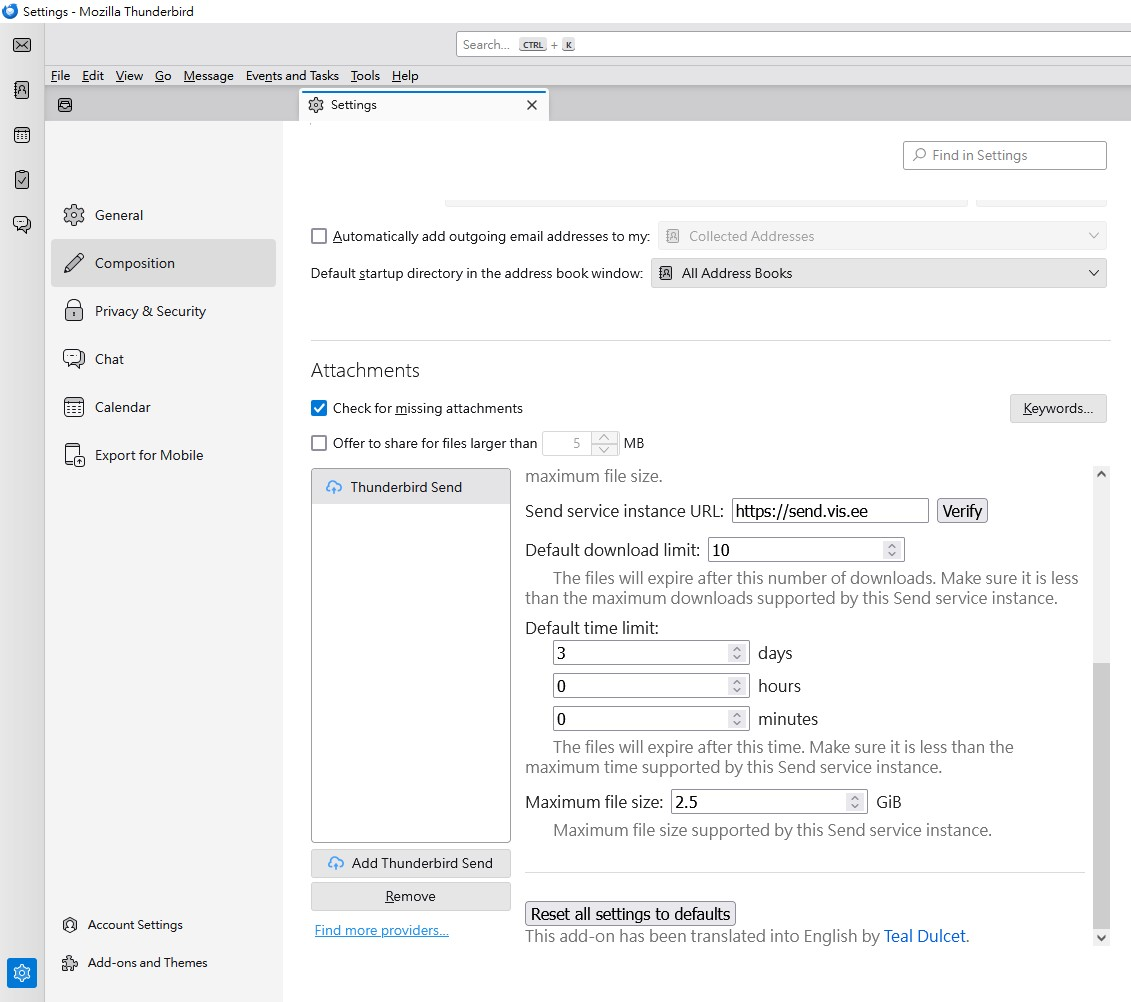
1. "Settings" > "Composition" > "Attachments" > "Find more providers...". 2. Install add-on "FileLink provider for Send". 3. Back to "Attachments" > click "Add Thunderbird Send". 4. Enter the following data: 4.1. Send service instance URL: https://send.vis.ee > click "Verify". 4.2. Default download limit: 10 4.3. Default time limit: 3 days 4.4. Maximum file size: 2.5 GiB (Please see the attached image.)
When you attach a file to a message, Thunderbird might suggest using Filelink. 1. If you prefer to attach the file as a regular attachment, choose "Ignore". 2. If you prefer to use Filelink, click "Link" to upload the file to the online storage service provider.
Thanks for your reply. I have tried it, but it seemed to be taking ages to work, once I clicked on "Link", and so I deleted the message. I will simply attach documents in the normal way.