


I just deleted all my email archives

I'm using TB 150.0.2 on a Mac with the latest update of MacOS.
I just deleted all of my archived emails, thinking it was stuff that I had sent to trash. I.e. I deleted all archives, then emptied trash. Only after I did that did I realize that I had deleted things I want to save.
I'm pretty sure there's no way to undo emptying the trash, but I use Time Machine to back up. If I open time machine and go to the most recent back-up, I should be able to get everything back, right?
What folder (or folders) should I restore from a Time Machine back-up?
Chosen solution
Yes, you can do that.
- Make a Local Folder for temporary or permanent use. Right-click on it and choose "ImportExportTools NG", then "Import mbox files", then "Individual mbox files".
- Your system file browser will appear. Navigate to and select the "INBOX" and "Sent Mail" and any other folder files you want. You only need the ones with no file extension, not the MSF files. When you click "Open", they will each be imported into your temporary folder as separate sub-folders.
Read this answer in context 👍 0All Replies (8)
I just dug a little deeper. All of my gmail archives got deleted. My other email accounts are untouched.
If I want to recover all of the gmails that were in my inbox and outbox, which folder should I restore from time machine?

Please see my answer to a similar question from a few months ago ( https://support.mozilla.org/en-US/questions/1560633 ):
Here's how I would do it. This requires the addon, "Import ExportTools NG" ( https://addons.thunderbird.net/en-US/thunderbird/addon/importexporttools-ng/ )
- Extract the file from your backup that represents the folder that contains the messages you want to recover into a temporary folder in a convenient place (Desktop?). It might be a pair of files called "Trash" and "Trash.msf" or similar.
- Create a temporary Local Folder in Thunderbird. Right-click on it and choose <ImportExportTools NG | Import mbox files | Individual mbox files> from the context menu. Navigate to the temporary folder that has your extracted files, select those files and click "Open".
- This will import all messages from the archived folder to your local folder. You can now delete everything you DON'T want, or copy or move the missing messages to their final destination.
- Delete the temporary local Thunderbird folder when you're done.
In your case, to identify that folder you want to import, go to <Account Settings | (the Gmail account in question) | Server Settings>; scroll down to the bottom to where it says "Local Directory. This is the file system folder where the various Thunderbird folder files can be found.
You now know where to look in your backup. Copy the folder files that you want to restore from your backup to the temporary location on your computer as described above. Then import them into the Local Thunderbird folder as described above.
I don't know much about Macs or Time Machine, so I hope this makes sense.
Thanks for your reply, Lin. Very helpful. I'm almost there. I have one more question.
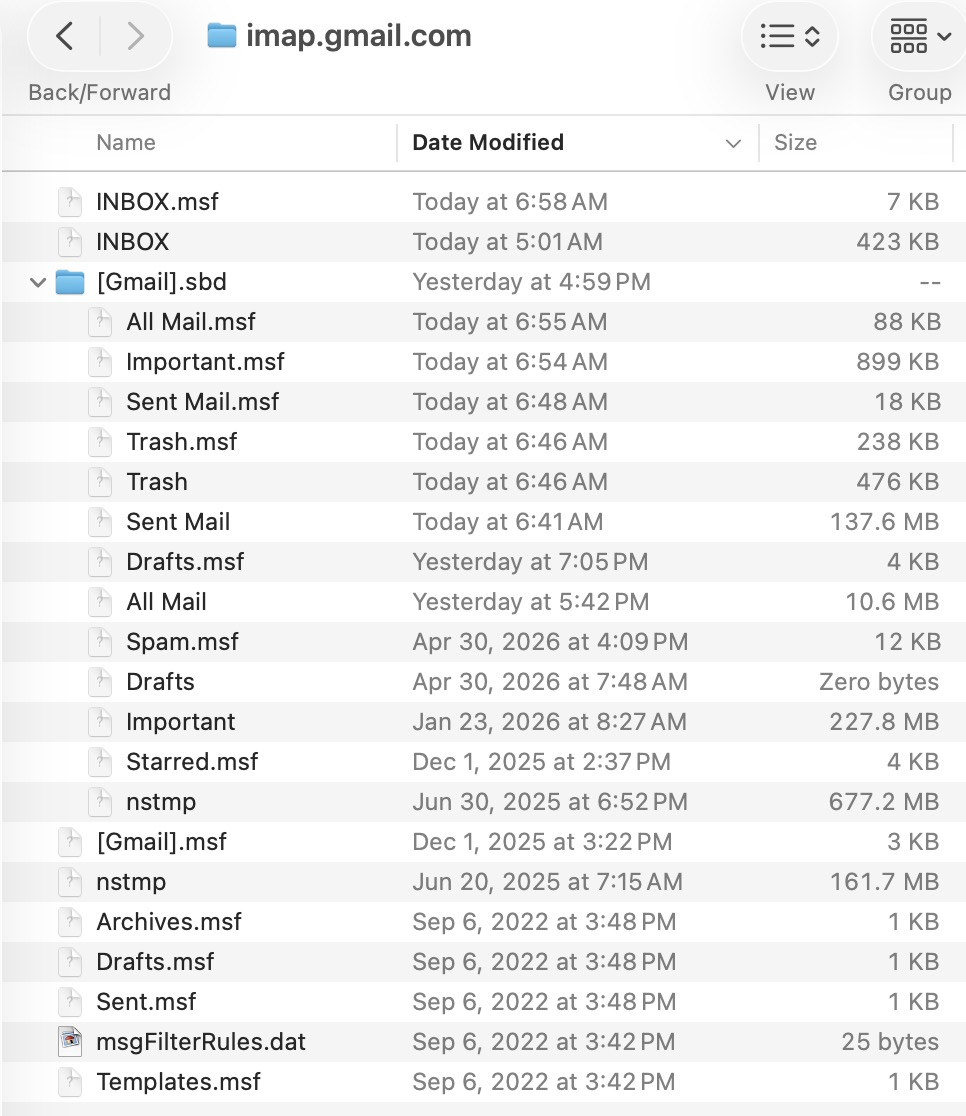
I followed your instructions to navigate to the folder for Gmail in my local directory. I attached a screenshot that shows the contents of the Gmail folder (imap.gmail.com). The screen shot shows the entire contents of that folder.
If it's possible, I would like to put all of the contents from the inbox into one temporary folder and all of the contents of sent emails into another temporary folder. If this is possible, can you tell me which folders I need to select for each of those actions?
Thanks again!
Hi TB gurus,
Can any of you check my previous reply and let me know which folders to select to recover the contents of my gmail inbox and my gmail sent folders?
Thanks!
Chosen Solution
Yes, you can do that.
- Make a Local Folder for temporary or permanent use. Right-click on it and choose "ImportExportTools NG", then "Import mbox files", then "Individual mbox files".
- Your system file browser will appear. Navigate to and select the "INBOX" and "Sent Mail" and any other folder files you want. You only need the ones with no file extension, not the MSF files. When you click "Open", they will each be imported into your temporary folder as separate sub-folders.
Thanks again, Lin.
I want to make sure I don't mess this up. Just to be sure, should I restore the two files that I put red rectangles around in the attached screen shot?
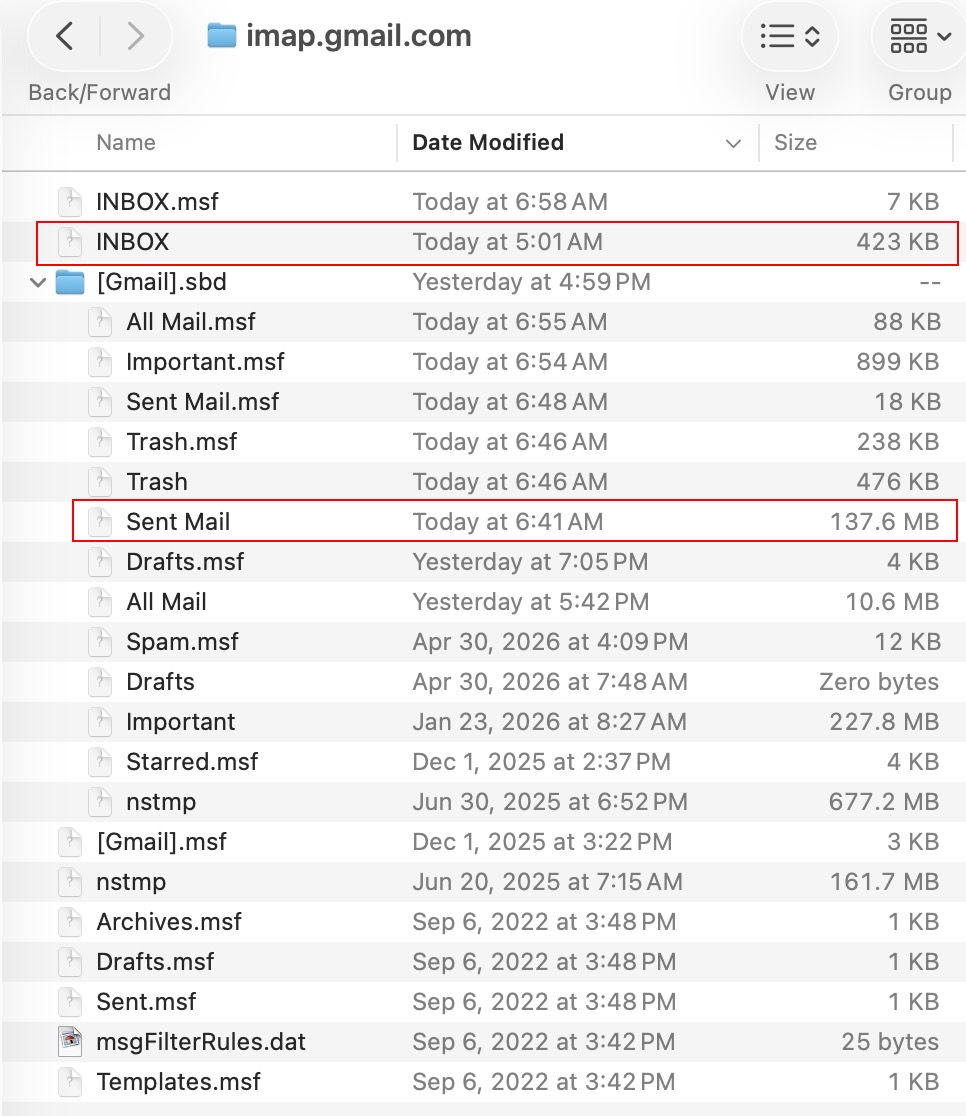
I just tried restoring those two files and using the Import/Export add-on to put them into temporary folders. It worked perfectly.
Now I just need to copy all of the email messages in the temporary folders and past them into my gmail Inbox and Sent Mail folders.
Thanks Lin!