


Setting default accounts to check

Can someone advise me on how to select the accounts to be normally checked and any other accounts not to be checked ie I have 4 accounts with different ISPs- A,B,C,D. When I press "Get Messages I only want it to get messages from A and C and not B and D. I know it can be done as my thunderbird installation does just that but I can not find where this was set up. Can someone enlighten me please
Chosen solution
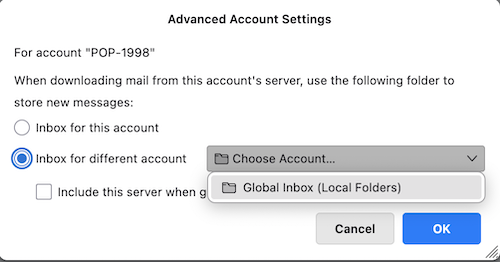
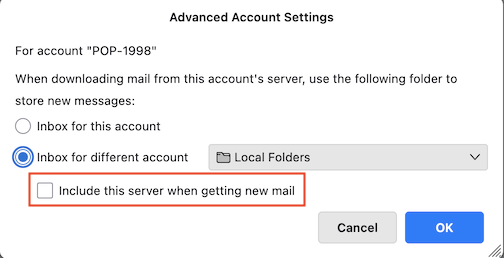
In your Windows Thunderbird profile you have "bundled" several POP accounts in what is called the "Global Inbox (Local Folders)". The global Inbox can be activated in Account Settings > accountname > Server-Settings > Message Storage > Advanced .... (image) In the Advanced Account Settings of each POP account you can choose whether the server is included when getting new mail (image)
Read this answer in context 👍 0All Replies (5)
- rightclick the get messages icon that is to the left of the 'New Message' button - in that menu, you can select which account to check.
I am unaware of any way to select two at a time. It's either all or one. If it's possible to select two, that would be new to me.
Hi David
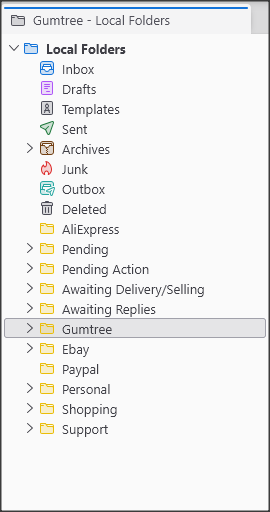
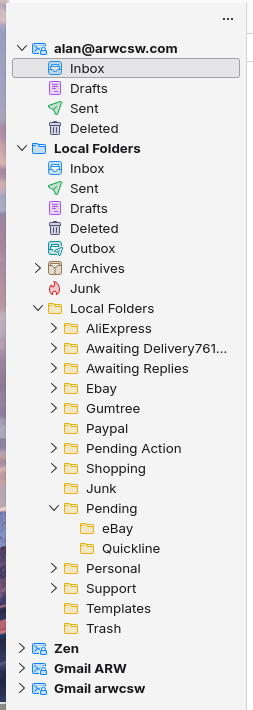
Thanks for the comments. I was aware of the things in your message but that is not really what I wanted to hear. I have used T/B for around 25 years at least and I store the profile in my docs folder so it is always backed up and available to my Windows computers. Whenever I have needed a re-install of Windows iI have used the "thunderbird -p" facility to reinstall the existing profile. This profile does just what I want. I have 4 email accounts only two of which receive emails regularly the other two I check manually every few weeks or so. Clicking on "Get mail" only checks the two main accounts and not the two others. So all my Windows computers are fine using the same profile. I do seem to remember there was a check box which allowed you to choose the default accounts to check but I can't find it now. This has arisen because I decided to learn a bit about Linux so I bought a second hand laptop to play around with. I installed T/B for Linux and tried to link it to my Windows profile, no success ???. So I then exported the Window version settings to a zip file from within T/B and used that to transfer the data/setup etc to the Linux laptop. That worked in a fashion with lots of things now displaying which are not on the Windows versions ie Account folders, Local folders etc, each with its sub-folders. I have set outgoing messages etc to store in Local folders but can not find how to set incoming mails to store in the Local Folders/Inbox. Whilst trying to find a solution to this I then noticed that the "Get Mail" button checked all 4 accounts which I appreciate is not a great problem, just a waste of time. I can not find anything about this in T/B help online or anywhere else I have looked. The two images show how the same profile is displayed in Windows and Linux and I prefer the Windows one as it is much simpler and more convenient to navigate. Regards Alan

Chosen Solution
In your Windows Thunderbird profile you have "bundled" several POP accounts in what is called the "Global Inbox (Local Folders)". The global Inbox can be activated in Account Settings > accountname > Server-Settings > Message Storage > Advanced .... (image) In the Advanced Account Settings of each POP account you can choose whether the server is included when getting new mail (image)
Modified by Mapenzi
Text deleted because of doublet (slow forum server...)
Modified by Mapenzi
Mapenzi said
In your Windows Thunderbird profile you have "bundled" several POP accounts in what is called the "Global Inbox (Local Folders)". The global Inbox can be activated in Account Settings > accountname > Server-Settings > Message Storage > Advanced .... (image) In the Advanced Account Settings of each POP account you can choose whether the server is included when getting new mail (image)
Wow it is so easy. I knew it could be done as I must have done it many years ago. I just never found it yesterday.
I did what you suggested and it is now exactly as I want.
Thank you ever so much for your help