


Thunderbird is not connecting with Xfinity Comcast for sending or receiving emails at NAME@comcast.net

Thunderbird is not connecting with Xfinity Comcast for sending or receiving emails at gpenkala@comcast.net . This combination was working fine for decades. Last Friday (Jun 12) was the last email I received in Thunderbird. I can view current emails on the Xfinity website, but these are not being transferred to my Thunderbird account anymore, These are the error messages:
"Sending of the message failed.
Unable to authenticate to Outgoing server (SMTP) smtp.comcast.net. Please check the password and verify the 'Authentication method' in 'Account Settings | Outgoing server (SMTP)'." "Sending of the message failed. An error occurred while sending mail: Outgoing server (SMTP) error. The server responded: resomta-c2p-555483.sys.comcast.net resomta-c2p-555483.sys.comcast.net Excessive failed authentication, ESMTP server temporarily not available."
Can you tell me what configurations I should be using within Thunderbird for Incoming and Outgoing Servers?
All Replies (3)
First check this:
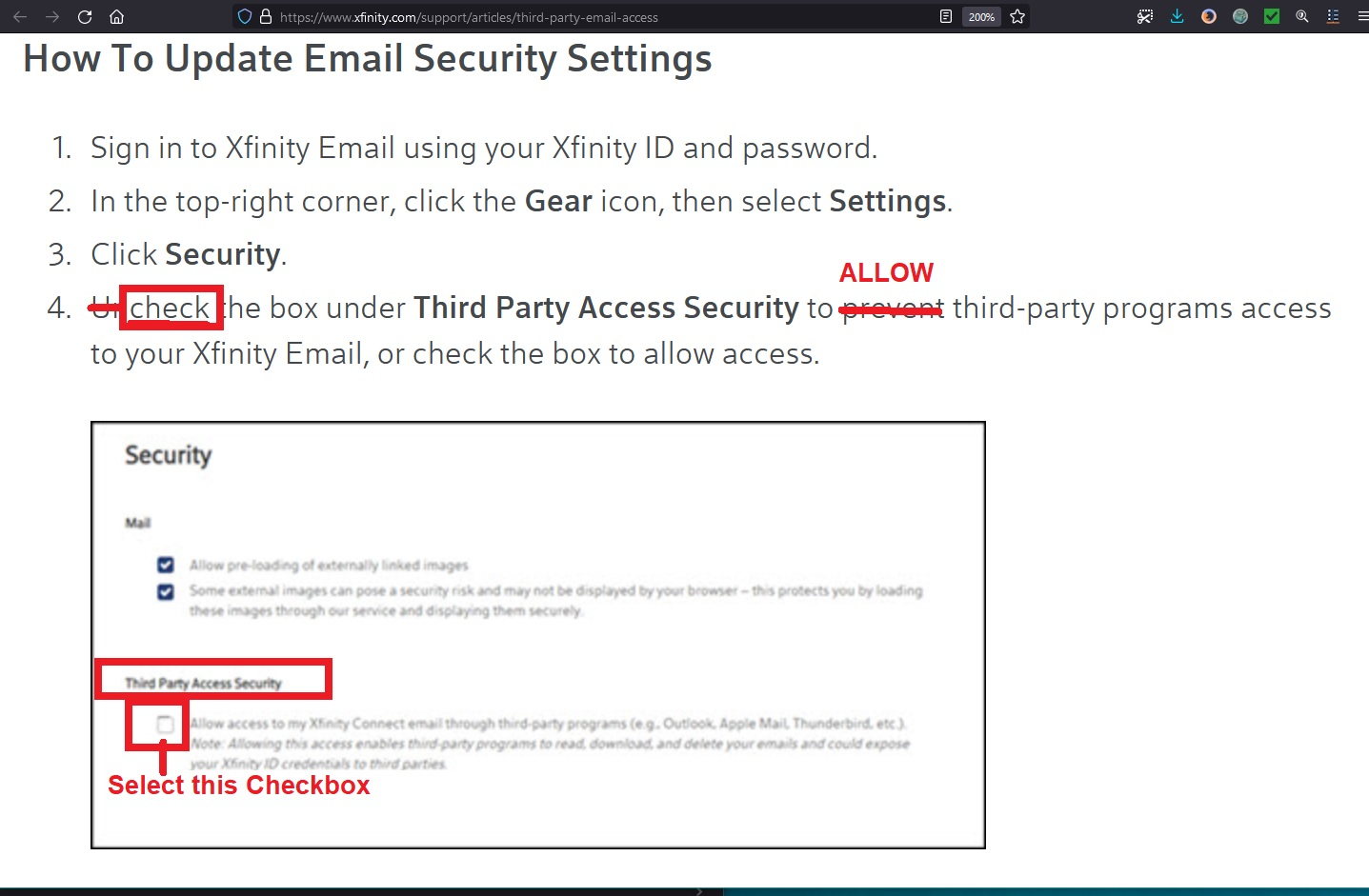
Log on to the Xfinity comcast webmail account via a browser and check the option to allow third party access is enabled.
- Click on on the gear icon and select 'Settings'
- click on 'Security'
- You must have the 'third party access security' checkbox selected in order to allow access.
see image below as a guide:
Confirm it is selected.
Check computer for a VPN Have you installed a VPN or enabled one ? Some Anti-virus products now offer a VPN and have been known to auto enable it. Most servers do not like VPN because it hides your IP address, so server thinks you might not be you and block access. Switch off VPN.
Did you have an enabled VPN?
Check 'Account Settings' > 'Server Settings':
IMAP
- Incoming server: imap.comcast.net
- Port: 993
- Connection Security: SSL/TLS
- Authentication Method: Normal Password
- username: your full email address
- password: same one you use to access webmail account
SMTP
- Outgoing server: smtp.comcast.net
- Port: 587
- Connection Security: STARTTLS
- Authentication Method: Normal Password
- username: your full email address
- password: same one you use to access webmail account
Passwords can be checked in this location:
- Settings > Privacy & Security
- scroll down to 'Passwords' section
- click on 'Saved Passwords'
- click on 'Show Passwords'
You should see two line for each mail account/email address. One is incoming and the other outgoing. To Edit a stored password:
- Right click on each line in turn and select 'Edit Password'
- Completely clear the stored password and then carefully type the correct password
- Click on 'Close' when finished.
Note the password should be exactly the same as used to access webmail account. If you update/change password - Exit Thunderbird, wait a few moments for background processes to complete then restart Thunderbird.