


missing/moved bookmark list

From: cartwrm@talktalk.net <cartwrm@talktalk.net> Sent: Friday, July 18, 2025 2:14 PM To: no-reply@mozilla.org <no-reply@mozilla.org> Subject: Re: Bradforth posted an answer to your question "Ive lost mybookmarks on the left side of the screen"
It's really strange (I'm still trying to understand my relatively new Windows 11 laptop), bookmarks have been where I'd expect them for a few days, then this morning, it's as if Firefox has done some sort of clean/re-arrangement. The bookmarks had disappeared and there wasn't my usual array of sites available along the top. Then by clicking on a few things on the right (Firefox) 'most used' re-appeared, then later the toolbar is there on the right, I'd really like it back on the left And also I'd love to know whether I might have done something unconsciously which caused this.
Mike
Alle Antworten (3)
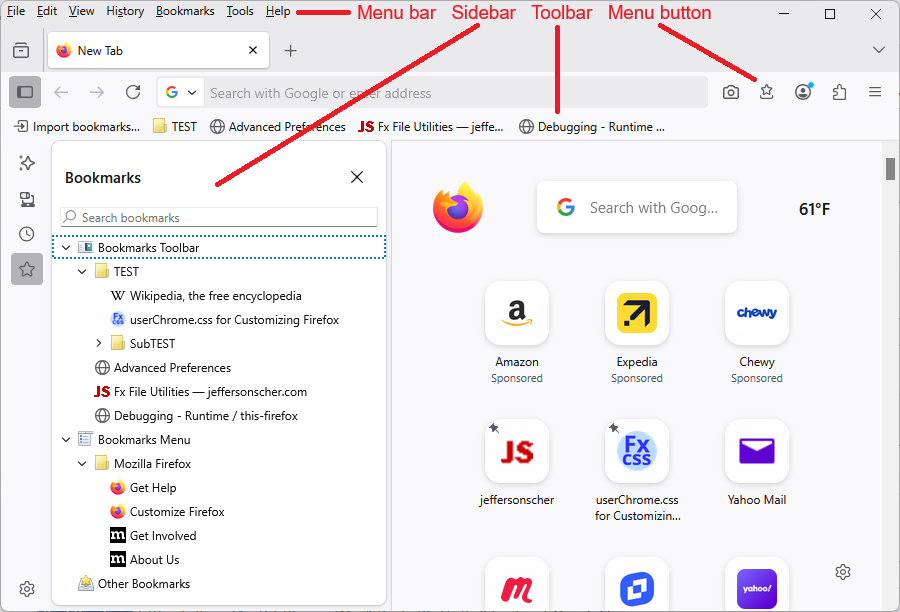
Hi Mike, Firefox has so many ways/places to display bookmarks that it can get a little confusing describing them. Let me start from the top:
(1) Optional Menu Bar
Old school. If you press Alt+B, Firefox should activate the top Bookmarks menu. You can either turn on the menu bar or just keep that keyboard shortcut in mind for occasional use. (Restore the Menu bar in Firefox)
(2) Main Toolbar - Bookmarks Menu Button
There is an optional bookmarks menu button for the toolbar ( ). If you like the top Bookmarks menu but don't want to waste space on an extra bar or use a keyboard shortcut, this button is for you. You can add it using the Customize panel (Customize Firefox controls, buttons and toolbars).
(3) Bookmarks Toolbar
This is a horizontal bar below the main toolbar. You can set it to be off all the time, on all the time, or on only when you're viewing the built-in Firefox Home new tab page. More info here: Bookmarks Toolbar - Display your favorite websites at the top of the Firefox window.
(4) Bookmarks Sidebar
The sidebar can be positioned either at the left side or right side of the browser and can be switched between Bookmarks, History, Synced Tabs, and other panels. More info: Use the Firefox Sidebar to access bookmarks, history, passwords and synced tabs.
I'm attaching a screenshot showing where these are normally located.
Any progress so far?
What you say is familiar, but I attach a screen shot of my current page and things are missing, e.g. at the top there is no File....etc
Sorry, but I can't seem to upload screenshots
There are significant variations between 'your' screen and mine. Can you suggest another way to send you the word document with the comparison.
Add images and paste in here give error messages
You can attach image files, but not Word/PDF files.
The File, View, etc. is the optional menu bar. You can ignore that if you are not interested in using it.