How to stop Firefox from Autofilling a Single Website's password?

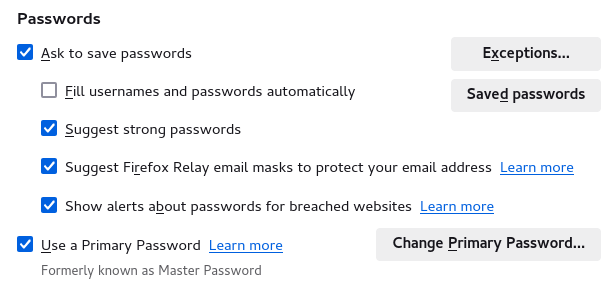
I accidentally told Firefox to autofill a password for a website. I have followed all methods I found on web & in Mozilla support without success., except I don't want to stop or delete ALL autofills. Firefox doesn't show this password as saved (even when I search for it by URL), and the "Saved Logins" section of "passwords & security" [in settings] NO longer exists. I do NOT want to delete all autofills. I also checked my settings for this website, and it is NOT causing the autofill. Please: How do I stop Firefox from autofilling of a password for a SINGLE website? Thank you!
Alle Antworten (2)

Then you need to go through these Firefox help to on what Autofill is and isn't.
https://support.mozilla.org/en-US/kb/autofill-logins-firefox
https://support.mozilla.org/en-US/kb/logins-sync-autofill-saving-firefox-preview
https://support.mozilla.org/en-US/kb/password-manager-remember-delete-edit-logins
You do not see this section in "Settings -> Privacy & Security"?
Are any pref.privacy.disable_button prefs set to true in about:config?
Can you open about:logins via the address bar?
Suggestions in a login drop-down menu that have a key icon in front are login suggestions that you need to remove in the Password Manager.
Suggestions in a drop-down menu without a key symbol are autocomplete saved form data. Suggestions without a key icon are part of autocomplete saved form data that you should be able to remove by selecting this item with the cursor Down key and pressing Delete (Mac: Shift+Delete).