


Clear Data and Manage Data are inaccessible

Hello,
I'm having issues with a certain website and thought cached data might be to blame. However, when trying to clear said data, I found that both Clear Data and Manage Data are greyed out. I disabled all of my addons and restarted FF, the issue remains.
I'm on FF 60.0.1, Windows 10 x64 Pro up to date. I'm not using "Always browse privately".
Any help is greatly appreciated.
Thanks.
Ausgewählte Lösung
No, I don't remember changing anything in regards to cache or cookies in about:config. I do not use a cache/cookie cleaner extension. However, I managed to fix the issue.
I took a closer look at about:support, specifically Important Modified Preferences. I found that browser.cache.offline.enable was set to false for reasons unknown. I set it to true, restarted FF, and now have access to Clear Data and Manage Data.
Again, I have no idea how this setting came to be, but at least it's fixed now.
Thanks for your help in this process.
Alle Antworten (4)
HI, try this please : uninstall Firefox. Then Delete the Mozilla Firefox Folders in C:\Program Files , C:\Program Files(x86) & C:\ProgramData Then restart system. Then run Windows Disk Cleanup. (Note: This should be Pinned and run Weekly, If never done below expect 10's of gig's) Then run it again and click the button that says Cleanup System Files. Note: your Firefox Profile is saved. But you should make a back up before you do :
- https://support.mozilla.org/en-US/kb/back-and-restore-information-firefox-profiles
- https://support.mozilla.org/en-US/kb/export-firefox-bookmarks-to-backup-or-transfer
Reinstall with Current Release Firefox 60.0.1 with a Full Version Installer
Please let us know if this solved your issue or if need further assistance.
Thanks for your swift reply. I did exactly as you said.
- I uninstalled FF after backing up my profile - I went to delete the folders you outlined but found them removed after FF was uninstalled - I rebooted and ran Disk Cleanup, to clean both "regular" and system files (I run it about once a week so there wasn't much to clean) - I downloaded the FF installer, installed FF and found my profile to be still working
Sadly, the problem still remains.
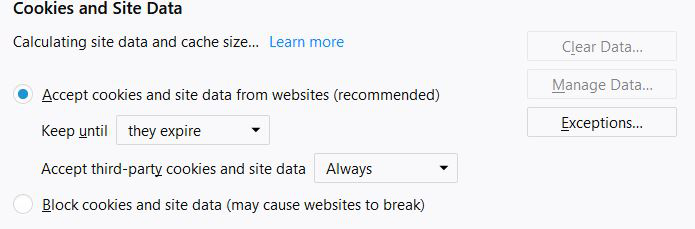
Hi, that's too bad. I was full of promise until got to the end. Did you do anything prior to version 60 in about:config regarding cache or cookies. ? Are you running a cache/cookie cleaner Extension ?
Ausgewählte Lösung
No, I don't remember changing anything in regards to cache or cookies in about:config. I do not use a cache/cookie cleaner extension. However, I managed to fix the issue.
I took a closer look at about:support, specifically Important Modified Preferences. I found that browser.cache.offline.enable was set to false for reasons unknown. I set it to true, restarted FF, and now have access to Clear Data and Manage Data.
Again, I have no idea how this setting came to be, but at least it's fixed now.
Thanks for your help in this process.