


Default Profile stuck on old UI despite being updated to the latest version (Windows 11)

Hi Mozilla Community,
I am running Firefox on Windows 11 and I'm encountering a strange issue regarding the UI updates.
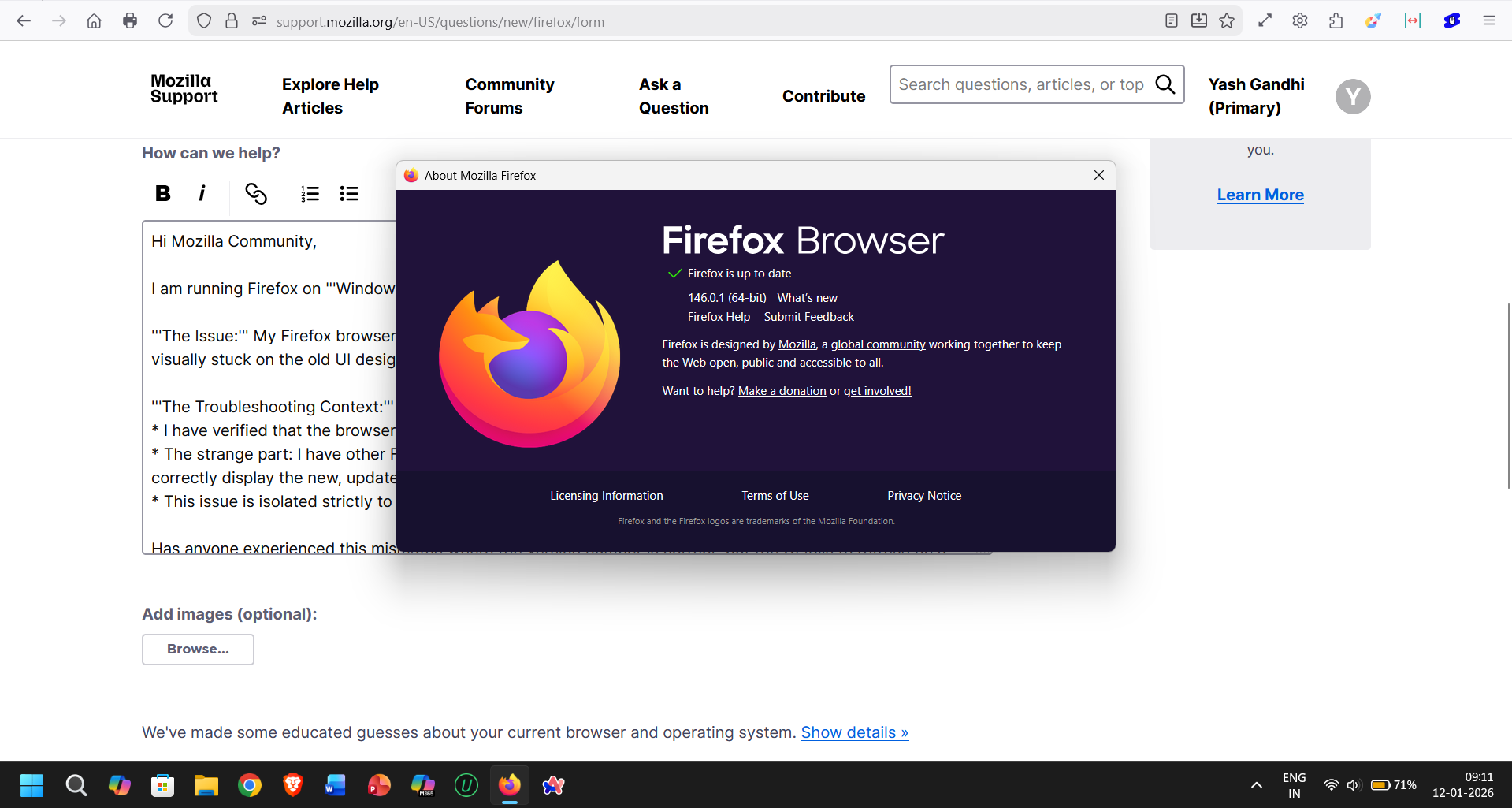
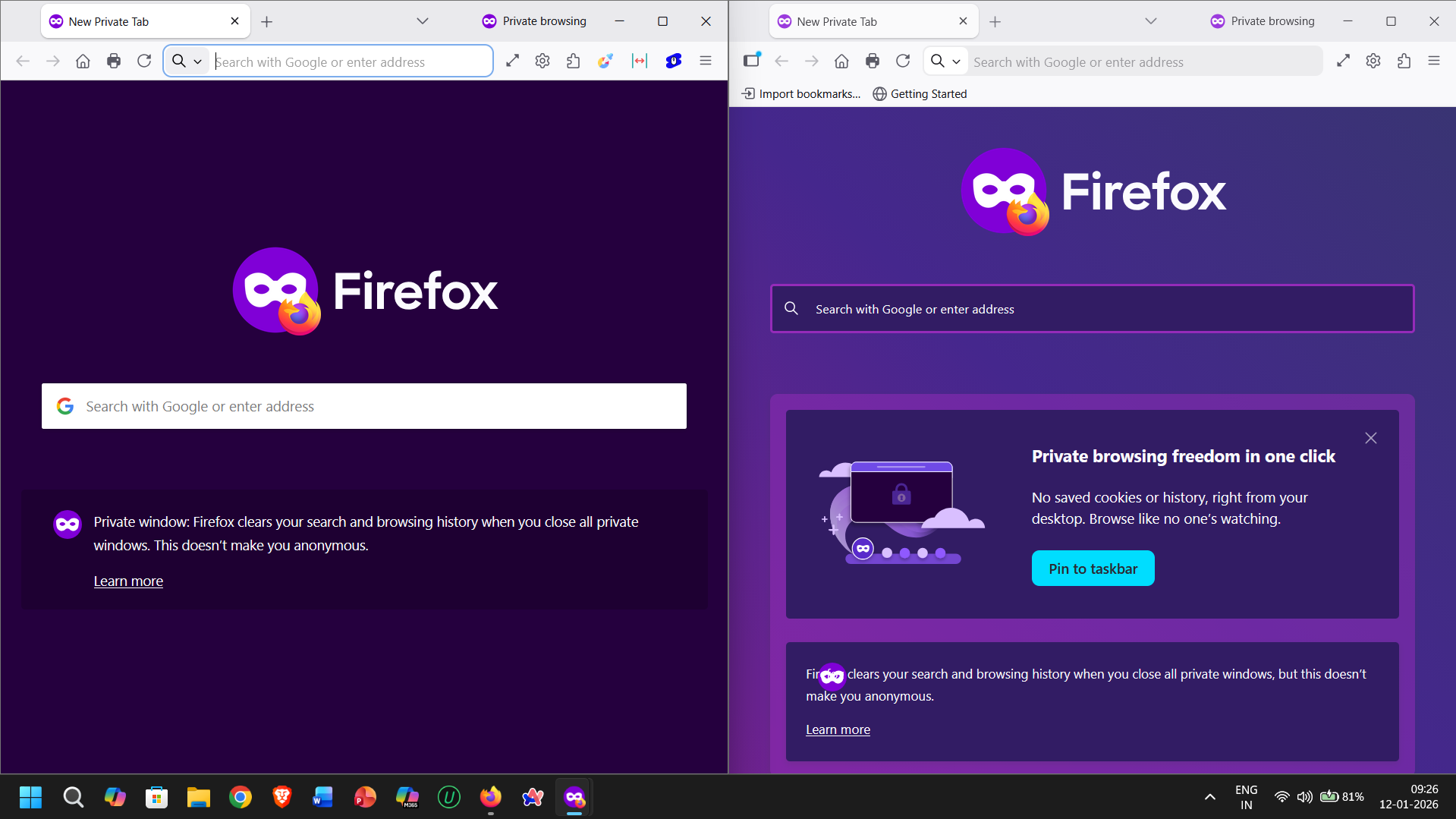
The Issue: My Firefox browser updates automatically to the latest version. However, my Default Profile is visually stuck on the old UI design. It does not reflect the recent interface changes associated with the update.
The Troubleshooting Context:
- I have verified that the browser itself is technically updated (via Help > About Firefox).
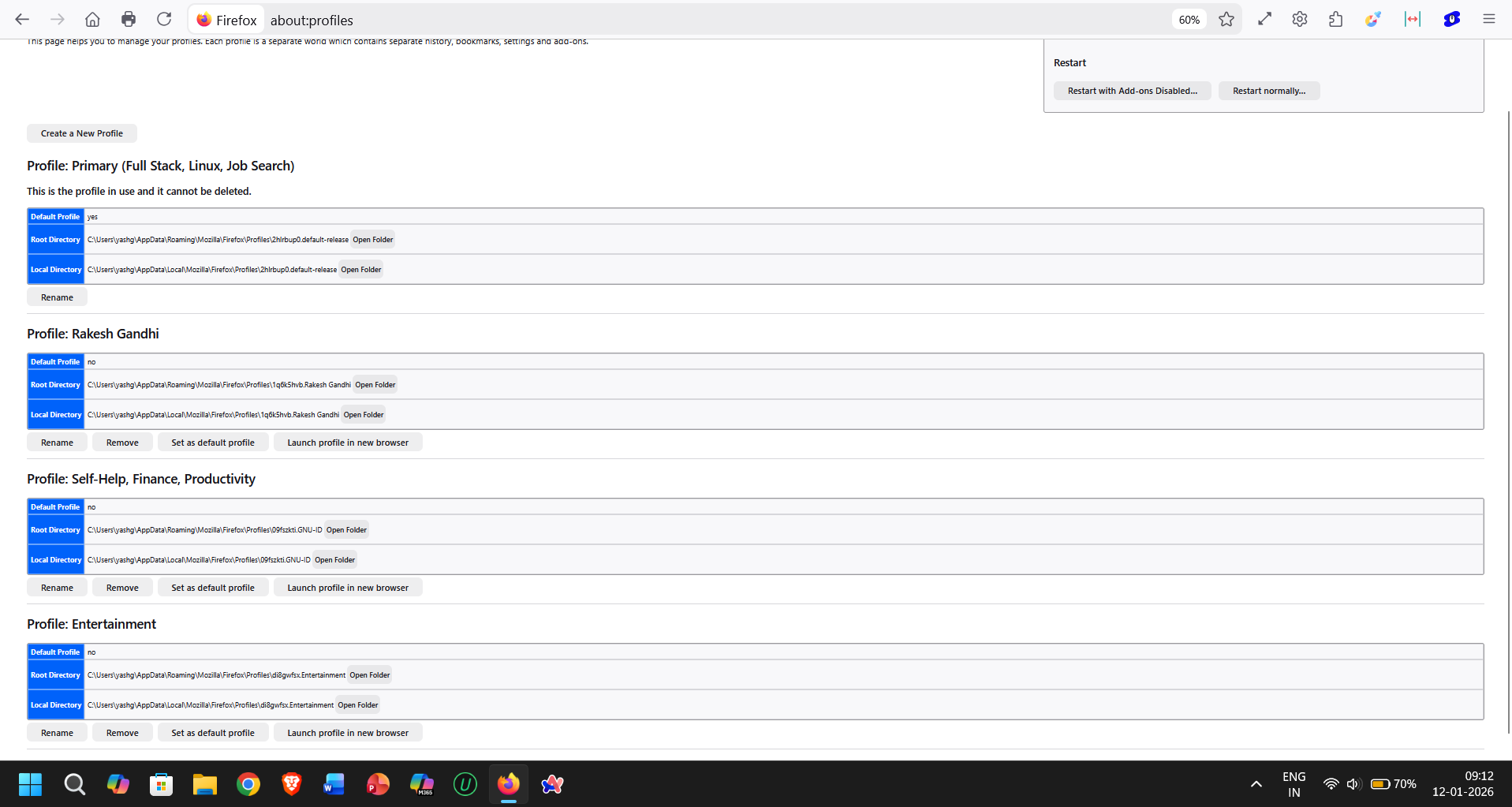
- The strange part: I have other Firefox profiles on this same machine. When I launch those profiles, they correctly display the new, updated UI.
- This issue is isolated strictly to my main/default profile.
Has anyone experienced this mismatch where the version number is correct, but the UI fails to refresh on a specific profile? Is there a specific fix for this?
Thanks in advance for the help.
Alle svar (2)
Hello, Heres some ways to fix corrupted profile data : Clear startup cache : 1. Click the menu button (three horizontal lines) and select Help > More Troubleshooting Information 2. On the Troubleshooting Information page, find the sectionclear startup cache 3. Click Clear startup cache, then click Restart to apply the changes.
Restart in Troubleshoot Mode : 1. Click the menu button and select Help > Troubleshoot Mode 2. In the confirmation dialog, click Restart. 3. If the UI issue is resolved in Troubleshoot Mode, an extension or a custom setting (like those in userChrome.css files) is likely the cause. You may need to disable or update problematic add-ons.
Refresh Firefox : (if all above don't work) 1. Go to Help > More Troubleshooting Information. 2. Click the Refresh Firefox button on the right side of the page. 3. Confirm the action in the pop-up window. Your old profile data will be moved to a folder named "Old Firefox Data" on your desktop as a backup.
- Keep in mind this wipes all preferences, themes, and passwords.
dessertdish said
Hello, Heres some ways to fix corrupted profile data : Clear startup cache : 1. Click the menu button (three horizontal lines) and select Help > More Troubleshooting Information 2. On the Troubleshooting Information page, find the sectionclear startup cache 3. Click Clear startup cache, then click Restart to apply the changes. Restart in Troubleshoot Mode : 1. Click the menu button and select Help > Troubleshoot Mode 2. In the confirmation dialog, click Restart. 3. If the UI issue is resolved in Troubleshoot Mode, an extension or a custom setting (like those in userChrome.css files) is likely the cause. You may need to disable or update problematic add-ons. Refresh Firefox : (if all above don't work) 1. Go to Help > More Troubleshooting Information. 2. Click the Refresh Firefox button on the right side of the page. 3. Confirm the action in the pop-up window. Your old profile data will be moved to a folder named "Old Firefox Data" on your desktop as a backup.
- Keep in mind this wipes all preferences, themes, and passwords.
as you suggested, I tried clearing restart cache & restarting into troubleshoot mode but it didn't work "Refresh Firefox" button is missing with & without troubleshoot mode