


Pop-up windows in Thunderbird

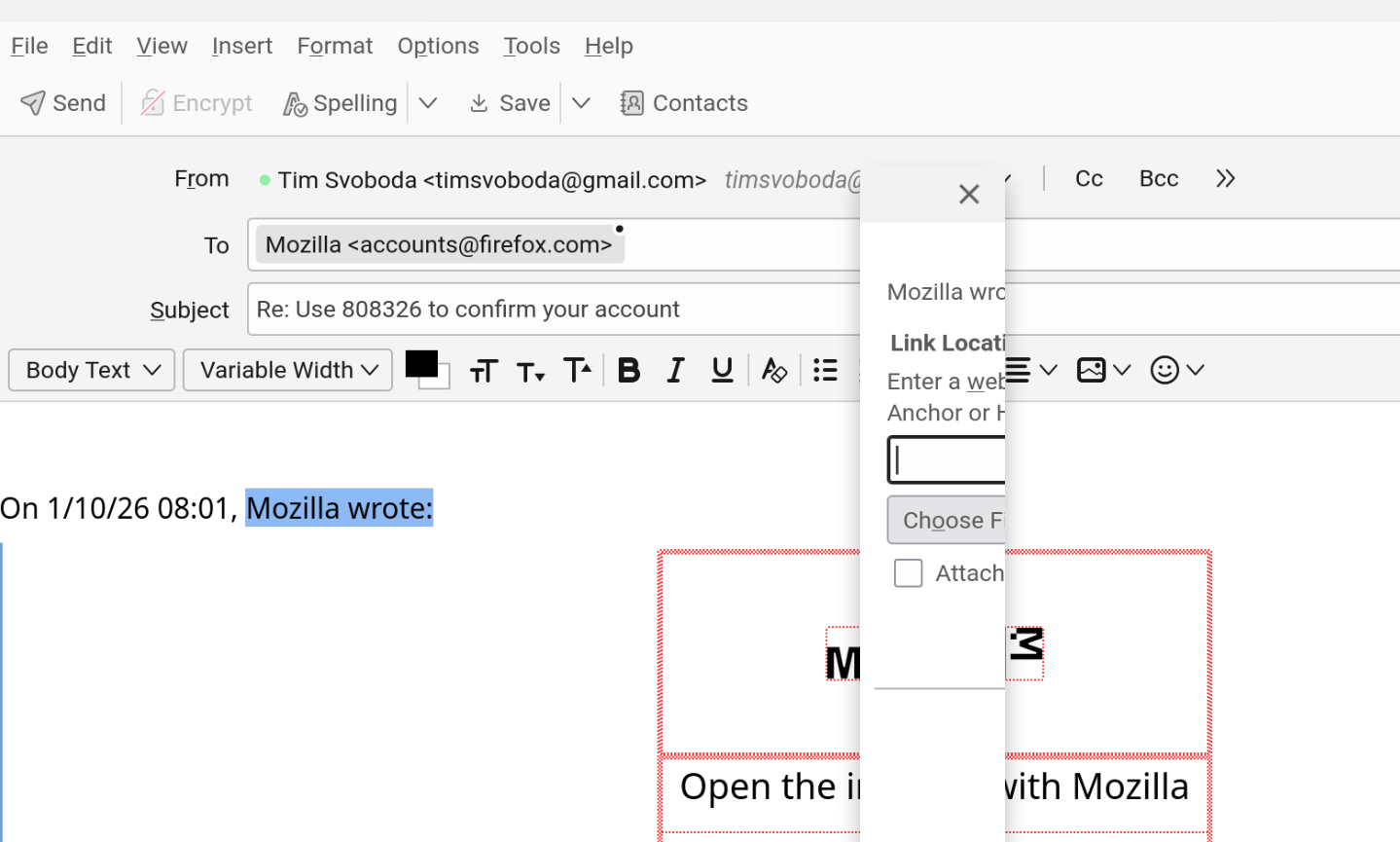
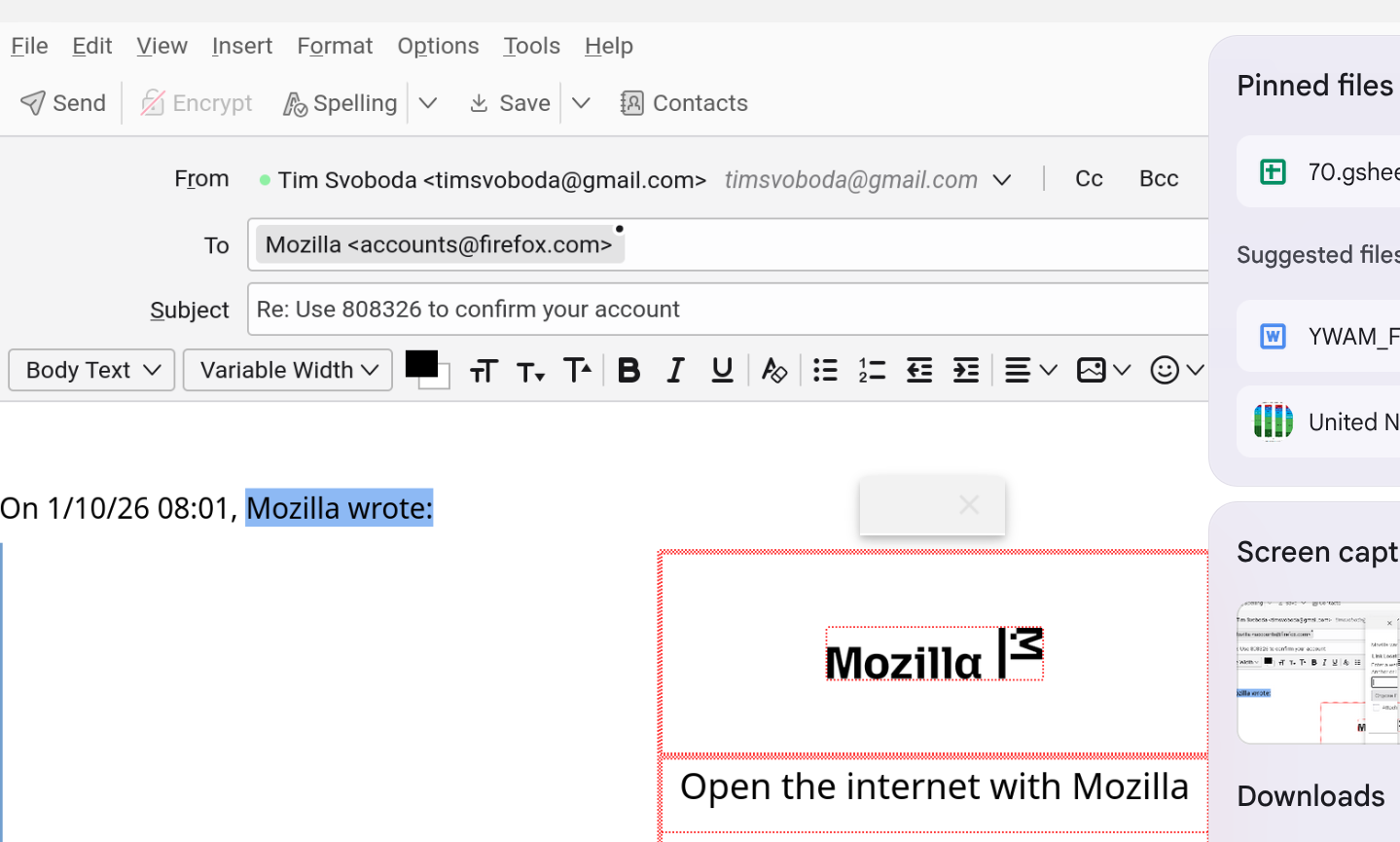
I am using a Chromebook, Lenovo Duet 9, 11 inch screen. When composing an email, if I click on insert link to hyperlink a portion of my text, or choose the color of font from the toolbar, or insert an image or any other feature that requires a popup window, the popup window has to be dragged by clicking on it in order to see what is in the window. Depending on what I click the popup box has different sizes but all of them have to be clicked on and dragged out to see what is in the box. See screenshots attached. How do I fix this?
Tim
Valgt løsning
I resorted to Gemini AI to solve the problem. Here is the fix in case anyone else needs this.
Fix: Thunderbird Color Picker "Sliver" Window on ChromeOS / Linux On certain Linux distributions and ChromeOS (especially on high-DPI devices like the Lenovo Duet), the Thunderbird color picker often appears as a tiny, unusable "sliver" with no visible colors. This is caused by a conflict between Thunderbird's Wayland implementation and the window manager's scaling rules.
1. Enable CSS Customization Thunderbird must be allowed to load user-defined stylesheets to override window dimensions.
Go to Settings > General.
Scroll to the bottom and click Config Editor.
Search for: toolkit.legacyUserProfileCustomizations.stylesheets
Set it to true.
2. Force Pop-up Dimensions via CSS You need to inject CSS to force the color picker to a usable size. Run this command in your Linux Terminal to apply the fix to all Thunderbird profiles:
Bash
for d in ~/.thunderbird/*.default*; do
   mkdir -p "$d/chrome"
   echo '#ColorPickerPanel, #formatColorPicker {
   min-width: 500px !important;
   min-height: 400px !important;
} .color-grid {
   display: grid !important;
   width: 450px !important;
   height: 300px !important;
}' > "$d/chrome/userChrome.css" done 3. Force X11 Backend (The Permanent Fix) The "slivering" is primarily a Wayland display protocol issue. Forcing Thunderbird to use the X11 backend solves the window-squishing behavior.
In the Terminal, run this command to modify the application shortcut:
Bash
sudo sed -i 's|Exec=/usr/bin/thunderbird|Exec=env MOZ_ENABLE_WAYLAND=0 GDK_SCALE=0 /usr/bin/thunderbird|g' /usr/share/applications/thunderbird.desktop (Note: GDK_SCALE=0 allows the OS to handle scaling naturally; if the UI is still too large/small, adjust layout.css.devPixelsPerPx in the Config Editor to 1.0 or your preferred ratio.)
4. Reset Window Memory (xulstore.json) Thunderbird stores the last known dimensions of every window and popup in a file called xulstore.json. Even after applying CSS fixes, Thunderbird will often try to "remember" the broken, tiny dimensions from your last session.
Close Thunderbird.
Run: rm ~/.thunderbird/*.default*/xulstore.json
Restart the Linux container (Right-click the Terminal icon > Shut down Linux) to ensure the shortcut changes take effect.
Relaunch Thunderbird.
Læs dette svar i sammenhæng 👍 0Alle svar (4)
I'm no expert on Chromebooks, let alone the Linux version of TB they support, but if this display persists in troubleshoot mode, I'd be inclined to look at the system display settings to see if any of them are the cause.
Valgt løsning
I resorted to Gemini AI to solve the problem. Here is the fix in case anyone else needs this.
Fix: Thunderbird Color Picker "Sliver" Window on ChromeOS / Linux On certain Linux distributions and ChromeOS (especially on high-DPI devices like the Lenovo Duet), the Thunderbird color picker often appears as a tiny, unusable "sliver" with no visible colors. This is caused by a conflict between Thunderbird's Wayland implementation and the window manager's scaling rules.
1. Enable CSS Customization Thunderbird must be allowed to load user-defined stylesheets to override window dimensions.
Go to Settings > General.
Scroll to the bottom and click Config Editor.
Search for: toolkit.legacyUserProfileCustomizations.stylesheets
Set it to true.
2. Force Pop-up Dimensions via CSS You need to inject CSS to force the color picker to a usable size. Run this command in your Linux Terminal to apply the fix to all Thunderbird profiles:
Bash
for d in ~/.thunderbird/*.default*; do
   mkdir -p "$d/chrome"
   echo '#ColorPickerPanel, #formatColorPicker {
   min-width: 500px !important;
   min-height: 400px !important;
} .color-grid {
   display: grid !important;
   width: 450px !important;
   height: 300px !important;
}' > "$d/chrome/userChrome.css" done 3. Force X11 Backend (The Permanent Fix) The "slivering" is primarily a Wayland display protocol issue. Forcing Thunderbird to use the X11 backend solves the window-squishing behavior.
In the Terminal, run this command to modify the application shortcut:
Bash
sudo sed -i 's|Exec=/usr/bin/thunderbird|Exec=env MOZ_ENABLE_WAYLAND=0 GDK_SCALE=0 /usr/bin/thunderbird|g' /usr/share/applications/thunderbird.desktop (Note: GDK_SCALE=0 allows the OS to handle scaling naturally; if the UI is still too large/small, adjust layout.css.devPixelsPerPx in the Config Editor to 1.0 or your preferred ratio.)
4. Reset Window Memory (xulstore.json) Thunderbird stores the last known dimensions of every window and popup in a file called xulstore.json. Even after applying CSS fixes, Thunderbird will often try to "remember" the broken, tiny dimensions from your last session.
Close Thunderbird.
Run: rm ~/.thunderbird/*.default*/xulstore.json
Restart the Linux container (Right-click the Terminal icon > Shut down Linux) to ensure the shortcut changes take effect.
Relaunch Thunderbird.