


Stop double spacing in composition editor

I have tried various suggestions, but they all seem to send me to menu options that just do not exist.This is a really old problem and I can't understand why it has never been properly addressed.
Automatic spacing is pretty much universally not standard (It does not occur here.)
So how do I stop auto/double spacing when composing a message, please?
All Replies (6)

See <Settings | Composition | HTML Style> and uncheck "Use Paragraph format instead of Body Text by default".
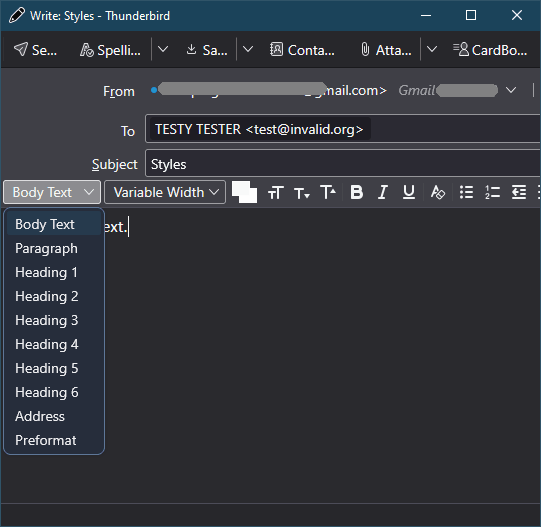
You can also change this on the fly by choosing from among the styles available in the drop-down list in the Write window.
Thanks for the reply....but your first answer is incorrect, AFAICS; there is no option any more to choose HTML style in Settings!
While trying to follow your instruction, I found an alternative, in the settings area, saying "Pressing Enter starts a new paragraph with extra space". Unticking that solves the problem.
Having found a (simple when you know it) solution, I did not start chasing the second idea. I tried briefly, but could not find a drop down that looked like what you suggested.
Nick
Apparently they changed the wording of the setting in version 159, but it's the same setting.
For the styles chooser, see the attached image.
This seems a bit mad. If I choose Body Text as my style, then try to type, if the double spacing is set in the top menu Settings, as soon as I hit Enter, the drop down reverts to Paragraph, and double spaces again!
gaah! As I say, I will just stick with the one that works...for me (?)
Thanks again
Nick
If you have the setting "Pressing Enter starts a new paragraph with extra space" turned on, it does exactly what you've told it to in the Write window. It's not "double spacing", it's a paragraph. To do a line break (that appears as "single spacing") use <Shift+Enter> rather than simply <Enter>.
Yeah I have heard of Shft-Enter, but because it is not standard, or common, I was trying to avoid it.