


Some big problems with Thunderbird

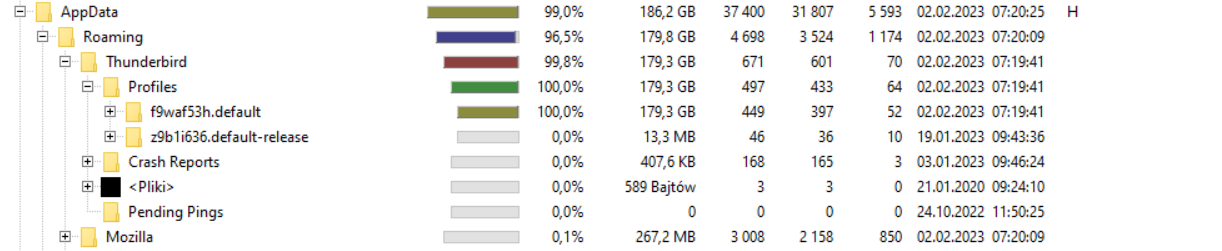
Problem 1. Thunderbird takes up more and more space on the C drive. Currently 179 GB (!) I don't know what is the reason, I have 4 mailboxes
Problem 2. For about 8 months, the Organize Folders command has not been performed. Initially, a message appeared due to insufficient disk space, unable to organize folders. I repartitioned the drives and added 50GB to the C drive. Thiderbird suggested tidying up the folder to save 1.1GB of space. I gave execute many times but once the next day there was a message 900 Mb and the next days again 1 or 1.1 Gb. So the folders could not be organized
Problem 3. Some e-mails do not load properly and in the place where the content is, there is either the code itself (although the content was previously shown) or everything is empty and the message cannot be previewed - even then the sender information is invisible - only the title of the e-mail content is visible. After entering the mail on the server (not through thuderbird), however, you can see it
Modified by Maxmariom
Chosen solution
Stans said
Here is a Norton support article https://support.norton.com/sp/en/us/home/current/solutions/v3672136 for how to do it. All those nstmp files are temporary files created when Thunderbird attempted to Compact your folders. Their existence clearly indicates the process was never completed successfully. To get rid of them, Quit Thunderbird and make sure it's not running in the background (check in Task Manager for Thunderbird.exe processes), then delete all those nstmp files. Do NOT delete any other file except those nstmp files. This alone, should free up a significant portion of disk space. While you're at it, also delete all .msf files (these are index files and will get recreated when Thunderbird starts). Note: do the above only after you've read the two links I posted in my first reply.
Thank you very much! It actually helped!
- It remains open why some messages - downloaded e-mails are in the form of a code and not content... but it's not so persistent anymore.
All Replies (5)

I see you are running Windows 10. First things first, add your Thunderbird profile folder (the one taking up 179GB) to your antivirus' exclusions, and (optionally) add Thunderbird to your antivirus' list of trusted applications. This is to ensure that your antivirus program does not interfere with filesystem operations performed by Thunderbird. Your screenshot would have been even more useful if you had expanded the folder tree to further show which files are occupying all that space.
The "Organize Folders" command, which I suspect you are talking about Compacting folders, won't work if you do not have enough free disk space. Also read Compacting folders - Potential complications. Give the two links a good read, and if you're unsure of what to do next, ask for further clarification.
Thank you for your response.
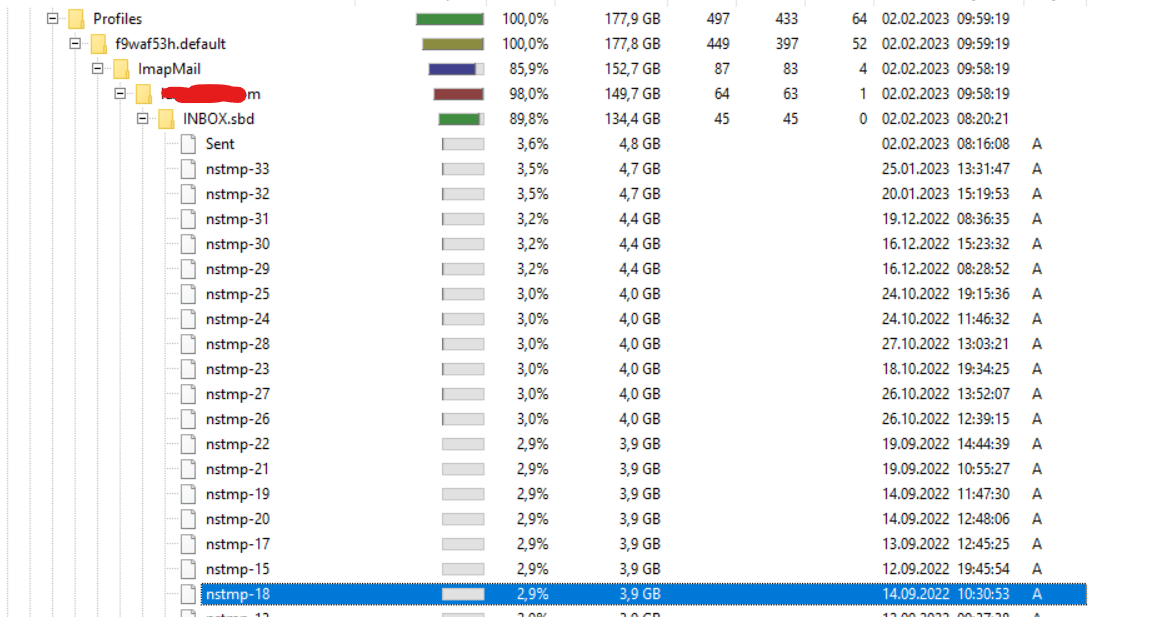
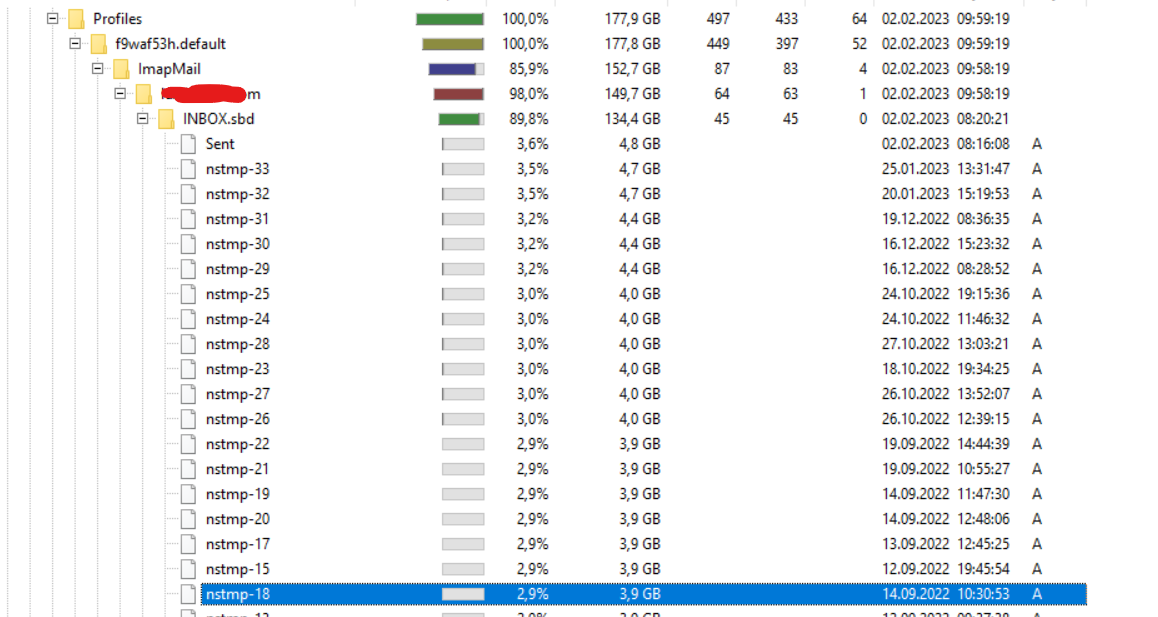
- I am attaching an attachment with an expanded directory tree - I increased the C drive by 50 GB a month ago to be able to organize the folders. Failed to. The program kept showing that there was 1.1 Gb to sort out and once it was 400 Mb tidy up but the next day it was 1 Gb again. Accepting the folder ordering didn't change anything. Now after about a month there is no more space on the disk again, 30 Gb of the added 50 has been used. - I use the Norton 360 antivirus, at the moment I have not found a way to add the thunderbird application to the trusted ones in this program according to your instructions
Stans said
I see you are running Windows 10. First things first, add your Thunderbird profile folder (the one taking up 179GB) to your antivirus' exclusions, and (optionally) add Thunderbird to your antivirus' list of trusted applications. This is to ensure that your antivirus program does not interfere with filesystem operations performed by Thunderbird. Your screenshot would have been even more useful if you had expanded the folder tree to further show which files are occupying all that space. The "Organize Folders" command, which I suspect you are talking about Compacting folders, won't work if you do not have enough free disk space. Also read Compacting folders - Potential complications. Give the two links a good read, and if you're unsure of what to do next, ask for further clarification.
Thank you for your response.
- I am attaching an attachment with an expanded directory tree - I increased the C drive by 50 GB a month ago to be able to organize the folders. Failed to. The program kept showing that there was 1.1 Gb to sort out and once it was 400 Mb tidy up but the next day it was 1 Gb again. Accepting the folder ordering didn't change anything. Now after about a month there is no more space on the disk again, 30 Gb of the added 50 has been used. - I use the Norton 360 antivirus, at the moment I have not found a way to add the thunderbird application to the trusted ones in this program according to your instructions
Here is a Norton support article https://support.norton.com/sp/en/us/home/current/solutions/v3672136 for how to do it.
All those nstmp files are temporary files created when Thunderbird attempted to Compact your folders. Their existence clearly indicates the process was never completed successfully. To get rid of them, Quit Thunderbird and make sure it's not running in the background (check in Task Manager for Thunderbird.exe processes), then delete all those nstmp files. Do NOT delete any other file except those nstmp files. This alone, should free up a significant portion of disk space. While you're at it, also delete all .msf files (these are index files and will get recreated when Thunderbird starts).
Note: do the above only after you've read the two links I posted in my first reply.
Chosen Solution
Stans said
Here is a Norton support article https://support.norton.com/sp/en/us/home/current/solutions/v3672136 for how to do it. All those nstmp files are temporary files created when Thunderbird attempted to Compact your folders. Their existence clearly indicates the process was never completed successfully. To get rid of them, Quit Thunderbird and make sure it's not running in the background (check in Task Manager for Thunderbird.exe processes), then delete all those nstmp files. Do NOT delete any other file except those nstmp files. This alone, should free up a significant portion of disk space. While you're at it, also delete all .msf files (these are index files and will get recreated when Thunderbird starts). Note: do the above only after you've read the two links I posted in my first reply.
Thank you very much! It actually helped!
- It remains open why some messages - downloaded e-mails are in the form of a code and not content... but it's not so persistent anymore.