


The Option button doesn't appear on the "blocked remote content" message bar.

In the last few days (after 52.8.0 update?) the Option button has disappeared from the "Thunderbird has blocked remote content..." message bar.
(Yes, View is set to original HTML.)
Chosen solution
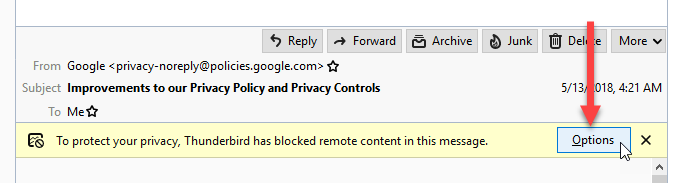
Hi, Attached is a screenshot of what you should see.
If you're not seeing that button, try restarting Thunderbird with add-ons disabled. Go to Help > Restart with Add-ons Disabled. Does the problem still occur?
If the problem does not occur, then you can disable your extensions one-by-one until you find out which one is causing the problem.
If the problem still occurs, we'll need some more info about your Thunderbird setup. Go to [=] > Help > Troubleshooting Information then click Copy text to Clipboard. Open a reply to this post, and go to Edit > Paste to paste the info from your Troubleshooting Information page.
Read this answer in context 👍 1All Replies (4)

Chosen Solution
Hi, Attached is a screenshot of what you should see.
If you're not seeing that button, try restarting Thunderbird with add-ons disabled. Go to Help > Restart with Add-ons Disabled. Does the problem still occur?
If the problem does not occur, then you can disable your extensions one-by-one until you find out which one is causing the problem.
If the problem still occurs, we'll need some more info about your Thunderbird setup. Go to [=] > Help > Troubleshooting Information then click Copy text to Clipboard. Open a reply to this post, and go to Edit > Paste to paste the info from your Troubleshooting Information page.
Thanks. "Thunderbird Conversations" was the culprit. All back to normal now.
With Thunderbird v52.8.0, when receiving an image, I can no longer see it inline or as an attachment. I get the "remote content" warning, but whereas before an "Allow" button was available to override the warning and allowed it to display. This button is no longer present, as of 20-June.
This seemingly just started this morning, for other here as well. I generally get a number of images that are blocked and I click on the "Allow" button. My extensions are a sync tool, Birdiesync, & Lightning, my plugins are Shockwave-flash & something called futuresplash. I don't have any manual add-ons, After re-starting with "Add-ons" disabled, I (still) do not have an "Allow" button appearing to see remote content.
This occurs with Rackspace mail servers as well as with the AOL mail server. I have downloaded & re-installed (did not uninstall, that's next) T-Bird v52.8.0.
An earlier post said that if the restart did not work, to post "troubleshooting" info. Here is my info:
Application Basics
   Name: Thunderbird
   Version: 52.8.0
   User Agent: Mozilla/5.0 (Windows NT 10.0; WOW64; rv:52.0) Gecko/20100101 Thunderbird/52.8.0
   Profile Folder: Open Folder
             (Local drive)
   Application Build ID: 20180516145259
   Enabled Plugins: about:plugins
   Build Configuration: about:buildconfig
   Memory Use: about:memory
   Profiles: about:profiles
Mail and News Accounts
 Crash Reports
   https://crash-stats.mozilla.com/report/index/bp-7005ea78-c23a-435d-8652-4ff600170927 (9/27/2017)
 Extensions
   BirdieSync, 3.2.0.1, false, {A69F5EC7-88F0-4902-A15C-E569DFA33C3A}
   Lightning, 5.4.8, false, {e2fda1a4-762b-4020-b5ad-a41df1933103}
Important Modified Preferences
Name: Value
     accessibility.lastLoadDate: 1491309666
     accessibility.typeaheadfind.flashBar: 0
     browser.cache.disk.capacity: 358400
     browser.cache.disk.filesystem_reported: 1
     browser.cache.disk.hashstats_reported: 1
     browser.cache.disk.smart_size_cached_value: 358400
     browser.cache.disk.smart_size.first_run: false
     browser.cache.disk.smart_size.use_old_max: false
     dom.apps.reset-permissions: true
     dom.max_chrome_script_run_time: 0
     extensions.lastAppVersion: 52.8.0
     font.internaluseonly.changed: true
     font.name.monospace.el: Consolas
     font.name.monospace.x-cyrillic: Consolas
     font.name.monospace.x-unicode: Consolas
     font.name.monospace.x-western: Consolas
     font.name.sans-serif.el: Calibri
     font.name.sans-serif.x-cyrillic: Calibri
     font.name.sans-serif.x-unicode: Calibri
     font.name.sans-serif.x-western: Verdana
     font.name.serif.el: Cambria
     font.name.serif.x-cyrillic: Cambria
     font.name.serif.x-unicode: Cambria
     font.name.serif.x-western: Cambria
     font.size.fixed.el: 14
     font.size.fixed.x-cyrillic: 14
     font.size.fixed.x-unicode: 14
     font.size.fixed.x-western: 14
     font.size.variable.el: 17
     font.size.variable.x-cyrillic: 17
     font.size.variable.x-unicode: 17
     font.size.variable.x-western: 17
     gfx.crash-guard.d3d11layers.appVersion: 52.8.0
     gfx.crash-guard.d3d11layers.deviceID: 0x1189
     gfx.crash-guard.d3d11layers.driverVersion: 23.21.13.9124
     gfx.crash-guard.d3d11layers.feature-d2d: false
     gfx.crash-guard.d3d11layers.feature-d3d11: true
     gfx.crash-guard.status.d3d11layers: 2
     layers.acceleration.disabled: false
     mail.openMessageBehavior.version: 1
     mail.winsearch.firstRunDone: true
     mailnews.database.global.datastore.id: 6ffc9376-f21c-4fdc-b4f9-ee8cfdbdc6f
     media.gmp.storage.version.observed: 1
     network.cookie.cookieBehavior: 1
     network.cookie.lifetimePolicy: 2
     network.cookie.prefsMigrated: true
     network.predictor.cleaned-up: true
     places.database.lastMaintenance: 1528825229
     places.history.enabled: false
     places.history.expiration.transient_current_max_pages: 59773
     plugin.importedState: true
     plugin.state.flash: 0
     print.printer_Dungeon2_TCP.print_bgcolor: false
     print.printer_Dungeon2_TCP.print_bgimages: false
     print.printer_Dungeon2_TCP.print_duplex: -437918235
     print.printer_Dungeon2_TCP.print_edge_bottom: 0
     print.printer_Dungeon2_TCP.print_edge_left: 0
     print.printer_Dungeon2_TCP.print_edge_right: 0
     print.printer_Dungeon2_TCP.print_edge_top: 0
     print.printer_Dungeon2_TCP.print_evenpages: true
     print.printer_Dungeon2_TCP.print_footercenter:
     print.printer_Dungeon2_TCP.print_footerleft: &PT
     print.printer_Dungeon2_TCP.print_footerright: &D
     print.printer_Dungeon2_TCP.print_headercenter:
     print.printer_Dungeon2_TCP.print_headerleft: &T
     print.printer_Dungeon2_TCP.print_headerright: &U
     print.printer_Dungeon2_TCP.print_in_color: true
     print.printer_Dungeon2_TCP.print_margin_bottom: 0.5
     print.printer_Dungeon2_TCP.print_margin_left: 0.5
     print.printer_Dungeon2_TCP.print_margin_right: 0.5
     print.printer_Dungeon2_TCP.print_margin_top: 0.5
     print.printer_Dungeon2_TCP.print_oddpages: true
     print.printer_Dungeon2_TCP.print_orientation: 0
     print.printer_Dungeon2_TCP.print_page_delay: 50
     print.printer_Dungeon2_TCP.print_paper_data: 1
     print.printer_Dungeon2_TCP.print_paper_height: 11.00
     print.printer_Dungeon2_TCP.print_paper_name:
     print.printer_Dungeon2_TCP.print_paper_size_unit: 0
     print.printer_Dungeon2_TCP.print_paper_width: 8.50
     print.printer_Dungeon2_TCP.print_resolution: 360
     print.printer_Dungeon2_TCP.print_reversed: false
     print.printer_Dungeon2_TCP.print_scaling: 1.00
     print.printer_Dungeon2_TCP.print_shrink_to_fit: true
     print.printer_Dungeon2_TCP.print_to_file: false
     print.printer_Dungeon2_TCP.print_unwriteable_margin_bottom: 0
     print.printer_Dungeon2_TCP.print_unwriteable_margin_left: 0
     print.printer_Dungeon2_TCP.print_unwriteable_margin_right: 0
     print.printer_Dungeon2_TCP.print_unwriteable_margin_top: 0
     print.printer_Dungeon2_USB.print_bgcolor: false
     print.printer_Dungeon2_USB.print_bgimages: false
     print.printer_Dungeon2_USB.print_duplex: -437918235
     print.printer_Dungeon2_USB.print_edge_bottom: 0
     print.printer_Dungeon2_USB.print_edge_left: 0
     print.printer_Dungeon2_USB.print_edge_right: 0
     print.printer_Dungeon2_USB.print_edge_top: 0
     print.printer_Dungeon2_USB.print_evenpages: true
     print.printer_Dungeon2_USB.print_footercenter:
     print.printer_Dungeon2_USB.print_footerleft: &PT
     print.printer_Dungeon2_USB.print_footerright: &D
     print.printer_Dungeon2_USB.print_headercenter:
     print.printer_Dungeon2_USB.print_headerleft: &T
     print.printer_Dungeon2_USB.print_headerright: &U
     print.printer_Dungeon2_USB.print_in_color: true
     print.printer_Dungeon2_USB.print_margin_bottom: 0.5
     print.printer_Dungeon2_USB.print_margin_left: 0.5
     print.printer_Dungeon2_USB.print_margin_right: 0.5
     print.printer_Dungeon2_USB.print_margin_top: 0.5
     print.printer_Dungeon2_USB.print_oddpages: true
     print.printer_Dungeon2_USB.print_orientation: 0
     print.printer_Dungeon2_USB.print_page_delay: 50
     print.printer_Dungeon2_USB.print_paper_data: 1
     print.printer_Dungeon2_USB.print_paper_height: 11.00
     print.printer_Dungeon2_USB.print_paper_name:
     print.printer_Dungeon2_USB.print_paper_size_unit: 0
     print.printer_Dungeon2_USB.print_paper_width: 8.50
     print.printer_Dungeon2_USB.print_resolution: 360
     print.printer_Dungeon2_USB.print_reversed: false
     print.printer_Dungeon2_USB.print_scaling: 1.00
     print.printer_Dungeon2_USB.print_shrink_to_fit: true
     print.printer_Dungeon2_USB.print_to_file: false
     print.printer_Dungeon2_USB.print_unwriteable_margin_bottom: 0
     print.printer_Dungeon2_USB.print_unwriteable_margin_left: 0
     print.printer_Dungeon2_USB.print_unwriteable_margin_right: 0
     print.printer_Dungeon2_USB.print_unwriteable_margin_top: 0
     print.printer_Microsoft_Print_to_PDF
Hi Jim,
Could you please use https://support.mozilla.org/en-US/questions/new where volunteers can get more details about your setup.
Because more people might start using this thread for their own questions, I'm going to lock it.