

This thread was archived.
Please ask a new question if you need help.

Solved
Archived
Why does this appear when searching?
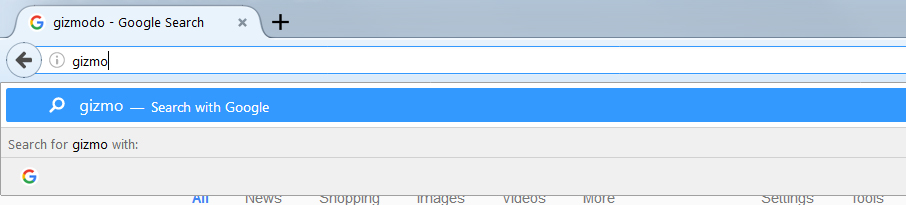
See attached. I know what search engine I use and removed all others, so why does it have to tell me what I am using? A tad annoying. Anyway to disable?
Thanks.
See attached. I know what search engine I use and removed all others, so why does it have to tell me what I am using? A tad annoying.
Anyway to disable?
Thanks.
All Replies (2)
Chosen Solution
You can set this pref to false on the about:config page to hide the search selector at the bottom.
- browser.urlbar.oneOffSearches = false
To remove the notification at the top you would have to use code in userChrome.css.
Add code to the userChrome.css file below the default @namespace line.
@namespace url("http://www.mozilla.org/keymaster/gatekeeper/there.is.only.xul"); /* only needed once */

/* Remove " - Visit" or " - Search with" bar in the drop-down */
#PopupAutoCompleteRichResult richlistitem:first-of-type[type*="heuristic"],
#PopupAutoCompleteRichResult richlistitem:first-of-type[actiontype="searchengine"],
#PopupAutoCompleteRichResult richlistitem:first-of-type[actiontype="visiturl"],
#PopupAutoCompleteRichResult richlistitem:first-of-type[actiontype="keyword"] {
  display:none !important;
}
You can use the button on the "Help -> Troubleshooting Information" (about:support) page to go to the current Firefox profile folder or use the about:profiles page.
- Help -> Troubleshooting Information -> Profile Directory:
Windows: Show Folder; Linux: Open Directory; Mac: Show in Finder - http://kb.mozillazine.org/Profile_folder_-_Firefox
- create the chrome folder (lowercase) in the <xxxxxxxx>.default profile folder if this folder doesn't exist
- use a plain text editor like Notepad to create a (new) userChrome.css file in the chrome folder (file name is case sensitive)
- paste the code in the userChrome.css file in the editor window
- make sure that the userChrome.css file starts with the default @namespace line
- make sure that you select "All files" and not "Text files" when you save the file via "Save file as" in the text editor as userChrome.css.
otherwise Windows may add a hidden .txt file extension and you end up with a not working userChrome.css.txt file
Thank you.
•browser.urlbar.oneOffSearches = false fixed it.
Appreciate the help!