How to I increase text size? I have visual problems.

How do I increase text size in Firefox?
How do I increase text size in Firefox?
All Replies (2)

Hi,
Firefox's settings have options where you can set a default zoom level and/or minimum text sizes.
To open the settings, go to about:preferences, or follow these steps:
- Press the menu button

- Click on Settings, which is about three-quarters of the way down the menu
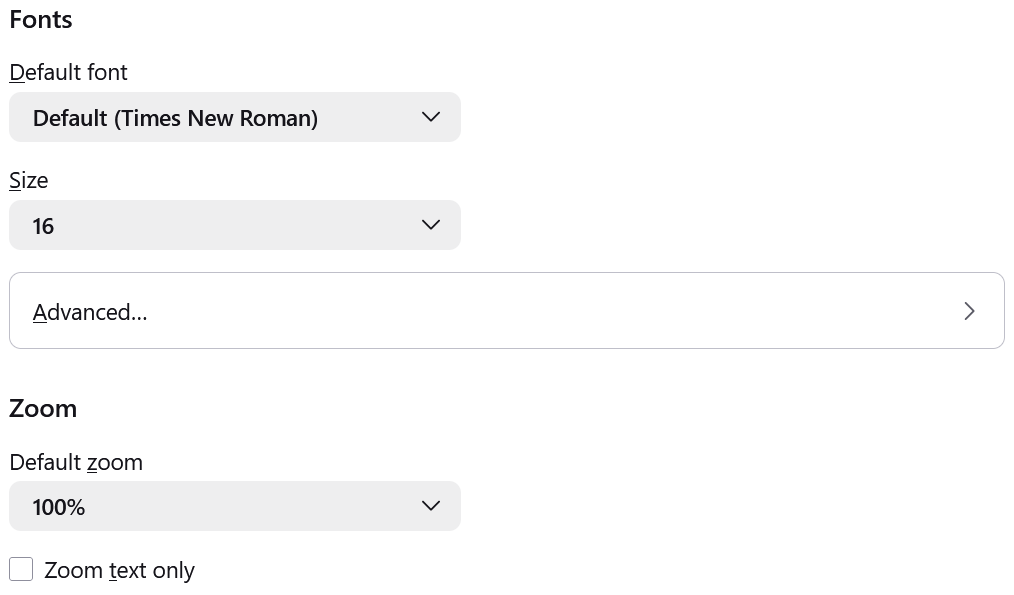
I've attached a screenshot of the subsections that the rest of this response will focus on.
To set a default zoom level:
- In the General panel, scroll down until you find the Language and Appearance section.
- A bit further down, there will be a subsection for Zoom. Use the drop-down menu for Default zoom to select a zoom level for all pages. Firefox will still remember individual site zoom levels you set.
- To set a zoom level for text only, select the Zoom text only checkbox.
To set a minimum font size:
- In the General panel, in the Language and Appearance section, go to the subsection for Fonts.
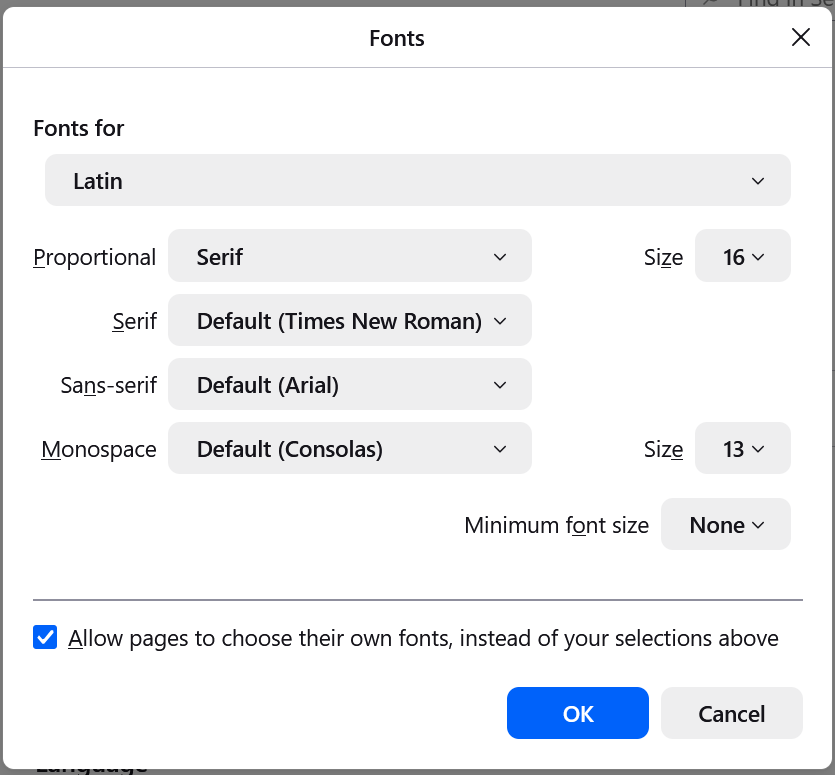
- Click Advanced.... It will open a pop-up, which I've attached a screenshot of.
- In the Minimum font size drop-down, select the minimum size in pixels in which all text must be displayed.
- Click OK to save your changes.
For more information about increasing text size: Font size and zoom - increase the size of web pages
Hello
https://support.mozilla.org/en-US/questions/1523792
https://support.mozilla.org/en-US/kb/about-config-editor-firefox
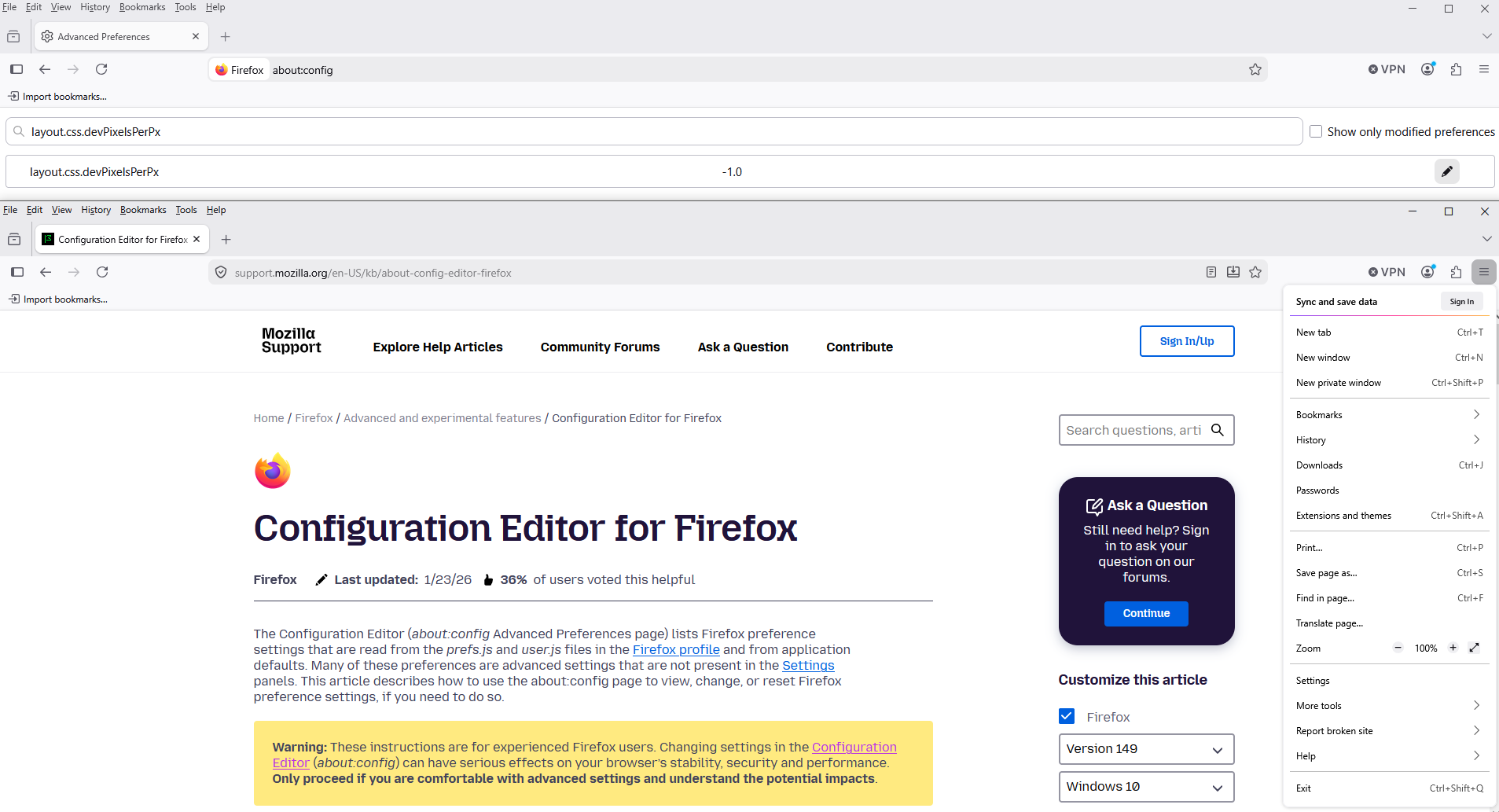
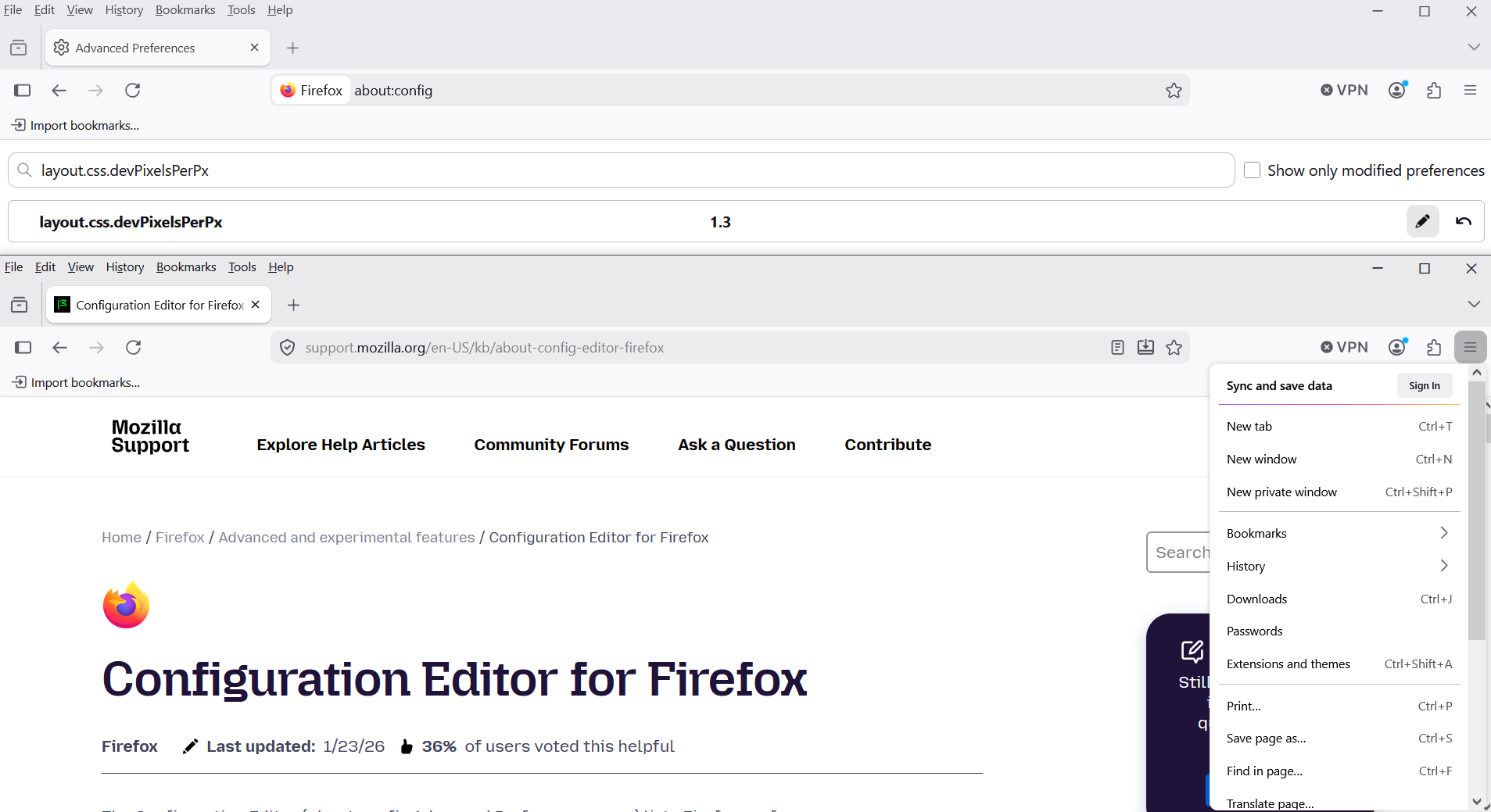
Maybe, you can test, the preference, layout.css.devPixelsPerPx