How can I download Thunderbird 102.15?

Thunderbird 144 is a go-awful mess. It has stopped allowing me to easily delete unwanted emails. Further, it is slow as molasses when trying to expand and read emails. My understanding is that the 102 series version works better. therefore I would like a clean, straight-forward method for downloading 102.15.
All Replies (2)
re : It has stopped allowing me to easily delete unwanted emails.
It may help to find out what is going on. I'm not sure what it is that you are suddenly finding difficult. Unwanted mail is generally labelled as Junk/Spam and if set up correctly they should be in the 'Spam/Junk' folder. A right click on Spam/Junk folder and select 'Empty Junk' should delete them. After emptying Junk - right click on folder and select 'Compact' to remove all traces.
If you have unwanted mail in eg: Inbox, you can mark as Junk and it should go to the accounts Junk/Spam folder. Or if unwanted mail is in 'Inbox' and you do not want to open it: Right click on email to see a menu. The Mark as Junk icon is at the top - it has a flame icon OR to delete click on the far right Trash icon and it should go into the account Trash folder.
There are several ways to delete an email.
What exactly is the problem ? What method do you normally use ?
re : Further, it is slow as molasses when trying to expand and read emails.
Are you using an Imap or Pop account ?
What Anti-Virus do you use ? I ask because many people allow their AV to scan any file that gets opened. That means Thunderbird can temporarilly be held up because AV has taken control over the file which manifests as a delay in proceedings. A pain in the proverbial. To be honest I advise people to access their Anti-Virus and set up an exemption to not scan the 'Thunderbird' profile folder: eg: C://User/<username>/Appdta/Roaming/Thunderbird After all, you do not want it to fix anything as it might cause data loss. AV products do not understand that one text file may contain hundreds of emails. If you still want it to scan those files, then at the very least do not allow AV to auto fix or quarrantine - tell it to ask what to do so you can stop any action.
Another thought - how frequently do you compact your folders ? Ideally the Inbox, Drafts and Spam/Junk should compacted on a regular basis especially after deleting or moving emails. I manually compact those three folders almost daily because I get quite a few emails. I also use Message Filters to help sort and organise emails into various folders, so a lot of emails get 'moved'. If you do not compact then the email remains in the original file, marked as deleted and hidden. That means the file may be a lot larger than you think. Not compacting can increase the risk of corruption, so it's a good thing to do as housekeeping maintenance.
re : My understanding is that the 102 series version works better.
Not sure where you got that information. You need to be aware that some people do not like new designs even if they really are better so they become more vocal. But in reality the majority just get on with and find it's better than they initially thought especially when they realise there are alot more options. You tend to not hear much from those people. I'm using two version of Thunderbird at the moment. One is version 128.14.0esr and the other is beta 145.0b2 I do that because some people are still on the older version and I offer help, so need to know info. The beta means I'm able to test and check for any bugs etc. It also has all the visual data etc that is currently used the 144 version.
My experience is in all the versions and I would not say 102 series is a better option. It was a good version, but will not be using the most up to date security or bug fixes. It also will not have all the new functionalities and design display options. Some people are not aware of the new options. There has also been a huge change in the code as alot has been rewritten. If you go back then you can end up being very out date in a short amount of time.
I would be happy to help to see if something is not set up correctly which improves your experience. Many people have not yet got to grips with the new options and some never realised some older options were still available. eg: The new Unified Toolbar operates over various views such as Mail or Calendar etc and it can be customised in such a way that some new toolbars can be hidden to gain space/declutter. There is also two ways to view the Message List, eg: Table view or Card view. The list is quite lengthy, but if you want to see if you can improve the current situation, then let's see what we can achieve.
You might be think - ah well - it's alright for younger folk they adjust more easily. Sadly, I'm no spring chicken, so I do understand. But, it doesn't stop me from picking it up alot quicker than I may have initally thought.
However, if you really want to go backwards then you would need to do the following. I would always advise that you create a backup before you do this for obvious reasons :)
First make sure Thunderbird is not set up to auto update:
- Settings > General
- scroll down to 'Updates' section
- select option 'check for updates. but let mew choose whether to install them'
- Do not select/uncheck this option: 'Use a background service to install updates'
Unchecking that last option means even if you accidentally selected to update, the OS will pop up a UAC prompt to ask if you really want to allow the update, so you can say NO and stop it.
- Exit Thunderbird - this is important.
- Check computer for updater software
Make sure you do not have any other updater software on computer which may try to override. Some Anti-Virus products do offer auto checks for updates. I use Norton 360 and I know it offers checking for software updates. I had to stop it from checking for a Firefox and Thunderbird update. Let Firefox and Thunderbird control the updates when you say so.
Now access profile
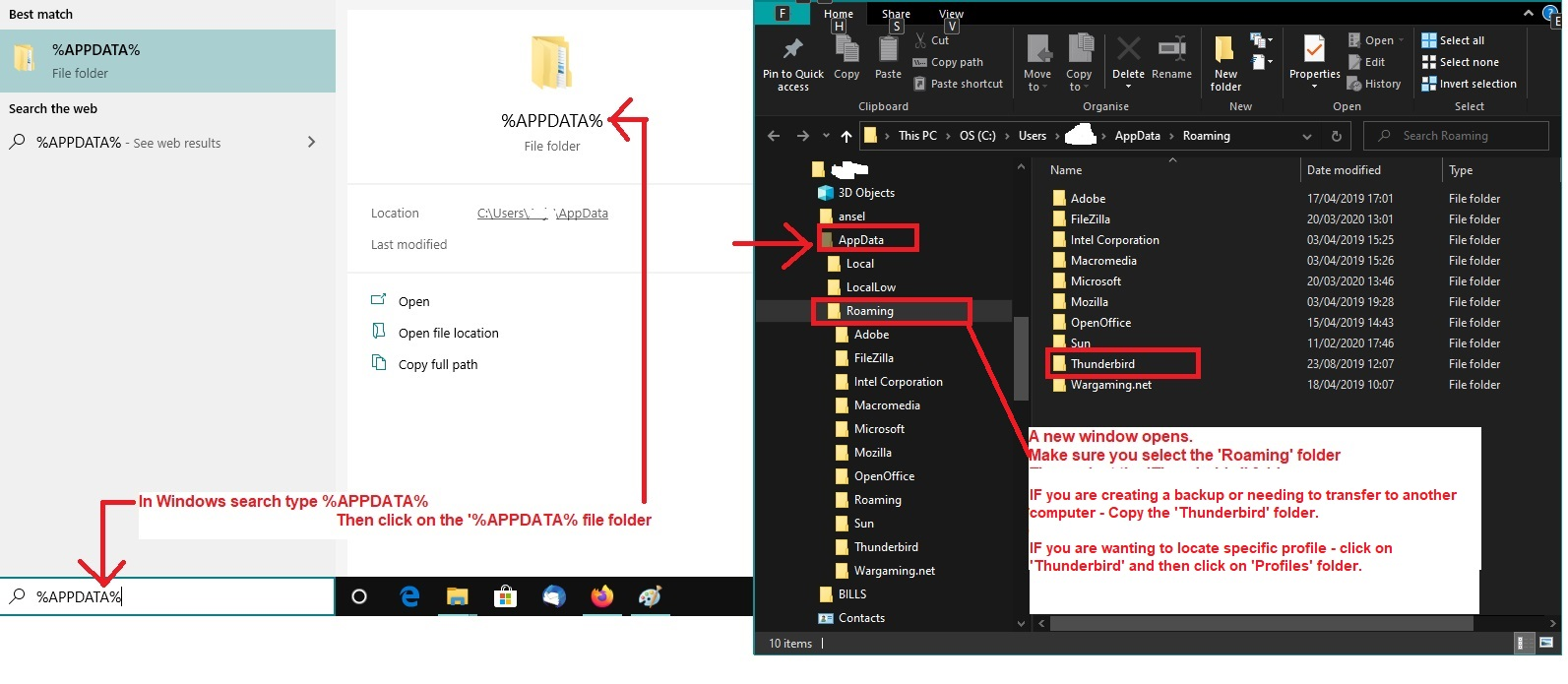
- In Windows search type: %Appdata% - see image below as guide
- Select '%Appdata% file folder
- Select 'Roaming'
- Copy the 'Thunderbird' folder and paste in safe location such as an external hardrive or another partition eg: D: drive - this will be the backup.
- Select 'Thunderbird' to see contents
- Select 'Profiles'
- Select the 'profile name' folder
- Look for delete the 'compatibility.ini' file.
- Uninstall Thunderbird.
- Get a download from the appropriate version link - choose eg: win64 for a Windows OS. Then choose prefered language eg: en-GB = English British and then click on the 'Thunderbird version exe' file link to download.
Version 102.15.1
Version 128.14.0