


Tabs do not appear after Syncing

I have successfully enable Sync and it is set on all three Macs to sync everything. But the tabs do not appear
Alla svar (3)
Hi HytheKent, I understand that there are three devices syncing to Firefox Sync. I am happy to assist.
There are two places to look for actively open, and synced tabs.
- Tools > Tabs from other Devices
- Put this into a new window about:sync-tabs
In order to force a sync go to Tools > Sync Now on two devices with open tabs and see that tab opened above change with a refresh.
I hope this helps.
guigs
I cannot see- "Tools > Tabs from other Devices " It is not under my Tools menu
Unless you have managed to disable tabs in the sync settings in about:config, I cannont imagine what may have caused that option to not be in that menu. (if its greyed out that might be different, but missing is really strange. )
See if they appear in Safe Mode after Tools > Sync Now if you know another device is logged in and actively syncing:
Try Firefox Safe Mode to see if the problem goes away. Firefox Safe Mode is a troubleshooting mode that temporarily turns off hardware acceleration, resets some settings, and disables add-ons (extensions and themes).
If Firefox is open, you can restart in Firefox Safe Mode from the Help menu:
- Click the menu button
 , click Help
  and select Restart with Add-ons Disabled.
If Firefox is not running, you can start Firefox in Safe Mode as follows:
- On Windows: Hold the Shift key when you open the Firefox desktop or Start menu shortcut.
- On Mac: Hold the option key while starting Firefox.
- On Linux: Quit Firefox, go to your Terminal and run firefox -safe-mode
(you may need to specify the Firefox installation path e.g. /usr/lib/firefox)
When the Firefox Safe Mode window appears, select "Start in Safe Mode".
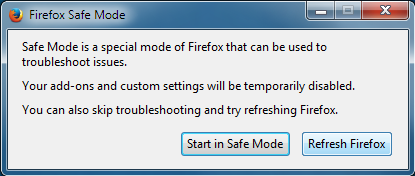
If the issue is not present in Firefox Safe Mode, your problem is probably caused by an extension, theme, or hardware acceleration. Please follow the steps in the Troubleshoot extensions, themes and hardware acceleration issues to solve common Firefox problems article to find the cause.
To exit Firefox Safe Mode, just close Firefox and wait a few seconds before opening Firefox for normal use again.
When you figure out what's causing your issues, please let us know. It might help others with the same problem.