


Cannot copy Thunderbird folder to new installation

I have followed the instructions that several people give to transfer my existing Thunderbird installation to a new computer where I have just installed Thunderbird. That is I copied the Thunderbird folder and put it in the Roaming folded found in %appdata%. Both computers are on Windows 11. When I open the new Thunderbird, it does not recognise it. Furthermore, in Help>Troubleshooting information>Profile folder when I click to open the folder, it looks for a folder that is not in my previous Thunderbird installation: qr19mupe.default-release instead of the one that came with my imported Thunderbird folder. Has this happened to anybody and found the solution? Can anybody help please?
Krejt Përgjigjet (20)
The common problem is either copying while thunderbird is running or accidentally pasting to wrong location. Try these steps:
BACKUP
- ensure thunderbird is not running on old PC
- enter %appdata% in search window on task bar and press Enter key
- this should open windows file explorer in Appdata\roaming folder
- highlight the Thunderbird folder and copy to external media
RESTORE
- ensure thunderbird is installed on new PC, run once, and NOT running
- enter %appdata% in search window on task bar and press Enter key
- delete the thunderbird folder
- you should be in Appdata\roaming folder , paste the exported Thunderbird folder there.
- start thunderbird and all should be there
Ndryshuar nga david
david said
The common problem is either copying while thunderbird is running or accidentally pasting to wrong location. Try these steps: BACKUPRESTORE
- ensure thunderbird is not running on old PC
- enter %appdata% in search window on task bar and press Enter key
- this should open windows file explorer in Appdata\roaming folder
- highlight the Thunderbird folder and copy to external media
- ensure thunderbird is installed on new PC, run once, and NOT running
- enter %appdata% in search window on task bar and press Enter key
- delete the thunderbird folder
- you should be in Appdata\roaming folder , paste the exported Thunderbird folder there.
- start thunderbird and all should be there
Thanks for the help. The only thing I had not done in my attempts was to delete the Thunderbird folder, first, in the new computer before pasting the old Thunderbird folder, but the new installation still does not recognise it. When going to Help>Troubleshooting information>Profile folder it still insists on looking for a folder qr19mupe.default-release which is not there. It was in the Thunderbird folder I deleted but it only wants to look at this folder.
clicking help>troubleshootinginformation, then clicking the 'open folder' button should just display the folder, not search for a nonexistant folder. I don't understand. I suggest posting a screenshot of the profiles.ini file in the exported thunderbird folder and also one of the profiles.ini in the new PC. Thank you
Profiles.ini from old computer: [Install8216C80C92C4E828] Default=Profiles/radyvrev.default Locked=1
[Install1B0CC68C55ADE95A] Default=Profiles/radyvrev.default Locked=1
[Profile0] Name=default IsRelative=1 Path=Profiles/radyvrev.default Default=1
[General] StartWithLastProfile=1 Version=2
Profiles. ini from new computer:
[Install8216C80C92C4E828]
Default=Profiles/radyvrev.default
Locked=1
[Install1B0CC68C55ADE95A] Default=Profiles/radyvrev.default Locked=1
[Profile0] Name=default IsRelative=1 Path=Profiles/radyvrev.default Default=1
[General] StartWithLastProfile=1 Version=2
They are both the same now as I copied and pasted it.
This was the profiles.ini file in the new computer, after the fresh installation, before I deleted it.
[Install32568E90479A196B] Default=Profiles/qr19mupe.default-release Locked=1
[Profile1] Name=default IsRelative=1 Path=Profiles/7lj7hk1o.default Default=1
[Profile0] Name=default-release IsRelative=1 Path=Profiles/qr19mupe.default-release
[General] StartWithLastProfile=1 Version=2
Thunderbird does not change the contents of the profiles.ini file on its own. It 'obeys' the settings. If the profiles.ini is identical to the old one, then the active profile will be radyvref.default. When you click help>troubleshootinginformation, scroll to 'profile folder' and click 'open folder', what is the name of the profile?
At the moment, it will not even open the folder but down below there is this:
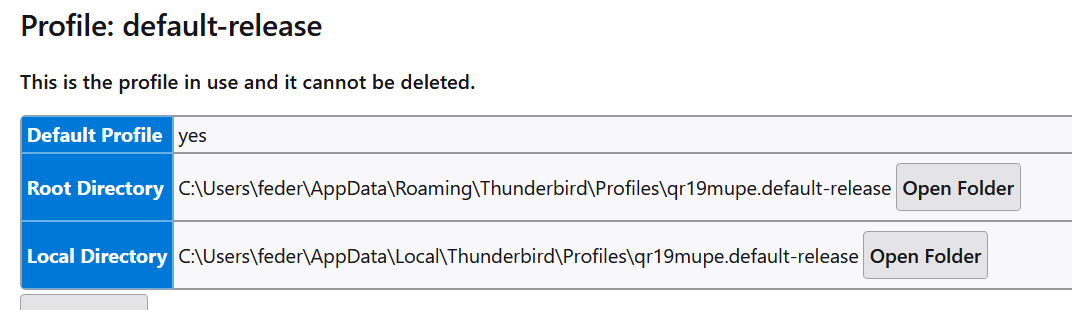
That proves that you are not replacing the thunderbird folder at appdata\roaming Review the suggested steps in detail.
I am sure I did, but Thunderbird is looking for something else. I know because my radyvrev.default, from the old computer is a lot larger than the one in the new installation, which has been deleted. I wonder if there if I can replace the folder in the 2 locations: Roaming and Local.
did you download thunderbird from thunderbird.net? Or from Microsoft? If from Microsoft, the profile is in a different location.
Earlier I asked that you click help>troubleshootinginformation, scroll to 'profile folder' and click 'open folder' but you didn't do that. Please do again and tell us what you see when you do that.
Yes I told you that it will not open it because it says it cannot find that qr19mupe.default-release folder. See attached picture. On the other hand, it could be that I have got the wrong installer file: Mozilla Thunderbird Installer.exe
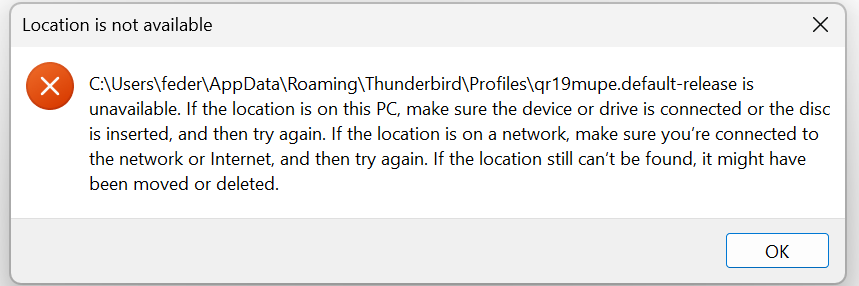
Look in Users\username\AppData\Local\packages\MozillaThunderbird.MZLA_h5892qc0xkpca\LocalCache\Roaming\Thunderbird
The fact that thunderbird is running, yet indicates it cannot find the profile, gives me the impression that this is the MS version. If there is an icon on windows desktop, rightclick and see if the target is c:\programfiles which is where the Mozilla version is installed.
Users\username\AppData\Local\packages\MozillaThunderbird.MZLA_h5892qc0xkpca\LocalCache\Roaming\Thunderbird is not there.
Yes, Mozilla is under c:\Program files but that is Firefox
wait, I forgot to put my user name on the search No, this is what is on that Users path: MozillaThunderbird.MozillaThunderbirdRelease_h5892qc0xkpca
Users\feder\AppData\Local\packagesMozillaThunderbird.MozillaThunderbirdRelease_h5892qc0xkpca
On the troubleshoot information:
C:\Program Files\WindowsApps\MozillaThunderbird.MozillaThunderbirdRelease_153.0.3.0_x64__h5892qc0xkpca\VFS\ProgramFiles\MozillaThunderbirdRelease Package Root\thunderbird.exe
Yes, you have the MS version. that is why the profile is not being seen. I suggest uninstalling the MS version and then downloading from thunderbird.net
OK, I will do that. Thanks for now.
That worked. I would never have worked that out for myself. Thanks a lot!
Great!!!! free beer for everyone. Yes, that's rare, as I see MS version very few times. I'm glad all is well. Be sure to do a backup.