


Add-on bug

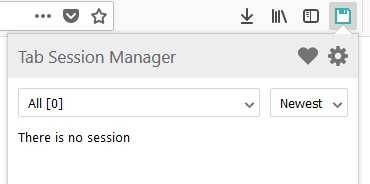
When I put my PC to sleep, my add-ons disappear and stop showing up, and I get automatically logged out of sites I was logged into. After that, a message appeared saying that Tab Session Manager was corrupted. When I tried to repair it, all 200 or so tabs I had saved previously disappeared. How can I fix this? I’m really stuck.
Chosen solution
Hello,
It is most likely that Firefox is set to clear data upon closing. Here's how to disable it : Search about:preferences#privacy in the address bar. Under History, set it to "Remember history" or, if using custom settings, uncheck "Clear history when Firefox closes" .If you want to keep that setting on, make sure Cookies and Active Logins are unchecked.
If it doesn't work, it is possible that you are private browsing mode. Search about:preferences#privacy in the adress bar, scroll to history. Then, uncheck Always use Private Browsing mode.
If the tabs still close, even after the previous ones worked, Search about:preferences#general, then under startup, check Open previous windows and tabs.
For cookies, Search about:preferences#privacy in the adress bar, and scroll to cookies and site data Then, make sure Delete cookies and site data when Firefox is closed is unchecked
Read this answer in context 👍 0All Replies (1)
Chosen Solution
Hello,
It is most likely that Firefox is set to clear data upon closing. Here's how to disable it : Search about:preferences#privacy in the address bar. Under History, set it to "Remember history" or, if using custom settings, uncheck "Clear history when Firefox closes" .If you want to keep that setting on, make sure Cookies and Active Logins are unchecked.
If it doesn't work, it is possible that you are private browsing mode. Search about:preferences#privacy in the adress bar, scroll to history. Then, uncheck Always use Private Browsing mode.
If the tabs still close, even after the previous ones worked, Search about:preferences#general, then under startup, check Open previous windows and tabs.
For cookies, Search about:preferences#privacy in the adress bar, and scroll to cookies and site data Then, make sure Delete cookies and site data when Firefox is closed is unchecked