


How Do I fix SEND wants password from another account?

First - sorry if the post is messy, but I don't see a Preview option today
PRELUDE: When I create a email to send to Joe@hotmail.com, on clicking SEND, a popup wants a password for a different account:
EXAMPLE: (emails are faked here for privacy)
Assume I have the following email accounts:
- john@fakes.xy
- jane@morefakes.vc
- fred@deftly.xc
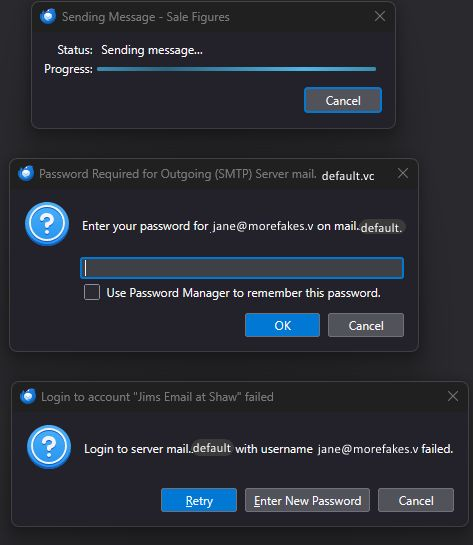
I compose a email to john@fakes.xy. I click SEND, and there is a popup stating:
Status: Sending message... Progress {progress bar}
and second popup with :
Enter your password for jane@morefakes.vc on mail.{IP name}.com
and a third popup with:
Login to server mail.{ip-name} with username jane@morefakes.vc failed
I have attached a screen cap (redacted) as seen in actual.
SUMMARY:
- When addressing email to Joe, upon SEND, the errors show password to use is listing a different account.
I ran Troubleshooting Mode with no errors, except, same thing. Wants password from a different email account.
Thanks for reading this, ~r
Все ответы (3)

Go to TB menu > Account Settings > account > Server Settings and make note of the User Name. Then scroll down to Outgoing Server, where there should be an entry for each of the three accounts. Make sure each of the three accounts' User Names are the same as their respective Server Settings User Names.
@Ed Thanks for quick response Ed, I really appreciate the help.
I have had time to try your suggestion but I have a question first.
When in Outgoing server settings, I note a "default" server (mail.shaw.ca) at the top of the list. I will delete the default and then do as you suggest - point them to the settings for the separate emails.
The 3 in the image is just example emails. I actually have 54 email addresses, only 9 email accounts are with Shaw telecom. Shaw had 10 before Rogers took over and abandoned email users telling us to make a Yahoo account. Rogers still has to provide the email (over webmail) service, but are doing a very poor job. They have a support page on how to set up Shaw email so not all is lost.
Thanks again, ~r
AS a heads up - do not edit via the 'Edit SMTP Server' button as you may end up repeatedly editing incorrect option.
Do it thisway:
- Account Settings
- Left pane scroll to bottom and Select 'Outgoing Server (SMTP)' to see list of SMTP server.
- Select each in turn and clickon 'Edit'
- In 'Description' field enter the correct email address = username
- Do this for each smtp server.
Then check each mail account is actually using correct smtp server.
- In left pane select name of mail account
- look bottom right for it's 'Outgoing Server SMTP' and you should see the email address that was put in the DEscription field.
- If incorrect, click on the drop down chevron (NOT the 'Edit SMTP Server' button) and select correct account name/email address.