


bookmarks toolbar

I want my bookmarks toolbar to be across the top of the page but I can only find it from the 3 bars at the top right of the screen. When I click on it, I am given the option to hide the toolbar, but it's already hidden. I have also navigated from the View menu as well, and the toolbar is set on Always Show. I have run out of things to try. I am on a laptop with Microsoft Windows. Can someone offer assistance?
Все ответы (3)
Выбранное решение
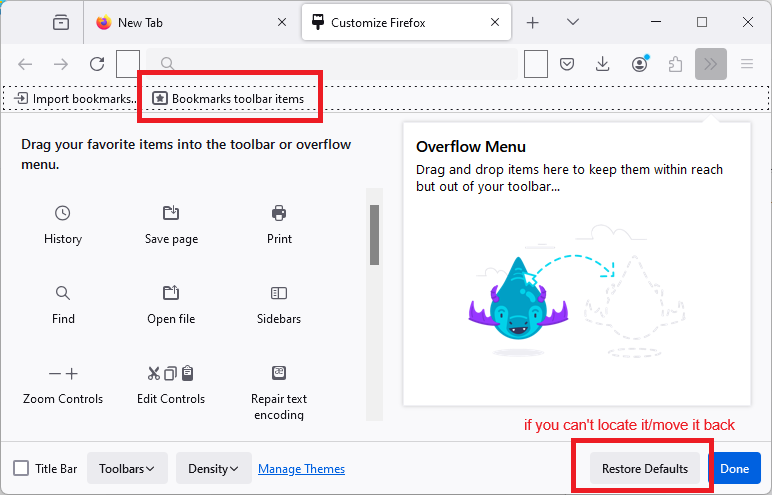
When you go into the Customize panel (Customize Firefox controls, buttons and toolbars), look for "Bookmarks Toolbar Items", which is an "expand to fit" box where your bookmarks are shown. Is that box in the correct location on the Bookmarks Toolbar, or is something else in its place (or is that bar blank)?
I'm attaching a screenshot for reference.
My menu didn't have a bookmarks toolbar item, so I did a restore default and that worked. Now I have to remember the rest of the stuff I need to change back. Thank you.
You should be able to find your add-on buttons on the Extensions Button drop-down: Manage your extensions using the extensions button in the toolbar.
For built-in buttons, I guess you'll probably remember them when you go looking for them.