


Host contacted sending login information

Everything has been working normally for years until today. I cant retrieve emails from ATT servers and the only message is "Host contacted sending login information". It hangs for 30 seconds and then nothing... No error message is displayed. I read a similar post and tried following the back and forth, but didnt find any solution. What I have tried: -Copied an old backup copy of a profile into the default. -Checked the server settings and tried the option of using a password instead of OAUTH2. -Created a new profile and set it as the default.
Each time I had to restore the profile by copying a recent profile backup into the default
No luck with any of these steps.
Solução escolhida
SOLVED! I checked my Windows defender update log and found that I had an update installed recently. This turned out to be a Windows security issue, not a Thunderbird issue.
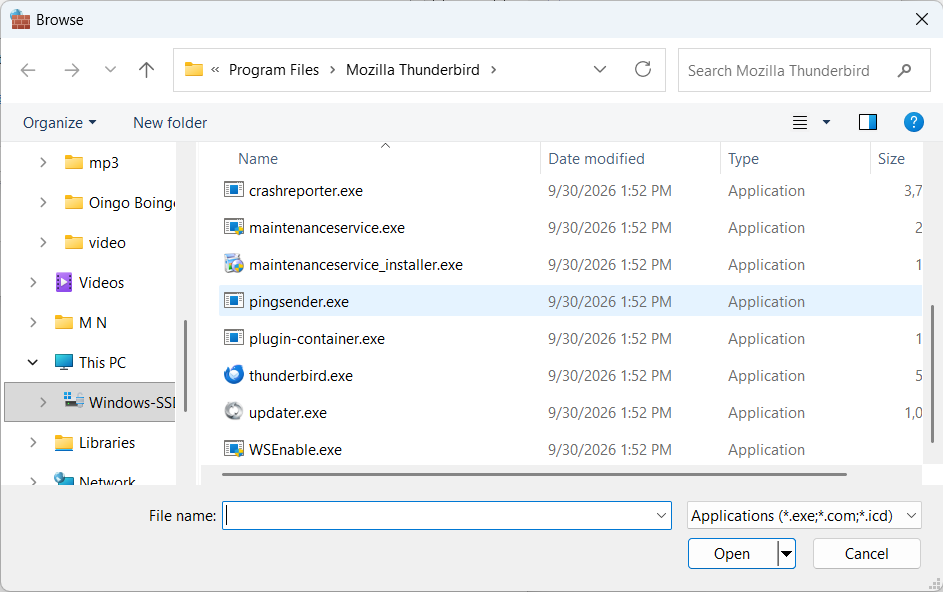
I have Windows 11 with Windows Defender for security. 1. Find out where your Thunderbird.exe file is stored. Default is in C:\Program Files\Mozilla Thunderbird\thunderbird.exe 2. Clickon Windows start menu and clickon windows security 3. Cllickon Firewall and network protection. 4. Clickon Allow app through firewall. A window opens showing all allowed apps 5. Clickon change settings 6. Clickon add another app 7. Clickon Browse. An Exporer window opens. 8. Navigate to the directory that you found in step #1. 9. Select Thunderbird.exe and clickon open 10. Selelect Thunderbird and clickon add. 11. Close Windows security and open Thunderbird.
Todas as respostas (3)
PS I have an old laptop that I only use as a backup. I compared all of the server settings on both laptops and they are identical. TB on the backup works fine. The primary still gets stuck on the "Host contacted sending login information" message. My guess is that some file got corrupted and I cant figure out where to go next.
I tried copying the key4.db, logins.db, logins.json and logins-backup.json files from the laptop that works to the one that doesnt, and it still doesnt work. Whats next? Will creating a completely new profile help? Can anyone please give me some guidance?
Solução escolhida
SOLVED! I checked my Windows defender update log and found that I had an update installed recently. This turned out to be a Windows security issue, not a Thunderbird issue.
I have Windows 11 with Windows Defender for security. 1. Find out where your Thunderbird.exe file is stored. Default is in C:\Program Files\Mozilla Thunderbird\thunderbird.exe 2. Clickon Windows start menu and clickon windows security 3. Cllickon Firewall and network protection. 4. Clickon Allow app through firewall. A window opens showing all allowed apps 5. Clickon change settings 6. Clickon add another app 7. Clickon Browse. An Exporer window opens. 8. Navigate to the directory that you found in step #1. 9. Select Thunderbird.exe and clickon open 10. Selelect Thunderbird and clickon add. 11. Close Windows security and open Thunderbird.