


Mappen verdwenen onder mailaccount

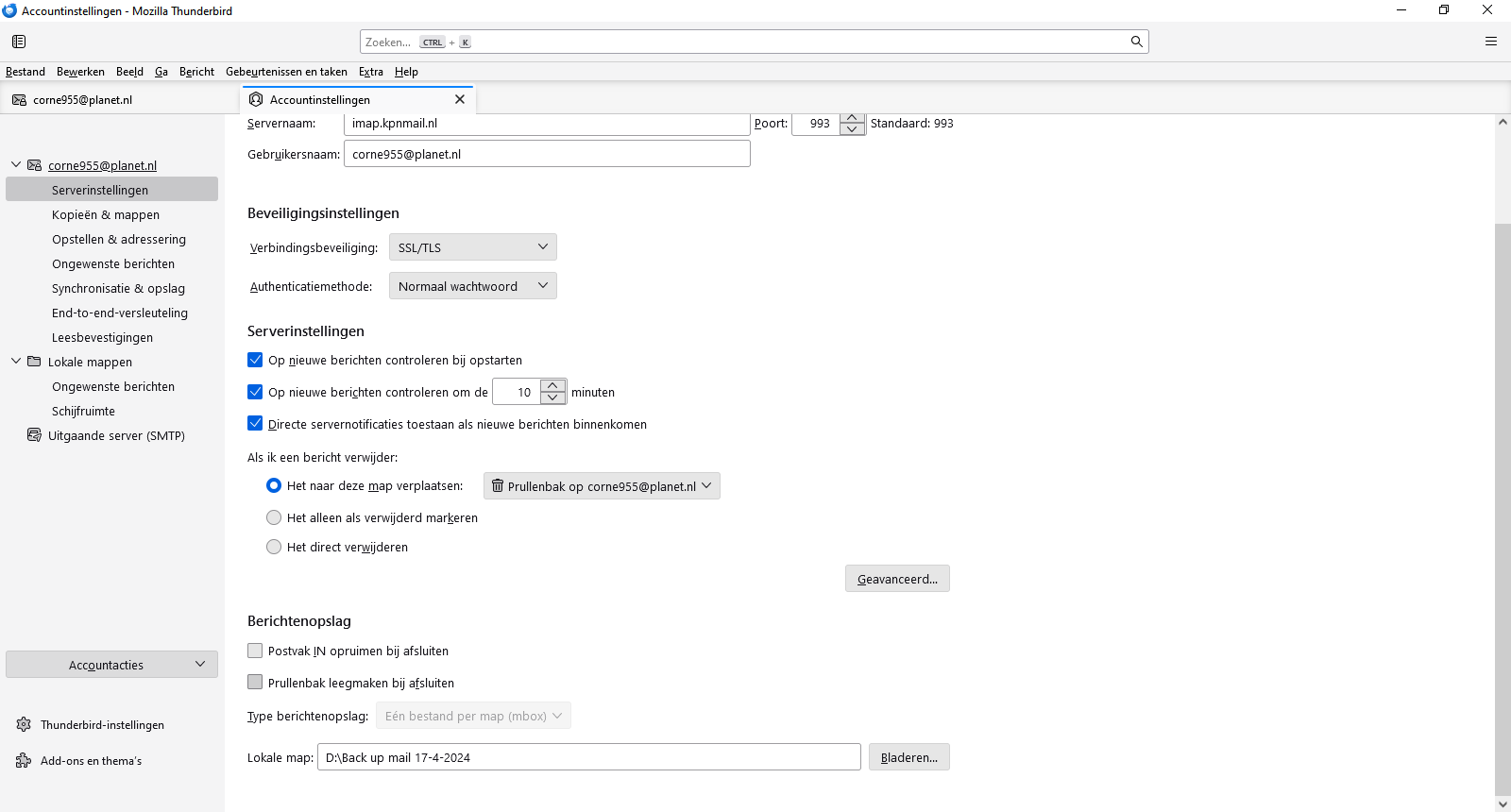
Enige weken geleden heb ik mijn mailbestand geexporteerd naar externe harde schijf als back up. Deze externe harde schijf (D:) heb ik nu continue aan mijn laptop gekoppeld. En mijn mail account met bijbehorende postbussen functioneert normaal. Maar als ik nu mijn externe harde schijf loskoppel is wel mijn mailaccount zichtbaar maar zijn alle onderliggende mappen verdwenen, zoals IN, OUT, SEND, ETC. (de lokale mappen zijn wel zichtbaar). Bij de serverinstellingen staat dat berichten worden opgeslagen in D:\ Back up mail dd-mm-jjjj Ik wil graag dat alle postbussen weer op mijn C:\ schijf worden opgeslagen zodat ik de externe harde schijf weer kan verwijderen. Hoe zet ik de mappen weer op C:\ ?
Solução escolhida
In windows file explorer, click View>show>hidden items
Ler esta resposta no contexto 👍 1Todas as respostas (4)
Nog een screenshot ter aanvulling. Een print van wat er op D:\ staat.
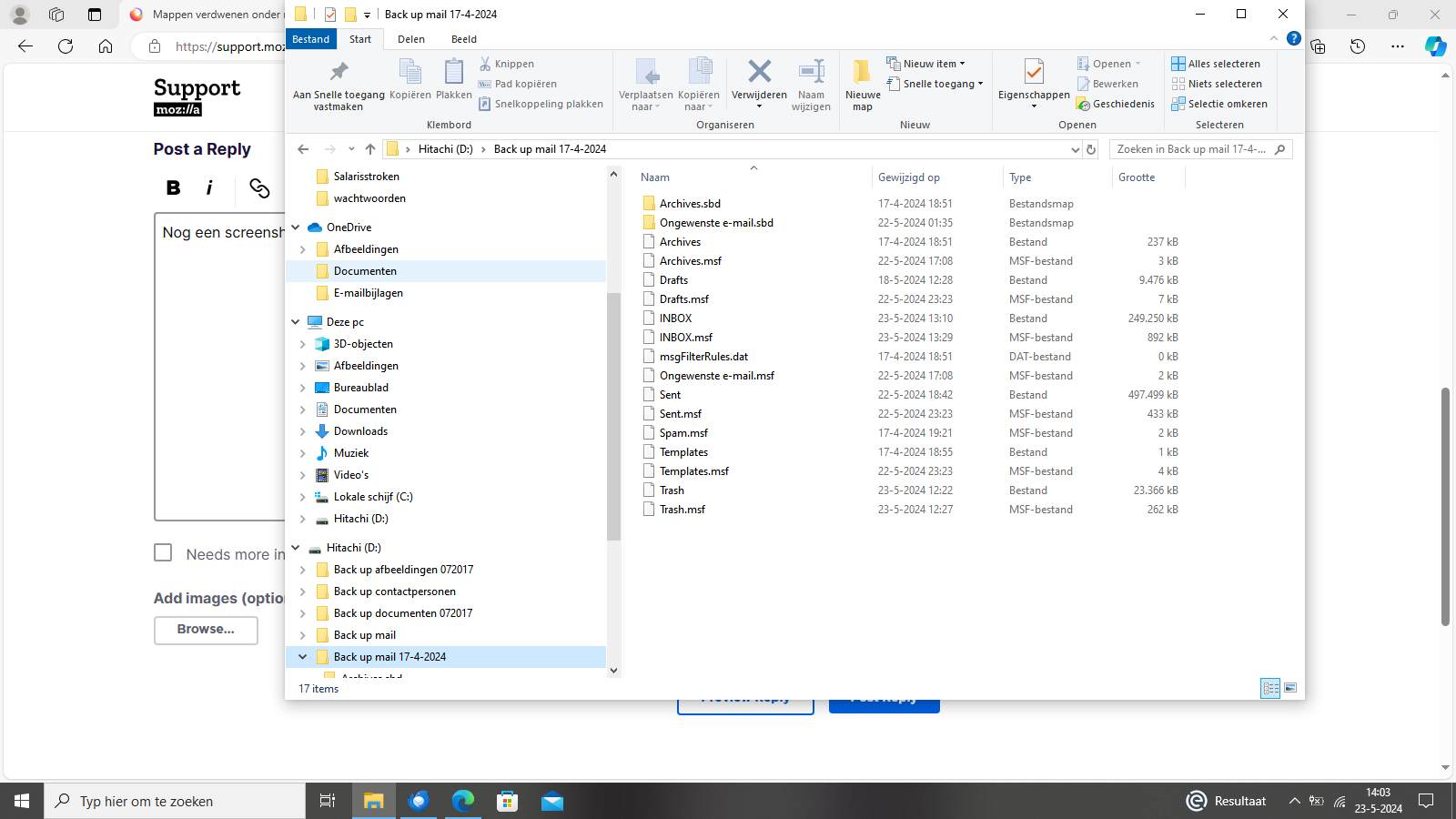
I think this will work: -exit thunderbird - in the C profile, click to the Imapmail folder or the Mail folder, depending on whether the account is IMAP or POP - add a name to distinguish the account from any other accounts you may have in that folder. any name will do, e.g., 'account1' - copy the content of the folder on d to be within 'account1', such that you will see:
  Mail\account1\input
   Mail\account1\input.msf     etc.
- start thunderbird, - click to the server settings pane and at bottom of pane, change the pointer to account to point to where you added the folder, e.g., Mail\account1 and press enter key' - thunderbird will probably reboot to make the change - if all goes well, you can delete the data on drive d NOTE: in my examples, I omitted the full data path, such as C:\users\<yourid>\appdata.....
Bedankt voor jouw antwoord maar ik loop al in het begin vast. Mijn folder AppData en mijn folder ImapMail zijn niet zichtbaar in verkenner (kan deze niet vinden) Moet ik als Administrator aanmelden? Of hoe kan ik de folder AppData vinden? Via zoekfunctie geeft geen resultaat.
Solução escolhida
In windows file explorer, click View>show>hidden items