


Hide / Disable saved logins Dropdown
Hey guys,
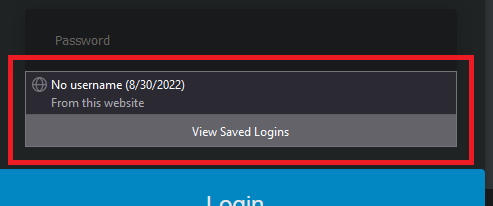
is it possible to disable the "saved logins" dropdown, whenever a password/email field gets focus? (see image)
I've already disabled "Autofill logins and passwords", but that just disables not directly autofilling the field.
I want to disable this field, since I can still use saved logins via right click "use saved password", which i prefer.
Its no form field, i've already checked that + it occurs on all login pages.
The only options i've found where: "signon.showAutoCompleteOrigins" - hides from which website
and "signon.showAutoCompleteFooter", which hides the lower part with "view saved logins"
Is there a way to disable this Dropdown completly, without loosing the auto save/ask to save new passwords?
Kind Regards
Firefox 104.0.1 (64-bit) - Fresh install (just imported logins)
Solução escolhida
If you want to use code in userChrome.css then use this code as your code isn't specific and affects all #PopupAutoComplete cases and there are more.
#PopupAutoComplete[resultstyles~="insecureWarning"] {
 display:none !important;
}
Ler esta resposta no contexto
👍 1
Todas as respostas (3)
The only way I know to disable that drop-down list and use "Use Saved Login/Password" is to disable the Password Manager and use "Create New Login" to save a new password.
- Settings -> Privacy & Security -> Logins and Passwords -> [] "Ask to save Logins and Passwords for websites"
Note that if you use the Primary Password then you need to unlock the logins via about:logins or via the Device Manager (Certificates -> Security Devices -> Software Security Device).
Okey could hide it via userChrome.css
"hashtag"PopupAutoComplete {
display: none;
}
did the trick
ps: "hashtag" = # (couldn't write it, since it interprets it as list then)
Modificado por Dschogo a
Solução escolhida
If you want to use code in userChrome.css then use this code as your code isn't specific and affects all #PopupAutoComplete cases and there are more.
#PopupAutoComplete[resultstyles~="insecureWarning"] {
 display:none !important;
}