


Unable to open Thunderbird emails via Waterfox browser

140.10.0esr (64-bit)
Thunderbird for Linux Mintmint-001 - 1.0
I run two browsers on Linux Mint 22.3
Librewolf and Waterfox.
I prefer Waterfox. It is set as default in its own settings
I open preferred application in system settings and choose Waterfox as preferred WEB. Thunderbird is preferred as MAIL I click on an email, waterfox promptly opens my 4 home pages....not the email I return to preferred applications and choose Librewolf instead of waterfox, click on the email again, and it promptly opens the email.
Waterfox has been set as the default browser. I am looking for a way to set Thunderbird to open emails with waterfox......I cannot find such a setting in Thunderbird.
I searched and found this : Make sure to check the settings in both Thunderbird and your operating system to ensure Waterfox is selected as the default for opening links.
Is there a way to do this in Thunderbirds settings?....It does not make sense that there would be, becasue Librewolf opens the email anyway....
Penyelesaian terpilih
This may help: - after following Ed's suggestions to set those to options to true, click open an email link, and then click settings>general and I believe you will see an HTTPS setting under 'Files & Attachments' that lets you set or change the default for Thunderbird.
Baca jawapan ini dalam konteks 👍 1All Replies (19)

Try this.
Open the config editor:
- TB menu > Settings > General > scroll all the way down > click the 'Config editor' button
Search for and set these to true:
- network.protocol-handler.warn-external.http
- network.protocol-handler.warn-external.https
Then when you click a link in a message, you should be presented with a screen where you can choose which browser to use. Once done, reset the config options to false.
Thanks for the reply Ed. I entered config editor, copied and paste one of the lines (- network.protocol-handler.warn-external.http) in and found that this bought up both lines which you had included in your answer. I clicked at the end of each line to change each one from false to true. Then closed that page
Then opened Thunderbird/folder...double clicked on an email there to open it.... single clicked on the subject link, and it opened the four home pages, not the email itself......and not a page where I could choose which browser.
(As I was doing this, waterfox had already been set in preferred applications....I also tried it with librewolf set as the preferred,,,it still did not present me with a page to choose which browser....it did open the email as expected.)
I then opened the config editor again, reset the - network.protocol-handler.warn-external.http ....to false again.
Brian said
Then opened Thunderbird/folder...double clicked on an email there to open it.... single clicked on the subject link, and it opened the four home pages, not the email itself......and not a page where I could choose which browser.
For this to work - if it's going to - you have to open TB, make the config changes, then open a message from within TB and click a link in that message.
Thanks Ed.....yes I followed that exact path. Opened config editor, made the changes, then went straight to inbox/ did the usual to open an email and got the 4 home pages again.
if it makes any difference, this was opening Thunderbird after a reboot, and seeing your message and proceeding straight from there
OK, try this.
Open your profile folder:
- - TB menu > Help > Troubleshooting Information
- click 'Profiles' near the bottom > about:profiles > Local Directory > click 'Open Folder' button
- close TB > rename the handlers.json file in your profile folder
- restart TB > go to TB menu > Help > Troubleshooting Information > click the 'Clear startup cache' button
After restarting, when you click a link in a message, you should be presented with a screen where you can choose which browser to use.
- - TB menu > Help > Troubleshooting Information
- click 'Profiles' near the bottom > about:profiles > Local Directory > click 'Open Folder' button
local directory> (default profile) open directory
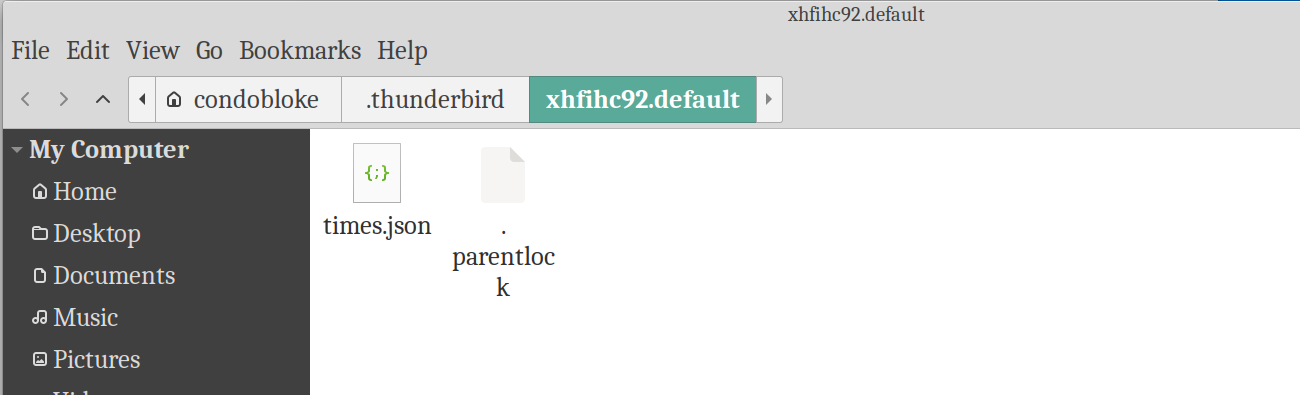
Close Thunderbird see screenshot just 3 folders in that spot: cache2, safebrowing, startupCache I am unable to locate handlers.json file in order to rename it. A search in that area returns 'no files found'

Penyelesaian Terpilih
This may help: - after following Ed's suggestions to set those to options to true, click open an email link, and then click settings>general and I believe you will see an HTTPS setting under 'Files & Attachments' that lets you set or change the default for Thunderbird.
Hello David, I am 90% certain you have hit the nail on the head.
I checked the two items in config editor and they were set to true.
So, I then "clicked open an email link, and then clicked settings>general and I believe you will see an HTTPS setting under 'Files & Attachments' that lets you set or change the default for Thunderbird." ......and Yes. that was the case. When I downloaded Waterfox initially, I did so to the Downloads folder. Following your advice above, I tracked to the Downloads folder, and in the extracted waterfox folder navigated to waterfox (not waterfox-bin) . That works. I have rebooted, and emails are now being opened in Waterfox.
The 'network.protocol-handler.warn-external.http' (and https) should both be left as is?....as True ?
I will test this out more thoroughly in my AM. (nearly midnight here, and I am back up at 4AM (my time) Thank you so much.
thanks, David. Life is indeed short.
It did make me wonder why those two items in the config manager were set to false as default.
No need to answer here. I am well satisfied.
Brian said
It did make me wonder why those two items in the config manager were set to false as default.
Because false is the default. I always advise to set them back to true to avoid troubleshooting potential future problems, but do as you wish :-)
Brian said
- - TB menu > Help > Troubleshooting Information - click 'Profiles' near the bottom > about:profiles > Local Directory > click 'Open Folder' button local directory> (default profile) open directory Close Thunderbird see screenshot just 3 folders in that spot: cache2, safebrowing, startupCache I am unable to locate handlers.json file in order to rename it. A search in that area returns 'no files found'
Trying to get this right, including the procedure and terminology!
Does this get you to where handlers.json is? Or prefs.js?
Go to TB menu > Help > Troubleshooting Information
- click 'Profiles' near the bottom > about:profiles
- for the profile in use, click the 'Open Directory' button for the Root Directory
Diubah oleh Ed
Note that you instruction is different to before.... in this one you have specified the ROOT directory, instead of Local
Trying to get this right, including the procedure and terminology!
Does this get you to where handlers.json is? Or prefs.js?
Go to TB menu > Help > Troubleshooting Information
- click 'Profiles' near the bottom > about:profiles
- for the profile in use, click the 'Open Directory' button for the Root Directory
See my screenshot, neither of the files you mentioned are present (handlers.json Or prefs.js)
Brian said
Note that you instruction is different to before.... in this one you have specified the ROOT directory, instead of Local
Because I thought the profile might be found at Root instead of Local. Why only two files there? Does pressing Ctrl-h show more? If not, can you do a full-disk search for handlers.json to find out which folder it's in?
I have no idea what I did differently. As you said why are there only two files there ....I just opened the troublshooting, profiles/about profiles....in the profile being used, I clicked on both local and root: Local> just 3 files...cache, safebrowsing and startupcache
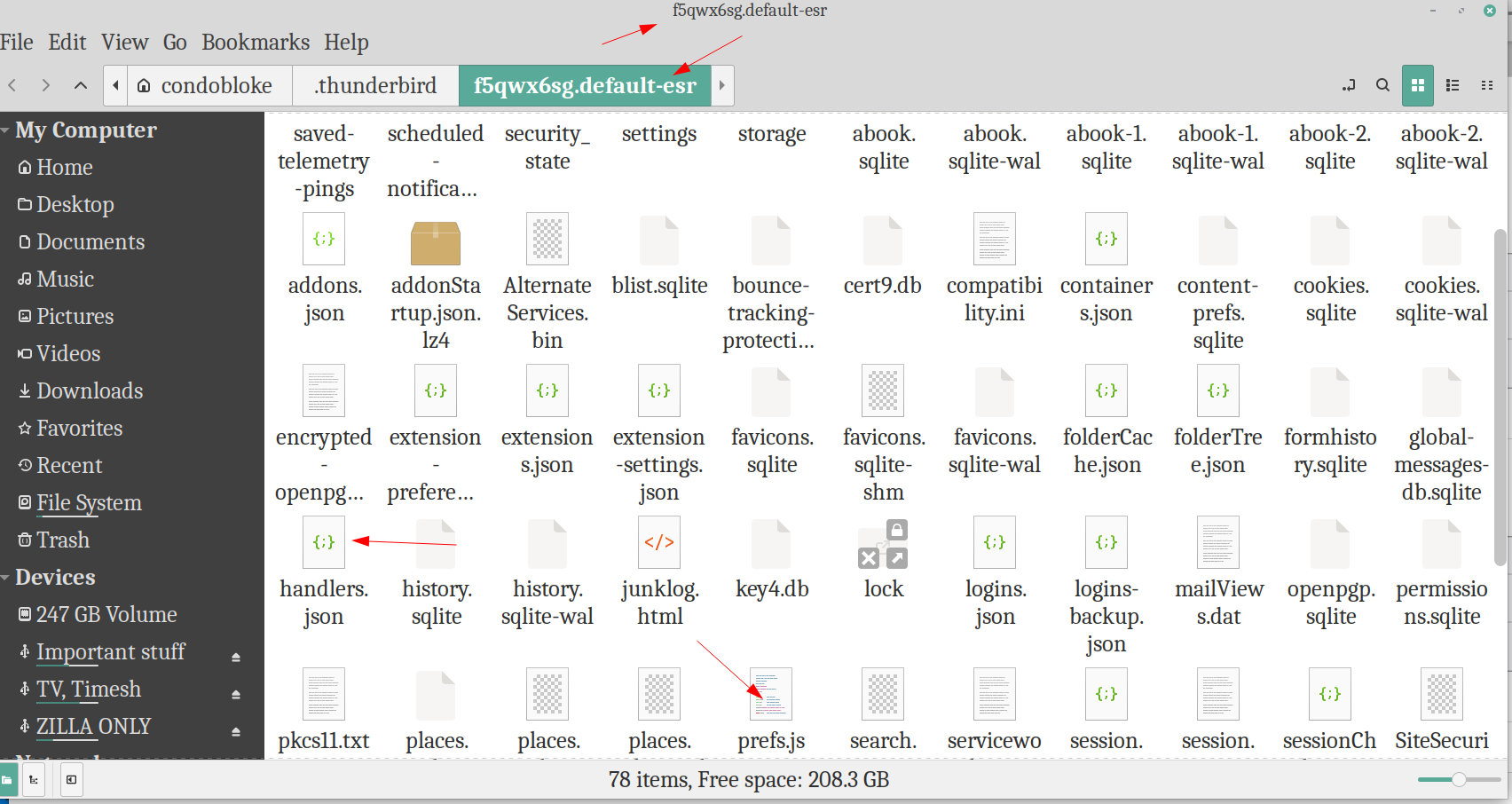
Root> ...a page full!...including both handlers.json & pres.js wth. I actually went back and made damn sure I followed the path properly....not there is much to get wrong, but I checked regardless.
Anyway that is where they are.
On occasion I do get weird results from different procedures in this install. for the most part it runs like a clock, but with a few oddities mixed in. The initial nstall was a bit 'diferent'...other than that I have no clue. When LM23 comes along, it will be a fresh install instead of an upgrade.
I spend my days over at Linux.org. Full days for the past 13 years, so I know my way around, mostly.
correction ...I posted screenshot of incorrect kernel up above.....
below is the screenshot IN USE....not the one named default
Diubah oleh Brian
Brian said
correction ...I posted screenshot of incorrect kernel up above.....
Thanks for helping me get the instructions right. However, given all the different flavors of *nix, getting to the profile folder may be different for some.
Yes, the 50,001 different versions etc are right old challenge. Welcome to my world.
To be honest, I usually keep myself restrained to Linux mint when I am able to do so.
On Linux, there is a file search named 'catfish file search' ....if the users are using either cinnamon, mate or xfce, it will likely be in the repository and will work on either one.... if the user is proficient with the terminal that would be a huge plus !
Its home page is : https://docs.xfce.org/apps/catfish/start
If they are using Thunderbird the problem goes away fairly easily. I dont have much experience of other email clients.
Good luck with it all, and thank for your help, Ed.