


157.0 made bookmarks sparce again. How to restore high density?

157.0 made bookmarks sparce again. How to restore high density? Old methods dont help.
This doesnt help: "With the release of Firefox 157 and its new "Nova" visual design refresh, Mozilla actually brought back Compact Mode as a fully supported native setting. You no longer need to mess with hidden about:config flags or the "Customize Toolbar" menu. To fix the sparse padding and restore high-density spacing for your bookmarks and toolbars, follow these steps: 1. Click the Menu button (three horizontal lines) in the top-right corner of Firefox. 2. Select Settings. 3. Choose Appearance from the left-hand sidebar menu. 4. Locate the Window density section. 5. Select Compact."
All Replies (5)
Hi
Are you able to share a screenshot of what you are experiencing?
Yes, took a screenshot
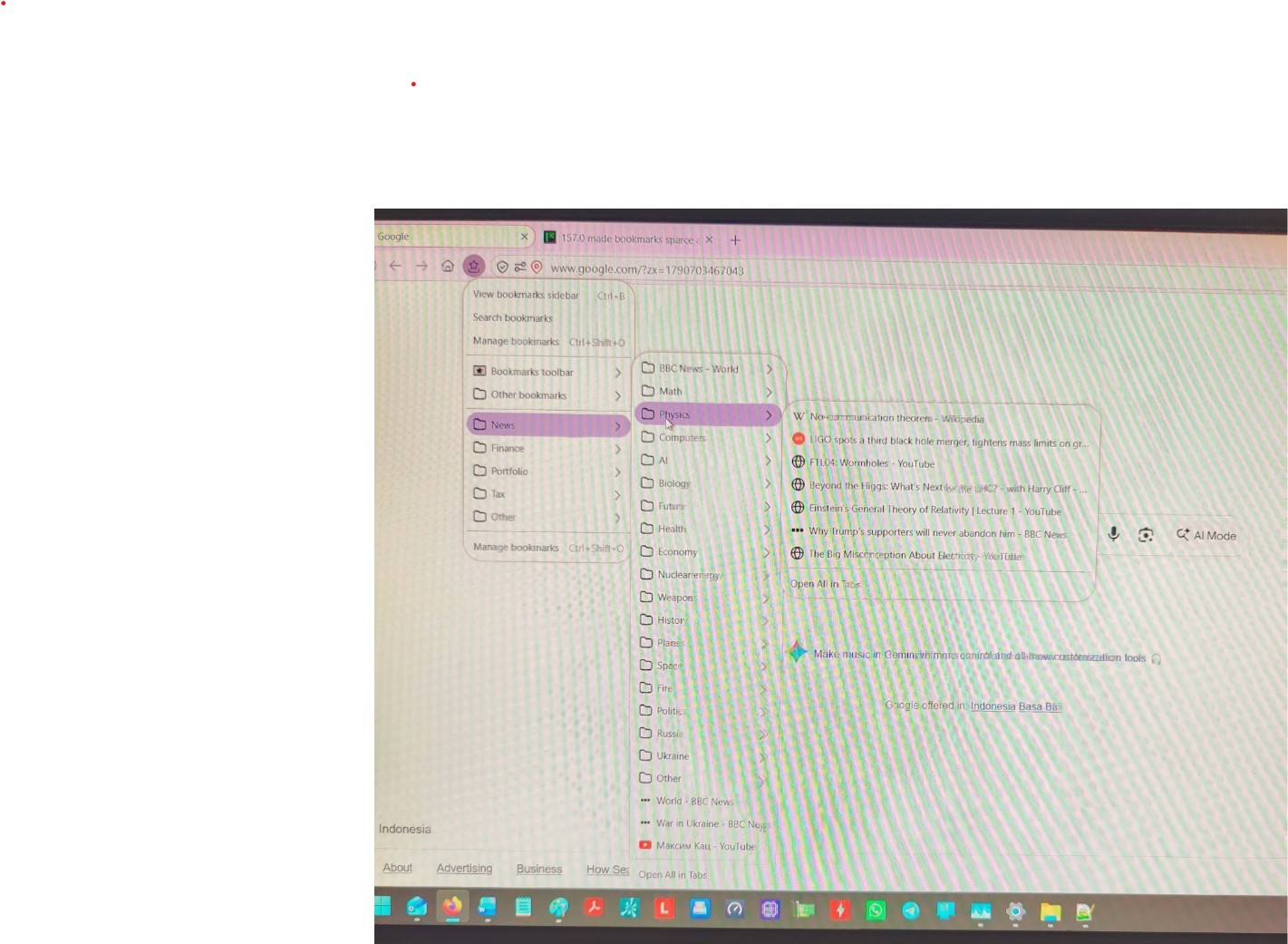
This method also doesnt help: Method 2: Force Ultra-High Density with Custom CSS (Advanced) If Firefox's built-in Compact Mode isn't tight enough for your needs, you can force the exact pixel padding you want by using a userChrome.css file: [1, 2] Type about:config into your address bar, accept the warning, search for toolkit.legacyUserProfileCustomizations.stylesheets, and double-click it to set it to true. Type about:support into your address bar and look for the Profile Folder row. Click Open Folder (or Show in Finder on Mac). Inside your profile folder, create a new folder named chrome (all lowercase). Open that chrome folder, create a plain text file named userChrome.css, and open it with a text editor like Notepad or TextEdit. Paste the following snippet into the file to eliminate excessive bookmarks toolbar padding: [1, 2] css /* Tighten spacing in the Bookmarks Toolbar */
- PlacesToolbarItems .bookmark-item {
   padding-top: 1px !important;
   padding-bottom: 1px !important;
}
/* Tighten spacing in all dropdown bookmark and context menus */ menupopup > menuitem, menupopup > menu {
padding-block: 2px !important;
} Use code with caution. Save the file and restart Firefox for the changes to take effect. [1]
Hi,
I would not recommend following that guide at all. Providing feedback to our developers is a much better option.
If you wish, you can leave feedback for developers on the Mozilla Connect website. Click the Firefox Menu  button in the toolbar, click Help and select Share ideas and feedback…. Alternatively, you can use this link. Your feedback is collected by a team that reads it and gathers data on the most common issues.
You can also file a bug report or feature request. See File a bug report or feature request for Mozilla products for details.