


How to open incoming e-mail in the same window as the list of e-mails?

Is it possible to open incoming mails in the same window as the list of e-mails, just like in Google? I get distracted from seeing suddenly my e-mail in another window/tab.
Thank you!!
All Replies (20)

@christ1 Besides that F8 doesn't work on my system (I have to use "View" -> "Design" or something), I don't mean opening this panel below so that I can see the content of the e-mail. I mean seeing the content of the e-mail in the top view without a new window opening or a new tab opening. Just like in Google.
Thanks.
If Message Pane' is disabled A single click will just highlight email in list. A double click will open by default in a new tab A right click on email in list > 'Open' offers up to three options
- Open Message in a new tab
- Open Message in a new window
- Open Message in Conversation
As mentioned by christ1 using F8 key on keyboard will enable the Message Pane if it is not enabled.
To Enable the 'Message Pane via 'Menu App' icon or via 'Menu Bar' Toolbar'
- 'View' > 'Layout' > 'Message Pane'
If Message Pane is enabled: Single click on email in Message List will open email and display in Message Pane. Double click on email will open in a new tab. You will still have the additions options available via right click A right click on email in list > 'Open' offers up to three options
- Open Message in a new tab
- Open Message in a new window
- Open Message in Conversation
The position of the Message Pane can be displayed immedately below the 'Message List' or on the right side of 'Message List'. This choice is set up here:
- 'View' > 'Layout' > 'Classic' option displays below and 'Vertical' option displays on the right side of List.
If people have a wide screen display then many choose to use the Vertical option as it may display more of the email; handy if a more lengthy email is received.
Whether you use 'Classic' or 'Vertical' option, it means you can choose to view any email with a single click and never need to close anything or reselect the folder you were viewing in the first place. AS a result it's Highly efficient, improves work throughput and reduces the impact of RSD. It's also easier for those who only use the keyboard, as they can use the arrow keys and enter key to select etc.
re : mean seeing the content of the e-mail in the top view without a new window opening or a new tab opening. Just like in Google.
Thunderbird is not designed to be a carbon copy of Google/Gmail webmail account. I understand you may have set up the following in Google webmail account. In gmail webmail account : Google completely hides the Message List if you have used the 'Settings' > 'Reading Pane' > 'No Split'
This option does mean the work throughput is slower as you have to close/use the back icon or reselect the label -aka folder in order to go back to list. The addional clicks therefore are inefficient use of time and can over time be a factor in acquiring Repetitive Stress Disorder - not so bad if you have only a few emails, but really it's an option be used with discretion. But google do offer other options to display email below or on the right of the list of emails.
re :that F8 doesn't work on my system. What system? F8 key on keyboard is the Thunderbird shortcut to enable or disable the 'Message Pane'.
Are you using any addons ? Some people use this addon: Thunderbird Conversations 4.3.1
That addon has been known to cause a few things to not work as expected, so if you are using it then the only ways to see if it's interfering is to either uninstall the addon or you could test using:
- 'Help' > 'Troubleshoot Mode'
- select 'REstart'
- select 'Continue in Troubleshoot mode'
This then restarts Thunderbird with addons disabled and in Thunderbird default mode.
As aheads up: Thunderbird does offer a 'Conversation' view by default. If you have several emails which are repies to a thread and if you have also sent replies, you will have related emails in eg: Inbox and Sent. Using the right click > 'Open' > 'Open Message in Conversation ' It opens in a new tab showing the entire amalgamation of all responses no matter what folder they are stored in.
Thunderbird now offers the ability to alter the buttons in Message Header so you can choose to only display icons or only text or both. In Message Header area click on 'More' button and choose the 'Customise' option.
re :that F8 doesn't work on my system. What system? F8 key on keyboard is the Thunderbird shortcut to enable or disable the 'Message Pane'.'''''
I discovered that on my Azerty-keyboard it is Fn+F8 to get to F8. I never use the function keys, so I didn't know. But why does the content of the e-mail needs to appear in a seperate window (the one below)? I don't have enough space on my screen to see the whole e-mail this way. I would like it to be in the same window, not on my whole screen but just instead of the list of e-mails.
(Another thing but also annoying:) Also when I use the filter, I get the message "press enter to see more" (?). If I press enter I get another screen with a different layout (distracting..) and I have to press "view inline". Then the results come in the e-mail list view and that is where I would like to see all the results appear in the first attempt.
Thank you for your answers.
Ps. What does ctrl-i do not work here to get cursive. I also don't understand the "" that appear.. All very difficult.
Novain'i Linuxrules t@
re :But why does the content of the e-mail needs to appear in a seperate window (the one below)? I don't have enough space on my screen to see the whole e-mail this way.
The 'Message Pane' is not a separate window. It's a designated area for displaying opened emails in the same area where the list of emails are displayed. The choice is to see the Message Pane below the list or to the right of the list. Additional options if an email is more lengthy and you need more space: a double click will open it in a new tab assuming you have not set it up to do something else.
Not sure if you are using the 'Table View' where each email uses one line or using the 'Card view' where one email uses several lines. If using Vertical layout then 'card view' works well with the message display on the right. In Table view you can always raise the Message Pane. If required there will be a scroll bar to read emails. There are also some areas you can disable to offer more space such as the Message List Header.
Thank you for answering. I have classic. Table view it seems, but that word has disappeared. I cannot find it in the top menu and the settings... I understand that it is not designed to display the content of an e-mail but ergonomically and consitently-wise it is the only good way to display the content of an e-mail, so to not get distracted. You promote Thunderbird being flexible, but the designers/programmers have overlooked the advantage of this way of displaying the content of an e-mail. Gmail is ergonomically well made, as if it is made by autistic people who don't like to be distracted. I want to switch to Thunderbird ao I have been trying to use the program and the app for 2 weeks now, but trying to write an e-mail is draining all of my energy with all this bad ergonomics.. I can't believe this program is truely tested with respect to intuitivity and by new users. I have sent some tips to the "connect"-forum (why another forum?) but voting is not the best way. Ergonomic study by ergonomically trained people is. I am kind of expert in this.. and I need a program to be good too. Otherwise I cannot focus. Thanks.
Not that it is really problematic, but these are a waste of vertical space too:

Novain'i Linuxrules t@
Gmail in my opinion is a pain and slows down work throughput. I only access it to help fix issues. I do not find it helpful if viewing an email means completely hiding the list of emails and needing to do a load of back and forth clicking to get rid of it. It's an option they provide, but is perhaps the worst feature to use especially if you need to process a lot of emails and do not want to suffer from RSD issue.
In Thunderbird. There are various Zones. toolbars etc and they all perform various jobs. Some can be disabled if not desired.
There is the 'Titlebar' at the top and this can be enabled or disabled. If enabled then the three icons for 'minimise', 'maximise/restore down' and 'close' will be on the Titlebar. To enable/disable Titlebar:
- Settings > Appearance
- Select checkbox 'Hide system window titlbar' to Hide, uncheck that option to display.
The 'Unified Toolbar' contains the 'Global Search' option. It will also contain the 'Menu app icon' for generic UI menu access and the three icons for 'minimise', 'maximise/restore down' and 'close' if the Titlebar is disabled. This is a toolbar used for all areas within Thunderbird. Link to more info: https://support.mozilla.org/en-US/kb/unified-toolbar
The Menu Bar' is in my opinion very useful to have enabled. By default it displays below the Unified Toolbar, but Thunderbird is so customiseable - I've moved mine to appear above the Unified Toolbar.
If you want to remove/hide the 'Message List Header' toolbar then it's advisable to customise the Unified Toolbar to display the 'Quick Filter' button. If you want to hide the 'Folder Pane Header' then I would advise you customise the Unified Toolbar and add the 'Get Messages' and the +New Message/Write' button.
To Hide the 'Folder Pane Header' Click on the 3 horizontal dot menu icon located to the right of the '+New Message' button and select 'Hide Folder Pane Header'
To hide the 'Message List Header ' click on small icon located to the right of the 'Quick Filter' button and select 'Hide Message List Header'
Example in image below.
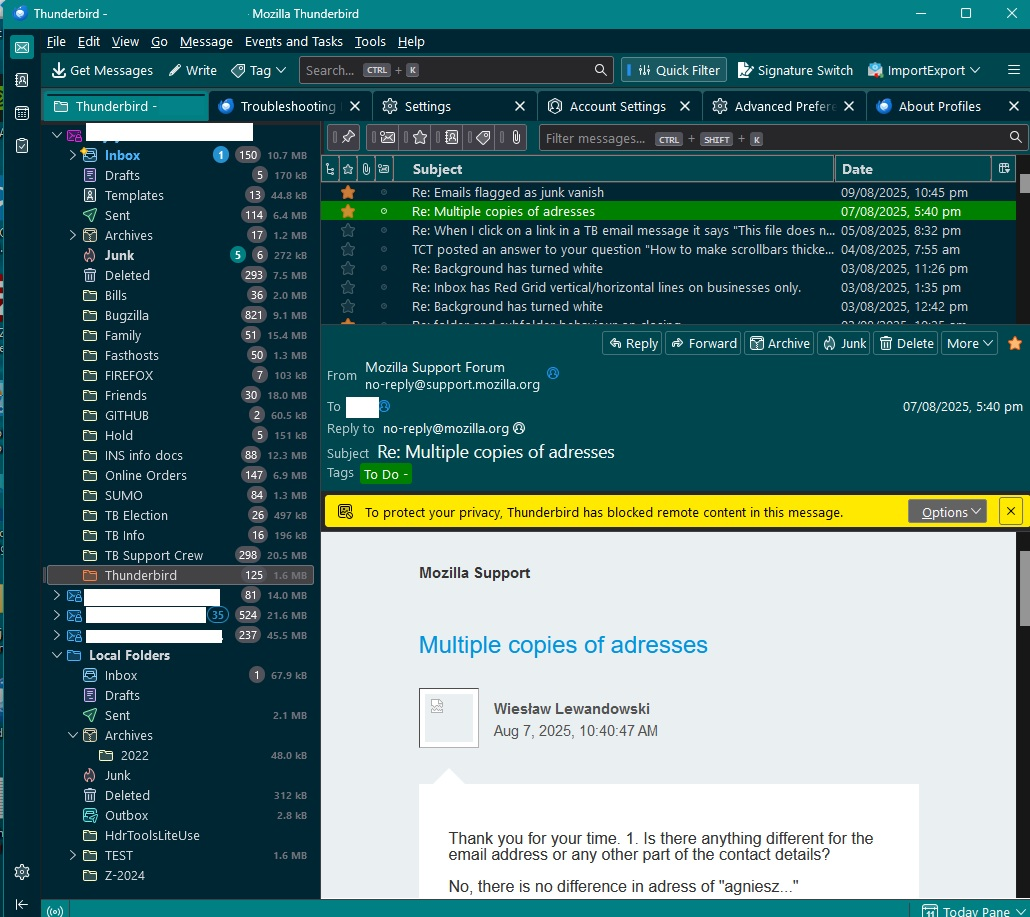
If I uncheck 'Hide system window titlbar' I still see the bar with only the 3 horizontal stripes. Only the minimize and maximize are gone.
If I press "customize", I see a completely different view than that of my mail view. That isn't normal (intuitive) and wishful.. No one will understand that without some serious thinking. The designers/programmers can do better.... :-( I don't understand any of it. Maybe with a youtube video, if only you are using normal words for the bars. "Unified"? Does this exist in Youtube, I wonder. You might believe that users are the problem but in ergonomics it always is the programmer/designer/whatever.
I also never had a "new message" button, but I found the shortcut on internet..
The rest of your comments I read when I discover how to adapt the unified bar.
I saw that you cannot read the whole e-mail just like me. I am flipping if I see that.
If I use the filter bar I really don't see any results. I have to press enter (see picture) and then another view opens (with other fonts, font size, etc (waaaaah) and then I have to press "view in list" on the right and then I get the results as I would like them to have immediately. Thanks again.
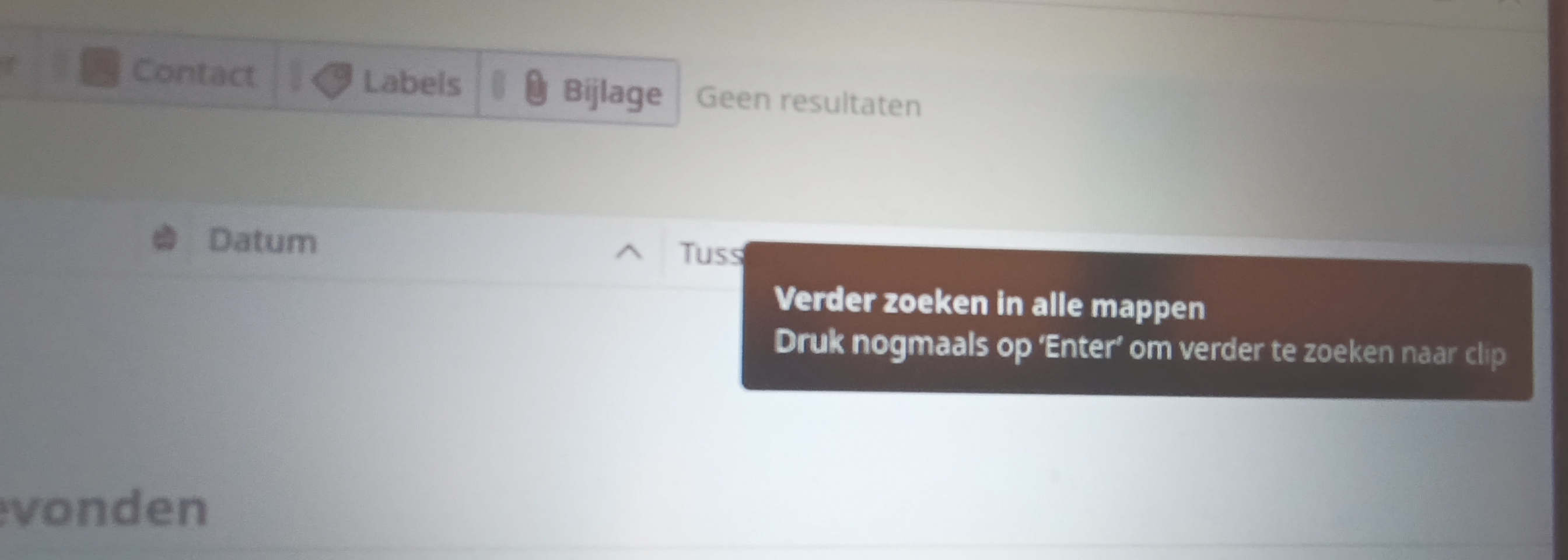
translation: look further in all folders, press enter. or something like that.
And also if I search for clip it won't find clipboard or something, only clip.
re :I still see the bar with only the 3 horizontal stripes.
That is the Unified toolbar. You are supposed to see it as it's used throughout Thunderbird. It is the toolbar that is used in all the various tabs such as Mail, Address Book, Calendar etc. It also has the Global search option. For example, you can enable the 'New Message'button in the 'Calendar' view so that if viewing the calendar you can easily use it to compose an email without needing to go back to the Mail view which shows all the folders amd list of emails. Use the link I provided to show you how you can put/drag buttons onto it.
re:If I press "customize", I see a completely different view than that of my mail view. Of course you do. It's the place where you select what is required and drag it onto the Unified toolbar. That means you still have access to everything I mentioned after closing the toolbars I mentioned.
re :I also never had a "new message" button,
Sounds unusual - that is normally enabled by default. That '+new message' button is on the 'Folder Pane Header'. You can enable that 'Folder Pane Header' toolbar if desired OR do as I said and put it onto the Unified toolbar. How to enable the 'Folder Pane header': On Unified Toolbar:
- click on the 'Menu app icon (3 horizontal lines')
- select 'View'
- select 'Folders'
- Select 'Folder Pane Header'
re :If I use the filter bar I really don't see any results. That is the 'Quick Filter' toolbar It has icons which perform a quick filter only on the current selected folder. eg: 'Show only unread messages' icon It will show a blue strip when enabled.
The 'Quick Filter' search will also only search the selected folder using the word you typed and you can choose what to search such as 'Subject' and/or 'Body' of emails. Info on Quick Filter search:
When you press 'Enter' that means use the data in search and apply the 'Global Search' which then searches across all folders that have been set up to be included in the Global Search. It basically saves you from retyping everything into the 'Global Search' which is a search option you put on the Unified Toolbar. Info on Global Search'
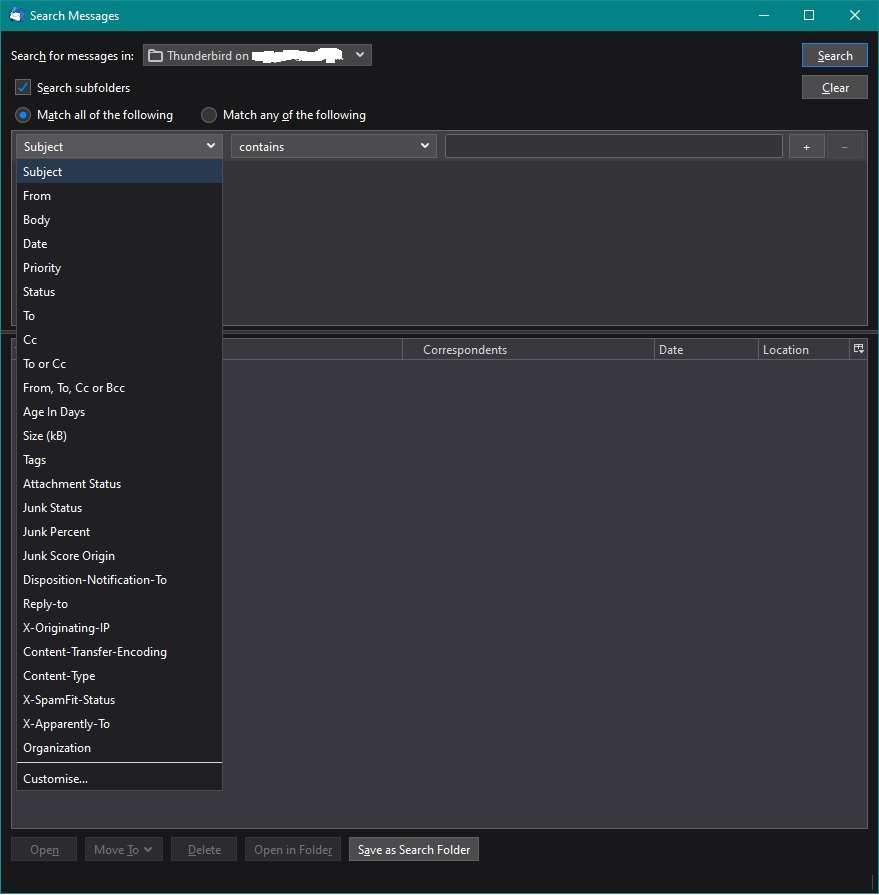
There is also another type of search which offers a different set of options: It searches on specific folders or accounts and offers more options. Located on the 'Menu Bar':
- 'Edit' > 'Find' > 'Search Messages'
OR Located via the 'Menu app' icon:
- Click on 'Menu app icon
- Click on 'Tools'
- Click on 'Search Messages'
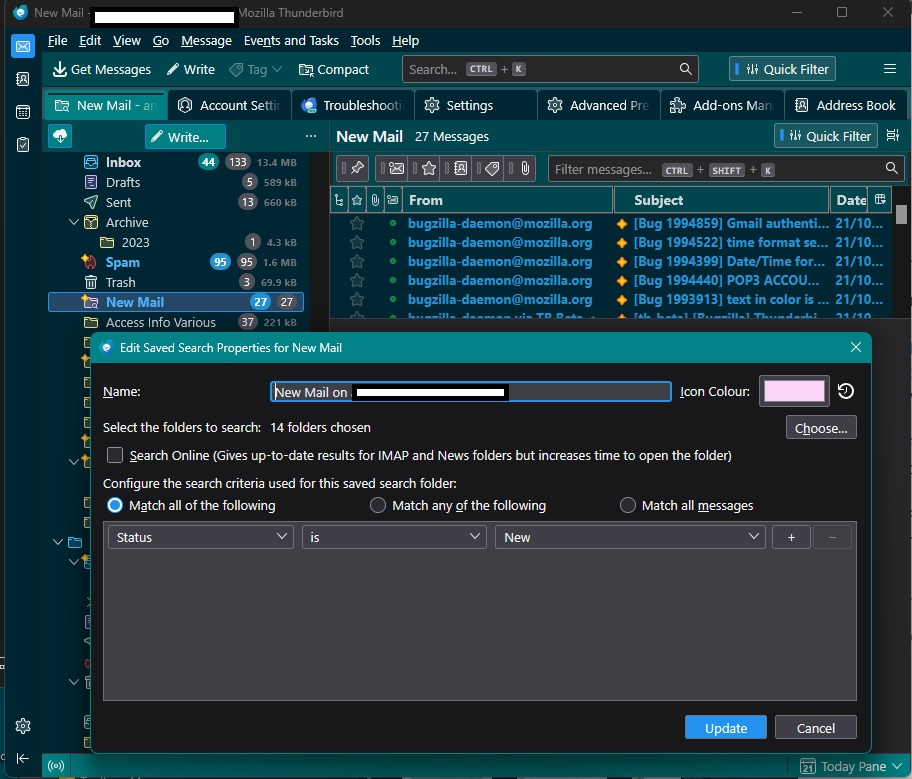
If you use this method it also offers the option to create special search folders which contain the results in a 'search folder' in the Folder Pane. This is a useful tool and saves you from recreating same search. For example, you could create a search folder that only ever contains 'New' mail. It's a type of virtual folder and can be modified as required to include additional folders from various accounts etc via a right click and select 'Properties. Info on using 'saved search folders' https://support.mozilla.org/en-US/kb/using-saved-searches
'Open Search' If you had a word in received email eg: clip and you want to search on internet using a browser. Highlight word in text and use a right click on highlighted word to see drop down options. Set eg: 'Use Google to search for 'clip'.
Info on 'Open Search':
There are several different types of 'Search' in Thunderbird and the one you use depends upon what you are searching for.
Novain'i Toad-Hall t@
re :I saw that you cannot read the whole e-mail just like me.
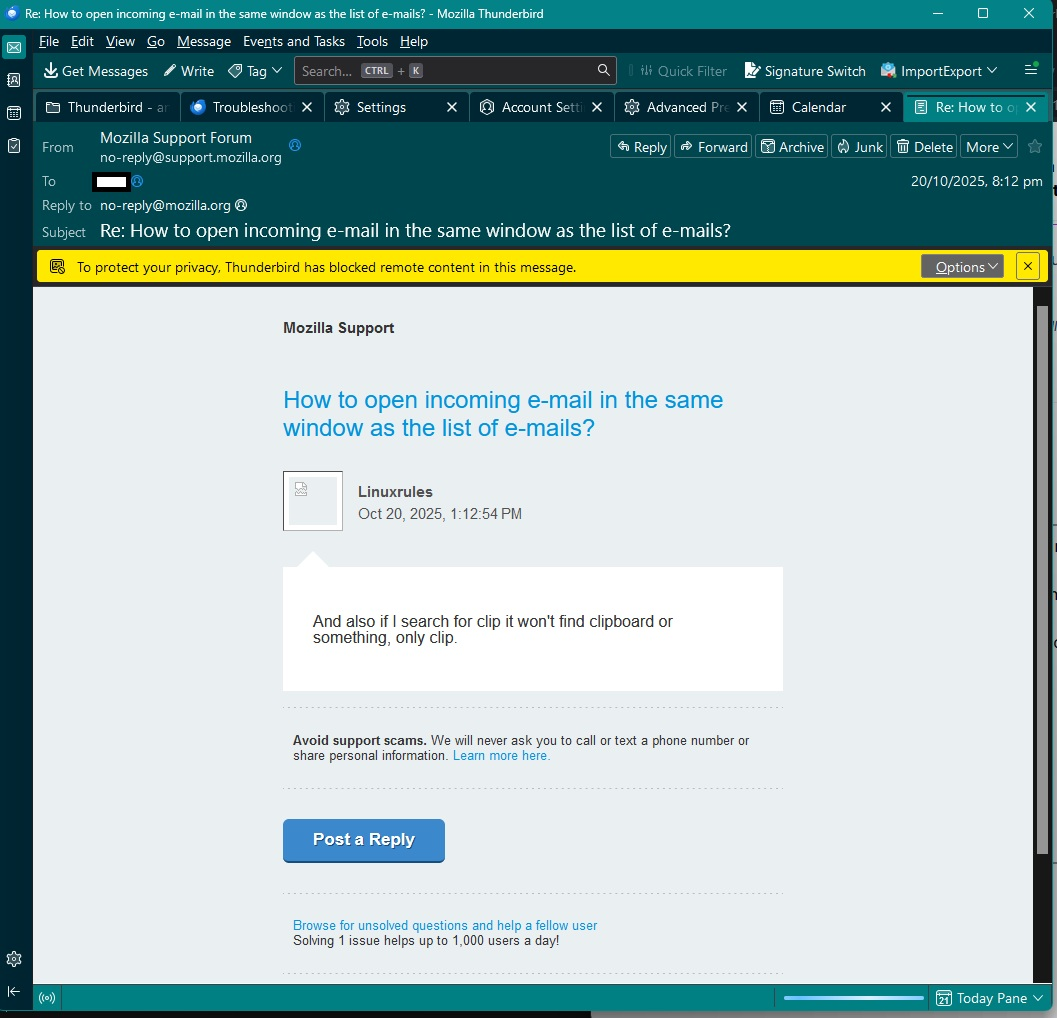
You will notice there is a scroll bar on the right so I can manually use the scroll bar or use the scroll wheel on mouse. If I want to see a lot more of email because maybe it's got a lot of text then use a double click on email in list and it opens in a new tab. See example image below.
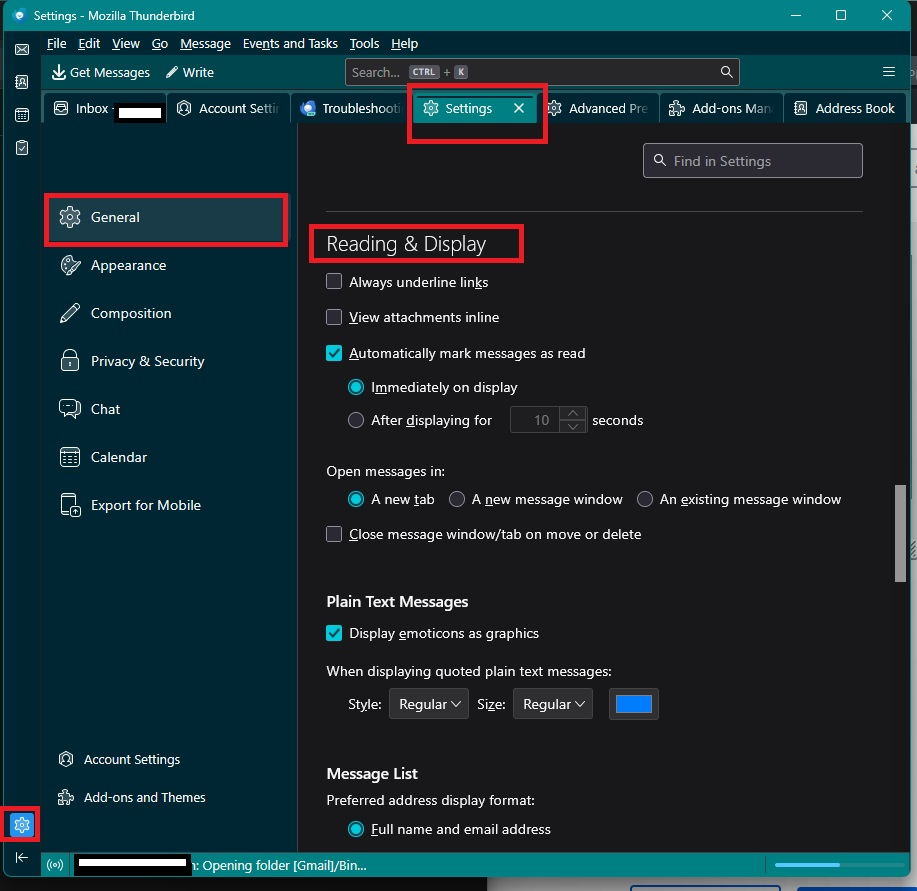
This is where that setting is set up:
- Settings > General
- scroll down to 'Reading & Display'
- 'Open messages in': select 'A new tab' (This option is usually set by default)
See example below.
re :. If I press enter I get another screen with a different layout (distracting..) and I have to press "view inline". Then the results come in the e-mail list view and that is where I would like to see all the results appear in the first attempt.
You do not get that list on first view/attempt because you are in a phase where you can select additional filters. Such as only restrict in a date range or only restrict on a name or only on 'to me'. The initial filter also shows part of email which is handy if there are only a few messages to search. It's all well and good if you only see a couple of emails because you can select one and do not even need to see as a list, but if first search returns a lot, then it's useful to perform additional filters on the results to narrow down the search to a more manageable list to view.
Sometimes I use the 'Edit' > 'Find' > 'Search Messages' option to get an instant list. But that initially is restricted to an account or folder on an account - depends upon what you select.
If you save those results as Search Folder then later you can alter the search parameters to include additional folders etc - this is then displayed as a search folder - so you would view this like any folder. Example of my search result saved folder called 'New Mail' in an account. It has been set up to search over 14 folders on one account, but if desired I could search it over more than one account. Why 14 fodlers...because I have Message Filters that move emails on download to various folders. It auto updates and the right click on 'New Mail' select 'Properties' is also displayed so you can see the search conditions. It means I do not need to repeat the search and I get everything 'New' in one view.
For now: - I managed to have the button "new message". Thank you.
- If that is the unified bar, then I might have 2 lines of unified bar? I would like 1. As the settings might be available through 3 manners, I don't need the bar with "file, ..)
- If I press enter or double click on a message it appears in the same window it says, but
  - it takes too much space on top, so I still can't read the whole e-mail. In gmail I can (and I only have to click once).
  - I cannot go back to the list with one key press.
I am dutch so setting up is more difficult if it is not intuitive and you have to study. I also don't have a bad working memory, so going through all those new views for no need is stupid.
Thanks again. You are used to it, but some people never will.
I don't want to filter the results, because I am having problems getting enough search results anyway and if it was displaying it in a list then it won't be filling the whole screen up anyway. Now with the in-between screen where you can filter out even more it is.
There are more people like me that don't get enough results. I tried "edit" -> "search" -> "search messages", but firstly I cannot search in the combined inbox. Secondly, it still cannot find any mails with "clip". The buttons in the filter bar are not different when you have clicked them or not. It really is annoying. You don't know if it is selected or not. And why isn't it looking in all folders and in all fields when you type something in the ("quick") filter bar?
Thank you.
Thank you for all of your help (in the meantime I am trying to send tips to Thunderbird to make changes, because it should not be this hard for new users to get started)
I managed to get find where to put the buttons in the customize view.
But sorry if I missed it, but how do you swap the bars on top, so to get the menu bar above the unified toolbar?

A long message from me was lost. The system seems to be having problems today.
So a short message: Do you know that you can adjust the relative sizes of the list pane and the message pane by dragging the divider between them?
@Rick, I know about this divider, but 1) the divider isn't very fast to "find" and 2) the top lines of the e-mail take up too much space with name, from, to, from, subject -> I cannot change that via the unified toolbar I guess...(?), N.B. My working memory is not good and the unified toolbar is not a separate view so I cannot compare it with the normal view. Annoying too. 3 the e-mail content most times has big letters which distracts me and also takes up a lot of space, also with the spaces. Appearantly the e-mail in a new window has those big titles too.
Thank you.
I did not mean to suggest that you move the divider more than once. I set it where I like it and leave it there.
It is not clear if you are talking about e-mail "content" or "titles" or both.
If you have selected to view an email in eg: Message Pane and the 'Subject' is using a larger font and you want it back to regular then do this:
In that email Message Header area:
   click on 'More' button to see drop down menu and select 'Customise'
   Uncheck 'Large Subject'
   Click on 'Done'