


T-bird not accepting my Win10 -> Win11 move

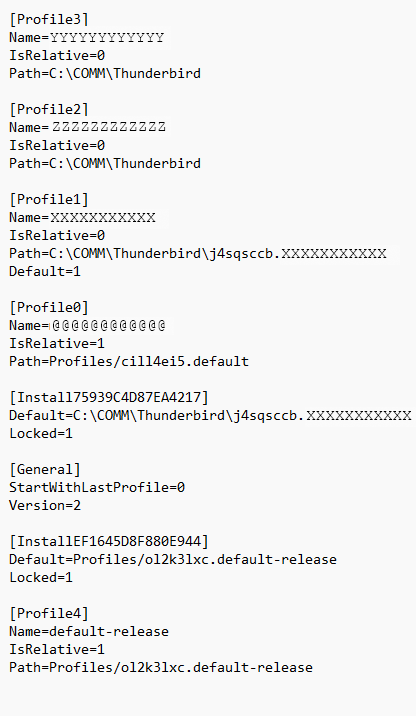
I've been trying to move my Thunderbird data (148.0) from a Win10 to a Win11 machine. I've meticulously followed both the methods outlined at http://mzl.la/1ApHiU3. I have copied my original profiles.ini from the ...AppData\Roaming folder to that location on the new machine, then corrected the drive locations in the file (see attached profiles.ini image). (yes, the correct "j4sqsccb.XXXXXXX" folder is copied to the new installation's root: a bulky several-GB)
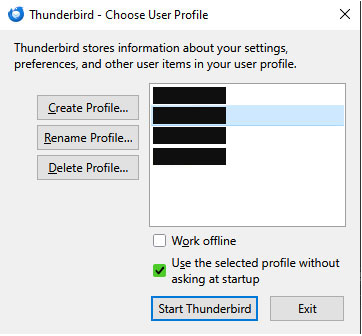
In order to try to replicate my original computer's admittedly-awkward installation from long ago, I have added the suffix " -p -no-remote" to the desktop icon's Target field. And on startup, the new T-bird does properly show my original profiles in the Select panel - even though I only ever used the one that functioned correctly, identified as 1 in the profiles.ini file (see Choose User Profile image, IDs X'ed-out).
However, on selecting that profile on the Win11 machine, Thunderbird just takes me to the account setup screen, as if it's unable to locate or load the account settings for that profile.
I'm only doing this clunky method of copying-over out of ignorance; I'd be very happy to simplify the mess I'd created decades ago with my original installation. OR if you think I'm better off wiping all evidence of past installations to start from a clean install, I'll be happy to do that. Please let me know if you need additional info I've failed to provide here!
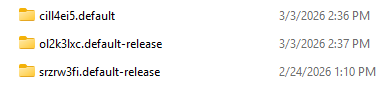
Also adding images of my ...Roaming\Thunderbird\Profiles folder and Installs.ini file, just in case!
Chosen solution
Thanks for your patience!
Over the past few days I was trying several methods to get around this problem.
The one that worked is found at [https://support.mozilla.org/en-US/kb/.../profiles-where-thunderbird-stores-user-data] , under the heading Restoring to a different location
If the profile folder names do not match or if you want to move or restore a profile to a different location, do the following:
- Completely close Thunderbird, as explained above.
- Use the Thunderbird Profile Manager to create a new profile in your desired location, then exit the Profile Manager.
- Note: If you just installed Thunderbird on a new computer, you can use the default profile that is automatically created when you first run Thunderbird, instead of creating a new profile.
- Locate the backed up profile folder on your hard drive or backup medium (e.g., your USB-stick).
- Open the profile folder backup (e.g., the xxxxxxxx.default backup).
- Copy the entire contents of the profile folder backup, such as the mimeTypes.rdf file, prefs.js file, etc.
- Locate and open the new profile folder as explained above and then close Thunderbird (if open).
- Paste the contents of the backed up profile folder into the new profile folder, overwriting existing files of the same name.
- Start Thunderbird.
All Replies (9)
These steps should be simpler - and they work:
- ensure thunderbird is NOT running on old machine
- enter %appdata% in search window on task bar and press Enter key
- this should open windows file explorer in Appdata\roaming folder
- highlight the Thunderbird folder and copy to external media
- ensure thunderbird is installed on second computer, started once and NOT running
- enter %appdata% in search window on task bar and press Enter key
- you should be in Appdata\roaming folder. DELETE the thunderbird folder there
- now , paste your copied thunderbird folder there.
# start thunderbird and all should be there
Thanks for the reply, David. I'm pretty sure I've been through these steps in my several attempts prior to posting on the forum here. However, I will wipe out all my previous Thunderbird data on the new machine tomorrow, do a clean install, start it once and close, then do the steps as you suggest.
However, please note that in neither case is Thunderbird installed to default folders: on both machines it's in a \COMM subfolder, but on a different drive in each case. Yes, the ...\AppData\Roaming folders are both on the default C: drive locations, but the ...\AppData\Roaming\Thunderbird's profiles.ini info from the source machine will not point to the correct locations for the destination machine, right?
Also: isn't the "j4sqsccb.<profilename>" folder in the Thunderbird root folder (multi-GB) necessary to carry over my history of emails?
Modified by motoflex
Sorry David I followed your instructions to the letter (almost identical to the second option at http://mzl.la/1ApHiU3 that I'd mentioned above) ...but on launching Thunderbird it simply shows the Account Setup panel (Set Up Your Existing Email Address) in which the Your Full Name slot does show one of my email identities, but no other fields are filled and none of my other email names are seen. This is exact result as with all my previous attempts.
Is it possible that the procedure you recommend (and that on the page link above) works only when both the source and destination installations are to default C: drive locations? Because mine are not, therefore the Profiles.ini file in my ...AppData\Roaming\Thunderbird folder looks like this: [Profile2] Name=<profilenameA> IsRelative=0 Path=E:\COMM\Thunderbird
[Profile1] Name=<profilenameB> IsRelative=0 Path=E:\COMM\Thunderbird\j4sqsccb.<profilenameB> Default=1
[Profile0] Name=<profilenameC> IsRelative=1 Path=Profiles/cill4ei5.default
[Install75939C4D87EA4217] Default=E:\COMM\Thunderbird\j4sqsccb.<profilenameB> Locked=1
[General] StartWithLastProfile=1 Version=2
...since my destination computer has no E: drive, T-bird might be looking for data that is not there?
And it's also likely looking for a "j4sqsccb.<profilenameB>" folder that hasn't been copied over, which is the multi-GB folder containing all mail history for several mailboxes?
As previously mentioned, I did try editing the profiles.ini file to point to real locations on the destination computer, as well as copying over the "j4sqsccb.<profilenameB>" folder to the T-bird root...and this still failed.
Are there any steps I can take to help identify the cause of this problem?
thanks for reading!
Modified by motoflex
Okay, let's take a different approach: - bypass the opening screen that wants an email address - click help>troubleshootinginformation - scroll down to 'profiles' and click 'about:profiles' - click the button in upper left to 'create profile' - click next - on this screen, FIRST, enter a short name, such as MYPROFILE - SECOND, click ths 'choose' button and locate and select the location of the profile you want to use - now, click FINISH - on next screen, it will appear in the list of profiles. click the 'launch' button `
Okay...should I do this procedure on a clean installation, rather than on the one I just altered in the above description? (this is the routine you describe in [https://support.mozilla.org/ta/questi.../1483936], something I noted in earlier research)
As long as thunderbird starts, this should work, as this is a supported process. Although I've done this many times, I did a full test prior to posting the steps. I like to know my steps work. :) Be sure you point to the actual profile.
Apologies for my slow-motion responses; I've had little free time recently.
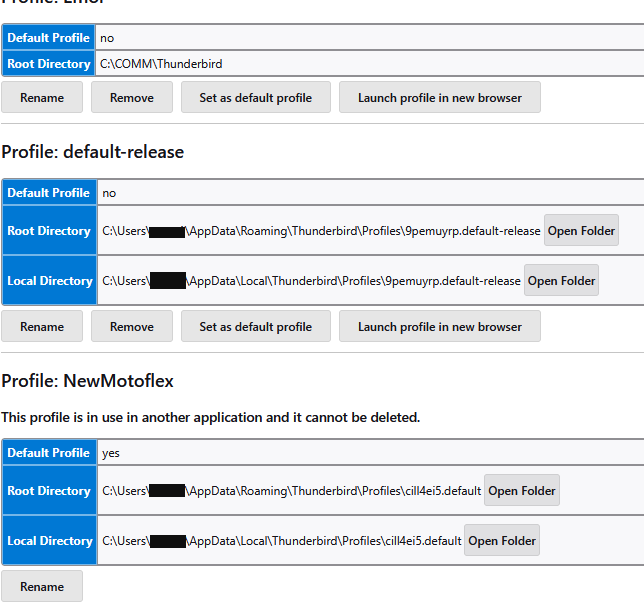
- Followed the steps you outlined - At the "select the location of the profile you want to use" step, I chose the only one that is referenced in my original Thunderbird setup, seen in [Profile0] above: cill4ei5.default - After FINISH, the About Profiles screen does indeed show the newly-named profile But it claims "This profile is in use in another application and it cannot be deleted" - even though I do not have another instance of T-bird open, the profile is newly created, and I have no Windows Explorer or other likely culprits open. See image (there are two additional profiles in the list, above this image) - and as you can see there is no 'Launch Profile' option for it
Modified by motoflex
Maybe I am misunderstanding your issue. My inference is that the profile you want to use is NOT in the default location, but on a different drive and that you want to continue that way. Please state simply where your profile is on old PC, and where you want to have it on new PC. That will help. Thank you
Chosen Solution
Thanks for your patience!
Over the past few days I was trying several methods to get around this problem.
The one that worked is found at [https://support.mozilla.org/en-US/kb/.../profiles-where-thunderbird-stores-user-data] , under the heading Restoring to a different location
If the profile folder names do not match or if you want to move or restore a profile to a different location, do the following:
- Completely close Thunderbird, as explained above.
- Use the Thunderbird Profile Manager to create a new profile in your desired location, then exit the Profile Manager.
- Note: If you just installed Thunderbird on a new computer, you can use the default profile that is automatically created when you first run Thunderbird, instead of creating a new profile.
- Locate the backed up profile folder on your hard drive or backup medium (e.g., your USB-stick).
- Open the profile folder backup (e.g., the xxxxxxxx.default backup).
- Copy the entire contents of the profile folder backup, such as the mimeTypes.rdf file, prefs.js file, etc.
- Locate and open the new profile folder as explained above and then close Thunderbird (if open).
- Paste the contents of the backed up profile folder into the new profile folder, overwriting existing files of the same name.
- Start Thunderbird.