


Thunderbird Response to Account Sign-In

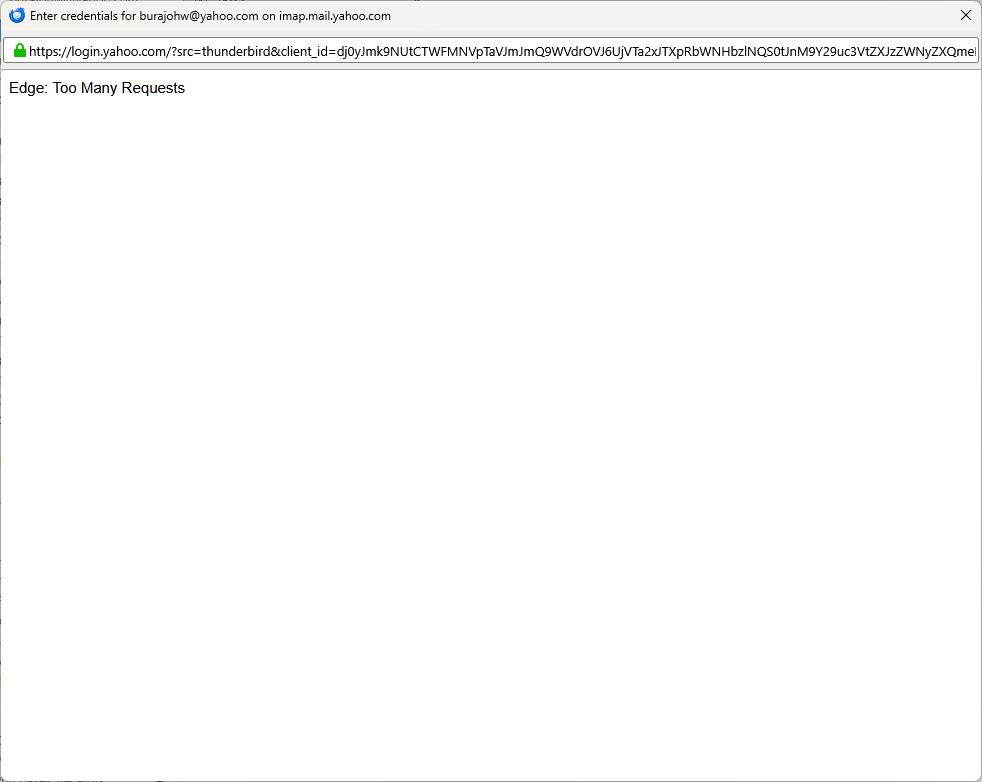
I have been using Thunderbird to download my mail from Yahoo for a long time without incident. Now I keep getting the message "Edge: Too Many Requests" as a response when trying to download my email messages (see attached file). I waited 24 hours and then tried again but still get the same message. I am able to log on to Yahoo on my desktop and see my mail without a problem. Is there something that needs to be cleared or reset in Thunderbird? My other email accounts in Thunderbird work fine. Any ideas would be helpful.
All Replies (2)

Yahoo is rejecting some login requests from TB. The reason is not known, but for the moment there is a workaround:
First, generate an app PW - see https://help.yahoo.com/kb/SLN15241.html.
Then go to TB menu > Settings > Privacy & Security > Passwords: - click the 'Saved Passwords' button and edit the Yahoo entry to add your new app PW
- if there is no Yahoo entry, it should be created when you next log in successfully
Next, go to TB menu > Account Settings > Server Settings and set the following: - Server Name: export.imap.mail.yahoo.com - Port: 993 - Connection Security: SSL/TLS - Authentication method: Normal password
On the left column, scroll down and click 'Outgoing Server' and edit the Yahoo entry: - Server Name: smtp.mail.yahoo.com - Port: 465 or 587 - Connection Security: SSL/TLS - Authentication method: Normal password
After that's done, click your Inbox. If you need to enter a PW, enter the app PW you just created.