


How to find a certain Style Sheet from the List in the Dev Tools Style Editor?
Hi,
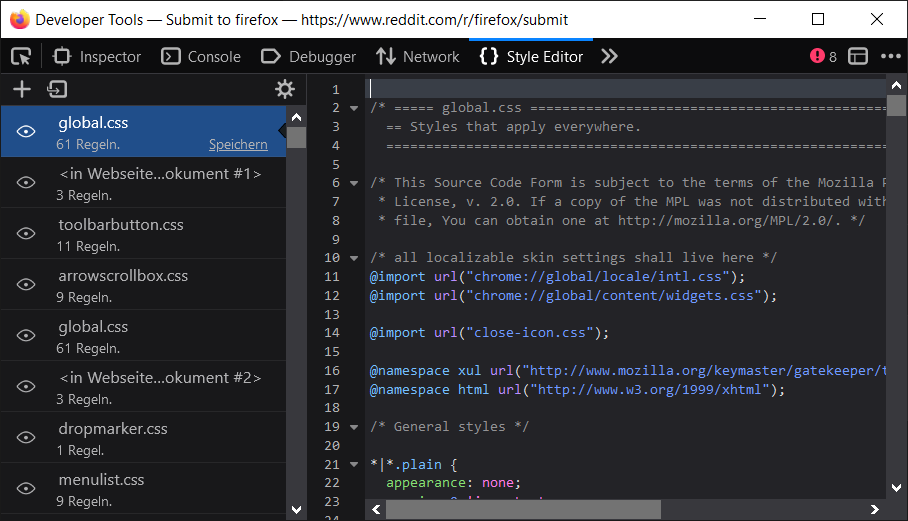
I have been working with the Style Editor from the Developer Tools. As you can see from the screenshot, there's a massive list of style sheets.
I'm looking for a certain style sheet to edit, however the list is not sorted alphabetically. So I don't know how to find the name of my style sheet other than just trying to scroll through the whole list to spot my specific sheet. This every time take hours for me to find what I'm looking for.
Is there any way to find a style sheet in that list faster than manually scrolling through the list? Something like Ctrl + F, or a way to sort that list alphabetically?
Thanks for your help!
すべての返信 (3)
Isn't it better to use the Inspector panel? After selecting the specific element, it shows direct links to all files referencing to its selectors.
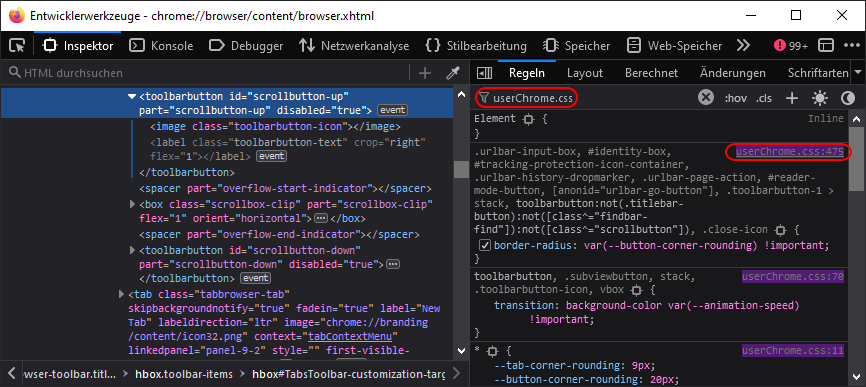
Thanks @TyDraniu, I just noticed exactly the same thing. I'm gonna add a screenshot:

In the Inspector you can select a specific HTML element. On the right side in the Rules tab, there is a list of all CSS rules applied to that element. Every rule has a link to the style sheet containing that rule. This link directly leads to that style sheet in the Style Editor.
Also it's possible to use the search box and enter the name of the style sheet you are looking for. It will list all styling rules from that style sheet. Then you can click the links displayed next to the rules to directly go to that style sheet.
A lot of these CSS files also appear more than once for some reason as you can see by the name and the number of rules.
I use code in userContent.css to highlight the userChrome.css and userContent.css files to make them easier to locate.
For the Browser Toolbox you need to place this userContent.css file in the chrome folder in the profile folder.
- xxxxxxxx.default-release/chrome_debugger_profile/chrome/userContent.css
I use this code:
/* fix scrollbars */
*{scrollbar-color:auto!important; scrollbar-width:auto!important;}

/* STYLE EDITOR */
*|label[value="userChrome.css"],
*|label[value="userContent.css"] {
  background-color: red !important;
  color: white !important;
}