


help install Dragon speak for Firefox

I would like to install -- Dragon Web Extension for Firefox.
I allow the installation but it is not allowed by Firefox.
Tutte le risposte (3)

Hello,
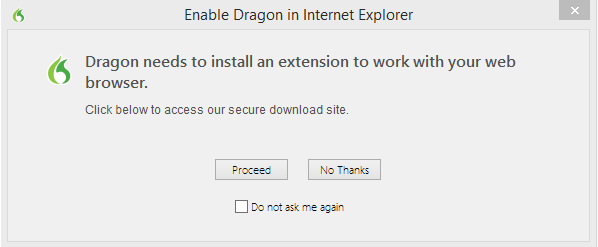
1. To enable the Dragon Web Extension in Firefox:
2. Click "Proceed" and the installation instructions will appear. 3. Click the "Install Web Extension" button. 4. A "Firefox prevented this site..." message may appear. Click "Allow". 5. Click "Install Now".
Note: Once the Dragon Web Extension has been installed, ensure that the Firefox "Update Add-on Automatically" option is selected:
1. Click on the Firefox tab on the top of the page. 2. Select "Add-ons". 3. Click the Settings button (gear icon). 4. Click "Update Add-ons Automatically".
Hope this resolve your issue.
Modificato da Mehul Patel il
I click ALLOW. It starts to load and then I get stopped!
Firefox blocks me -- I do not get here:
Click "Install Now".
What security software do you have?
It is possible that security software (anti-virus, firewall) is causing the problem. Try to disable security software temporarily to see if that makes a difference.
Try to set extensions.logging.enabled to true on the about:config page to see if that helps to identify the problem. You can find the log in the Browser Console (Tools > Web Developer). You can reset the pref to false via the right-click context menu after you are done testing to disable this feature.
You can open the about:config page via the location/address bar. You can accept the warning and click "I'll be careful" to continue.