


Auto opens new tab

When I leave Firefox open , switch to a different app then return, Firefox opens a new tab instead of staying on the previously opened tab.
Wubrane rozrisanje
Hello HelpImStuck,
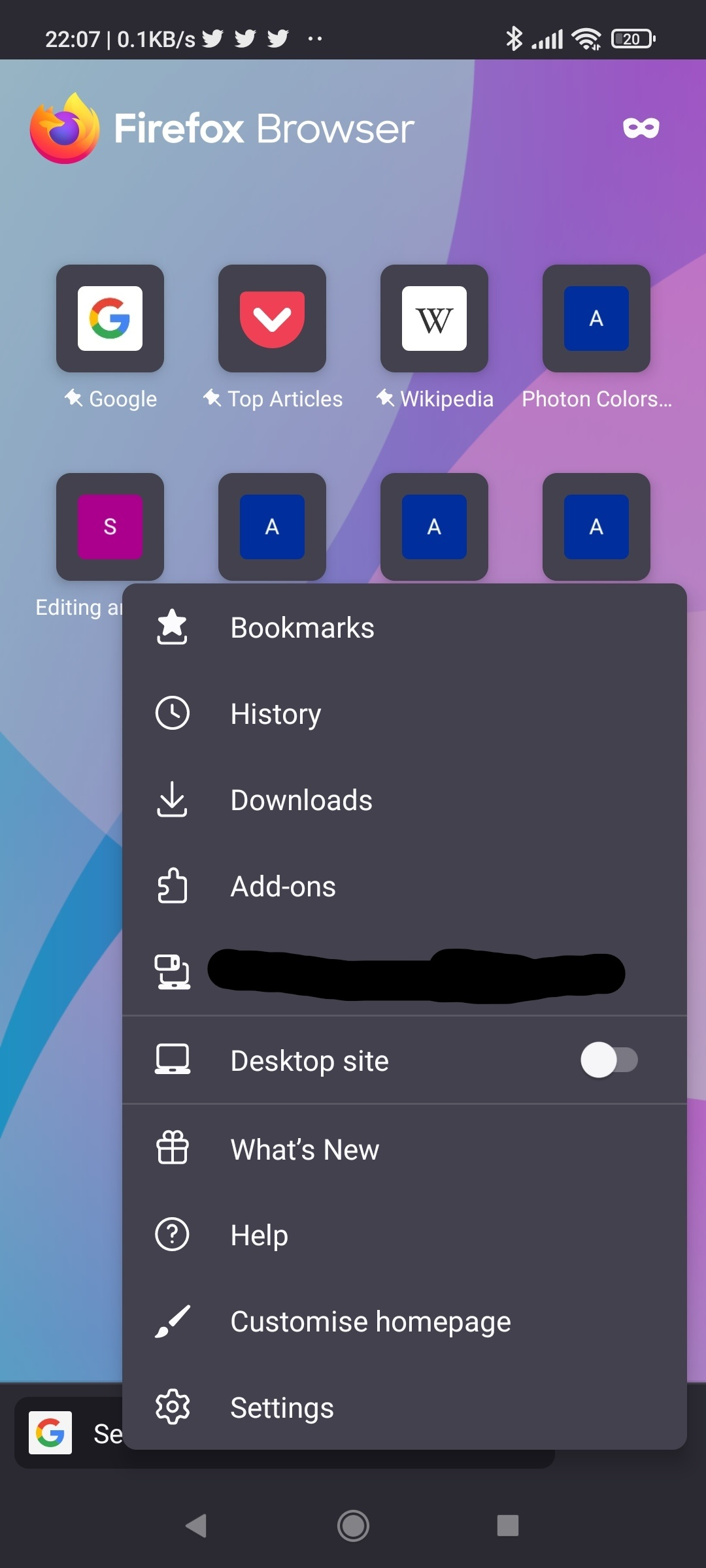
You can open Firefox's settings page by tapping the 3-line (3-dot if you are on Android) menu button, then tapping "Settings".
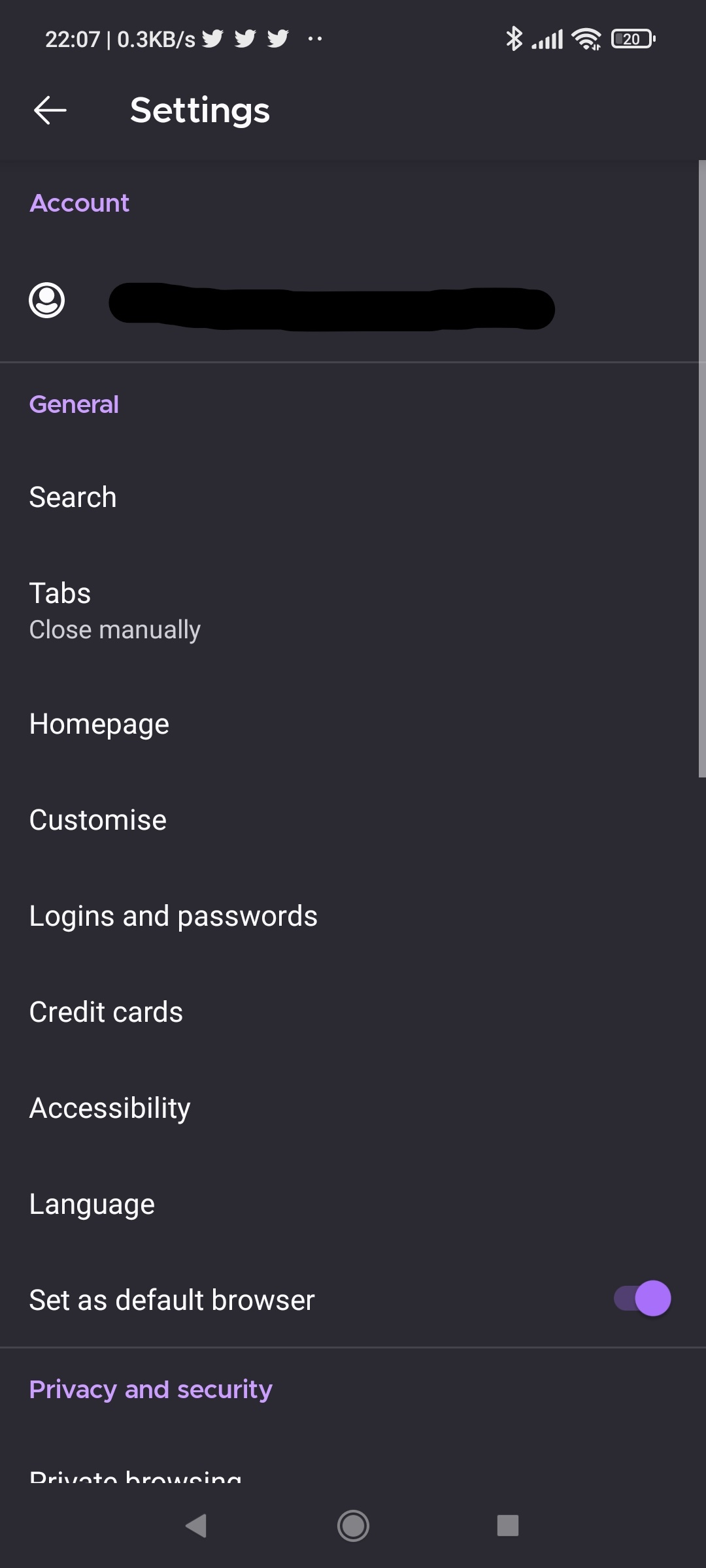
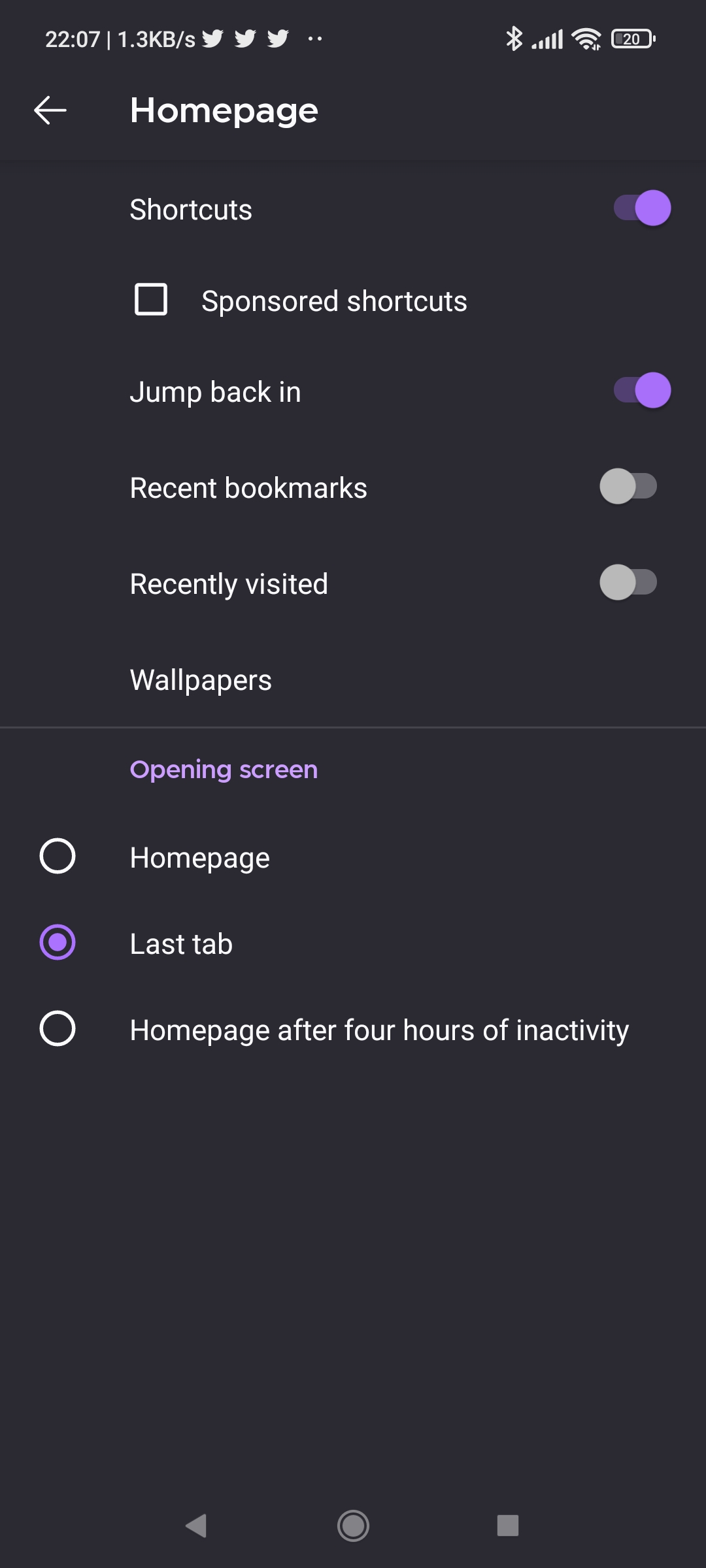
In the "Settings" page, tap "Homepage", and at the "Opening screen" section, select "Last tab". Firefox should now just stay on the previously opened tab when you switch to a different app and then return. I have personally tested this and it works as intended.
The screenshots taken on the Android version of Firefox, but it is also applicable for the iOS version.
Kindly mark this answer as the solution(solved) if it managed to help you!
Tutu wotmołwu w konteksće čitać 👍 1Wšě wotmołwy (2)

Wubrane rozrisanje
Hello HelpImStuck,
You can open Firefox's settings page by tapping the 3-line (3-dot if you are on Android) menu button, then tapping "Settings".
In the "Settings" page, tap "Homepage", and at the "Opening screen" section, select "Last tab". Firefox should now just stay on the previously opened tab when you switch to a different app and then return. I have personally tested this and it works as intended.
The screenshots taken on the Android version of Firefox, but it is also applicable for the iOS version.
Kindly mark this answer as the solution(solved) if it managed to help you!
Wot YongHan změnjeny
Perfect, thank you!