Need to back out of screen

My Thunderbird is frozen on this screen. I need to back out of it and start all over
All Replies (7)
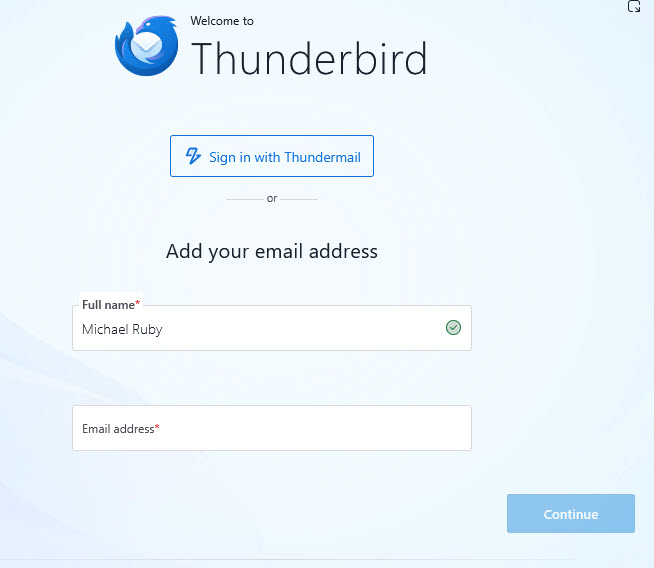
Is Thunderbird really frozen on this screen so that you have to force-quit the app? This screen is displayed either on first start after Thunderbird installation or in very rare cases when a new profile has been created for unknown reasons. So is this a new Thunderbird installation? Or did you already use Thunderbird before this account hub page appeared on startup?
This screen popped up when I was following instructions to recover a profile after an update screwed up my Thunderbird. When I hit Continue the following screens look like they are taking me someplace I don't want to go. All I want to do is kill this screen so I can go back to a normal Thunderbird screen and re-evaluate the instructions and what I need to do. Anytime I try to get out of the following screens they take me back to this one. My only out is Task Manager and killing the Thunderbird instance. I just want the normal Thunderbird email screen.
Your actual Thunderbird start page is displaying the Account Hub "Add your email address". This means that Thunderbird has created a new profile and is prompting the user to create an email account. Thunderbird does not open your old profile since obviously there is no "connection" between the Thunderbird application and your old profile folder.
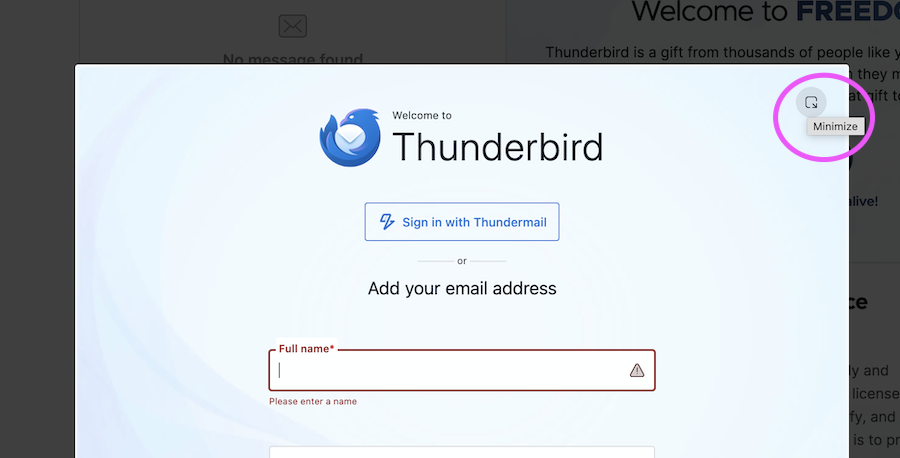
Restart Thunderbird and click on the little "Minimize" ⟳ symbol to close the account hub. Click the app menu button ≡ then Help > Troubleshooting Information > Profile Folder > Open Folder..., then quit Thunderbird. Now in Windows Explorer you will see a folder named "xxxxxxxx.default-release" (or similar name) which is the new (virgin) profile folder. From the profile folder go up one level in the folder "Profiles" and make a screen shot of its contents. Go um one more level in the folder "Thunderbird" where you'll see a file "profiles.ini" Open profiles.ini in a text editor and do a screen shot of its contents.
Then what?
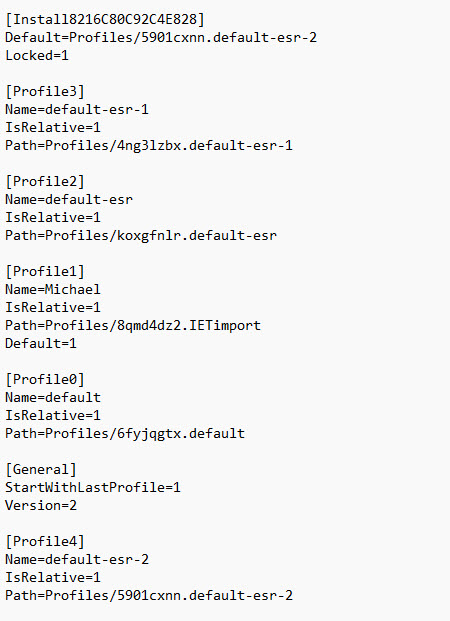
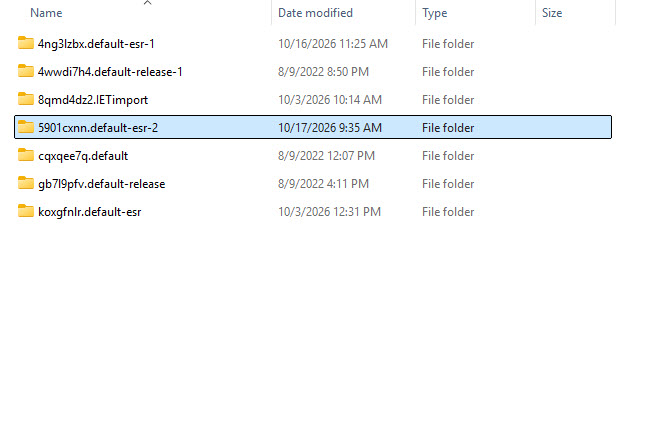
Here are clips of the two directories.
Mike Ruby said
Then what?
Thanks for the pictures which are very useful! I'll reply a bit later, have guests for dinner.
Back to your images. Folder "Profiles" contains 7 profile folders;: • three have modification dates from 2022 and we'll neglect them; • profile folders *.default-esr-1 and *.default-esr-2 are certainly pristine profiles created yesterday and today which we neglect, too • that leaves us folders "koxgfnlr.default-esr" and "8qmde4dz2.IETimport", both having a modification date from 10/03/2026
In the profiles.ini file I can see that folder koxgfnlr.default-esr belongs to profile "default-esr" and folder "8qmde4dz2.IETimport belongs to profile "Michael" Now we'll try to use one of those two profiles when starting Thunderbird: first go back to the profiles.ini file, open it in a text editor, go to the line
StartWithLastProfile=1
replace the 1 with a 0 (zero) , save the modification and quit the text editor.
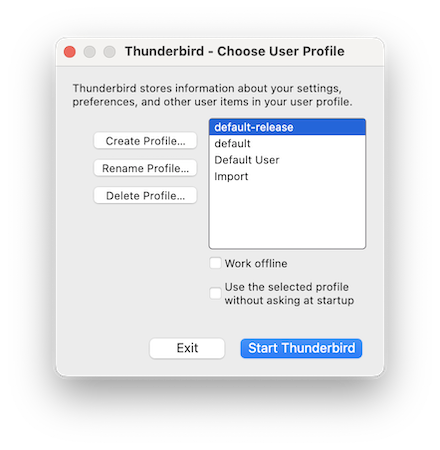
Now each time you open Thunderbird it will first display the Profile Manager with a list of all available profiles (see image) .
Select the profile "Michael", click "Start Thunderbird" and verify if this is the profile you wanted to recover.
If this is not the recovered profile quit Thunderbird, restart the app again, in the Profile manager this time select the profile "default-esr" and click Start Thunderbird. Report if default-esr is the profile you wanted to recover.