


How can I retrieve archived e-mails from a previous version of Thunderbird after the newest version wiped out my previous identity?

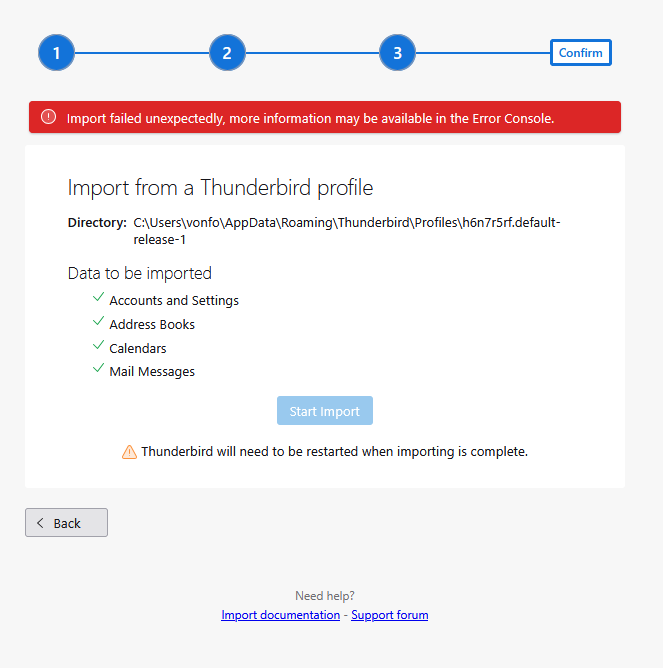
The newest version of Thunderbird wiped out the stored files from the previous version by making me create a new identity. I have tried several times to use "import" to retrieve backed up data from the old version, but without success, even after I re-installed an earlier version of Thunderbird. Each time I use the "import" feature I get a message that it failed unexpectedly. I need these old e-mails because they contain receipts for charitable donations that I need because my tax returns are being audited. What can I do?
All Replies (5)

Reinstalling Thunderbird is not likely to help with things like this because all preferences and account information are stored in your Profile, which a reinstall will not touch.
What version of Thunderbird? What is your operating system? Do you, indeed, have a complete valid copy of your Profile?
Once we know what there is to work with there are actions you can take.
The older version of Thunderbird (139.0) was working perfectly well until the new version installed itself. So yes, there is a complete version of the profile lurking on the computer.
New Version: 150.0.2 Old Version: 139.0 Operating System Widows 11
Was this installed from an installer downloaded directly from Thunderbird.net or from the Microsoft Store?
Please click in Thunderbird <Help | Troubleshooting Information>, scroll down to "Profile Folder" and click the "Open Folder" button, then go up one level so you will now be in the "AppData\Roaming\Thunderbird\Profiles" folder. Make sure the Date Modified field is showing (important!) Now take a screen shot of the contents of this folder and post it here.
You will also see a file called PROFILES.INI in this location. Open it with Notepad or your preferred text viewer and copy-and-past its contents here, or post a screen shot.
By the way, to avoid unexpected automatic upgrades, turn off the Automatic Update feature. It's found in <Settings | General | Updates>.
Dear Lin Many thanks for the response. Because I was not able to use the new version, I uninstalled it. I still had the installation file for Thunderbird from when I got the computer in January, when I downloaded it from the Mozilla website. When that didn't work, I uninstalled that as well. So I now have the two installation files that I mentioned in my earlier message.
In my AppData/Local/Thunderbird/ directory I have a bunch of different profiles, two of them dating to April, when I reinstalled Thunderbird after my computer crashed. In the AppData/Local/Thunderbird/ directory I have a lot of profiles, apparently dating from multiple re-installation efforts
I'm attaching screen shots of both.
In only two of the /Roaming/... directories are there any mail files with content (more than 1 kb) in them.
Should I install Thunderbird agai?
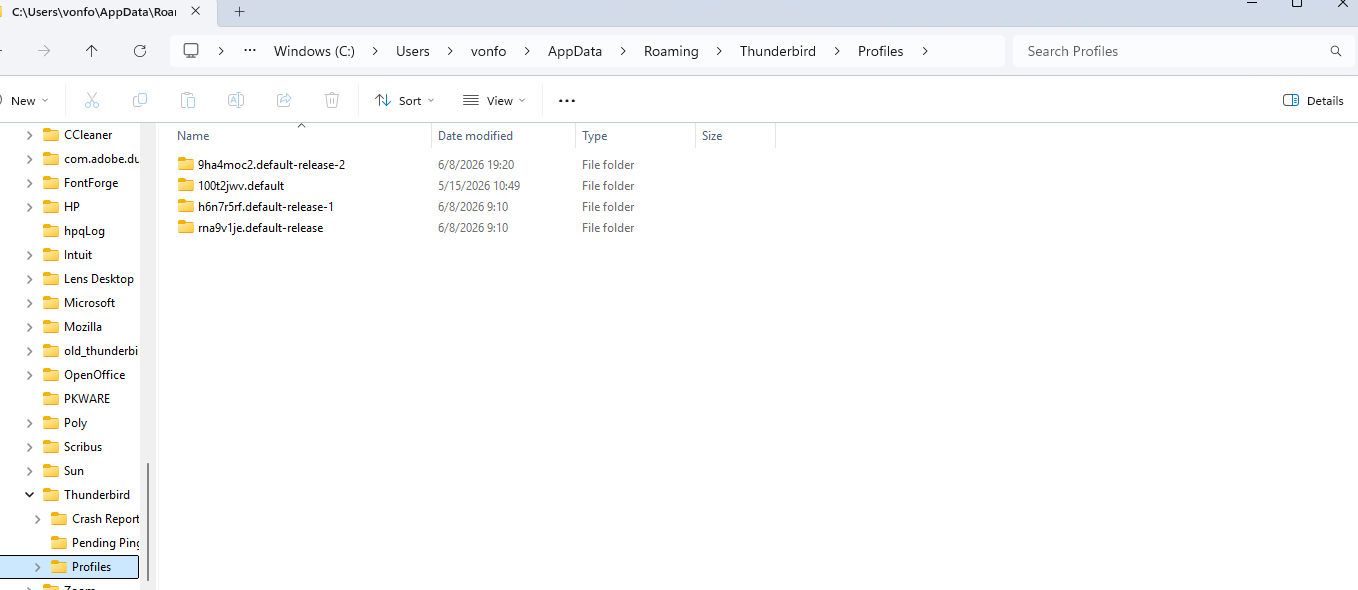
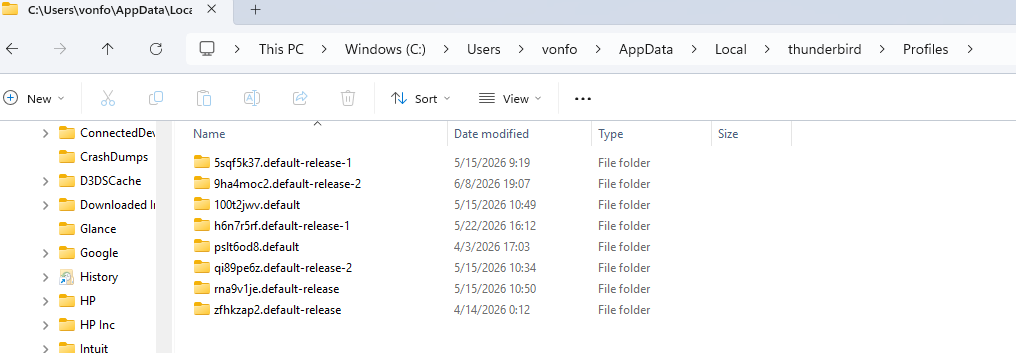
Sorry, I misdirected you to the PROFILES.INI file - it's actually found in "AppData\Roaming\Thunderbird". I think your basic problem all along has been that that file was corrupt or missing and so it couldn't locate the profiles. But I don't think it matters now. We will rebuild it.
Your Profiles folder is kind of a mess, with a bunch of profiles, some of which may be incomplete or invalid, and one or some may be the ones holding your missing missing emails. I propose to register all those profiles with Thunderbird, and you can at your convenience decide which ones to keep and which to delete.
- make a note of each profile folder name, or use your above screenshot for reference.
- First, for safety, make a backup copy in a convenient place (Desktop?) of the entire "AppData\Roaming\Thunderbird" folder. After this is over it can be deleted.
1) I'm unclear whether Thunderbird is currently installed, but it should be. If you don't have any version installed now, install the latest version you have an installer for. Run it once, and if it starts prompting you to create email accounts, decline. When it finally settles down, exit Thunderbird. If you DO have Thunderbird already installed, proceed to step 2.
2) With Thunderbird closed, Press <WindowsKey+R> to bring up the Run dialog box. In the "Open" field, type "thunderbird -profilemanager" or "thunderbird -p" (no quotes). When you click OK, Thunderbird's Profile Manager will appear.
3) If there are any profiles listed, you can take this opportunity to choose and open each one in Thunderbird to examine it. (By the way, if you point the cursor at the name in the list, a tooltip pops up to show the specific file name.) Disable the "Use the selected profile without asking" so Profile Manager will come up every time. You can enable this option after all is put right. If you find your missing profile, we're done! If not...
4) You can add the other unlisted profiles to the list. In Profile Manager, click "Create Profile" which will bring up the Create Profile Wizard, then in the "Welcome" dialog box click "Next".
5) This step must be done in order. In the "Completing the Create Profile Wizard box, FIRST enter a new profile name (this is arbitrary, and you can change it later, so give it a meaningful name to you, like, "Unknown 1".) Then, click the Choose Folder button. A file browse window will come up in your "AppData\Roaming\Thunderbird\Profiles" folder and you will see all the profiles listed. Select one that you have not already examined, click the "Select Folder" button and you will be taken back to the Wizard. Confirm that the correct folder has been chosen - see the "Your user settings, preferences and other user-related data will be stored in:" line. If correct, click Finish, which takes you back to the Profile Manager.
- You can repeat steps 4 and 5 to register all the questionable profiles with profile manager. You can then open them in Thunderbird, one by one, until you find the one(s) you want to keep.
When you finally have that sorted out, you can use Profile Manager to delete the unwanted ones.