


Cookies Error

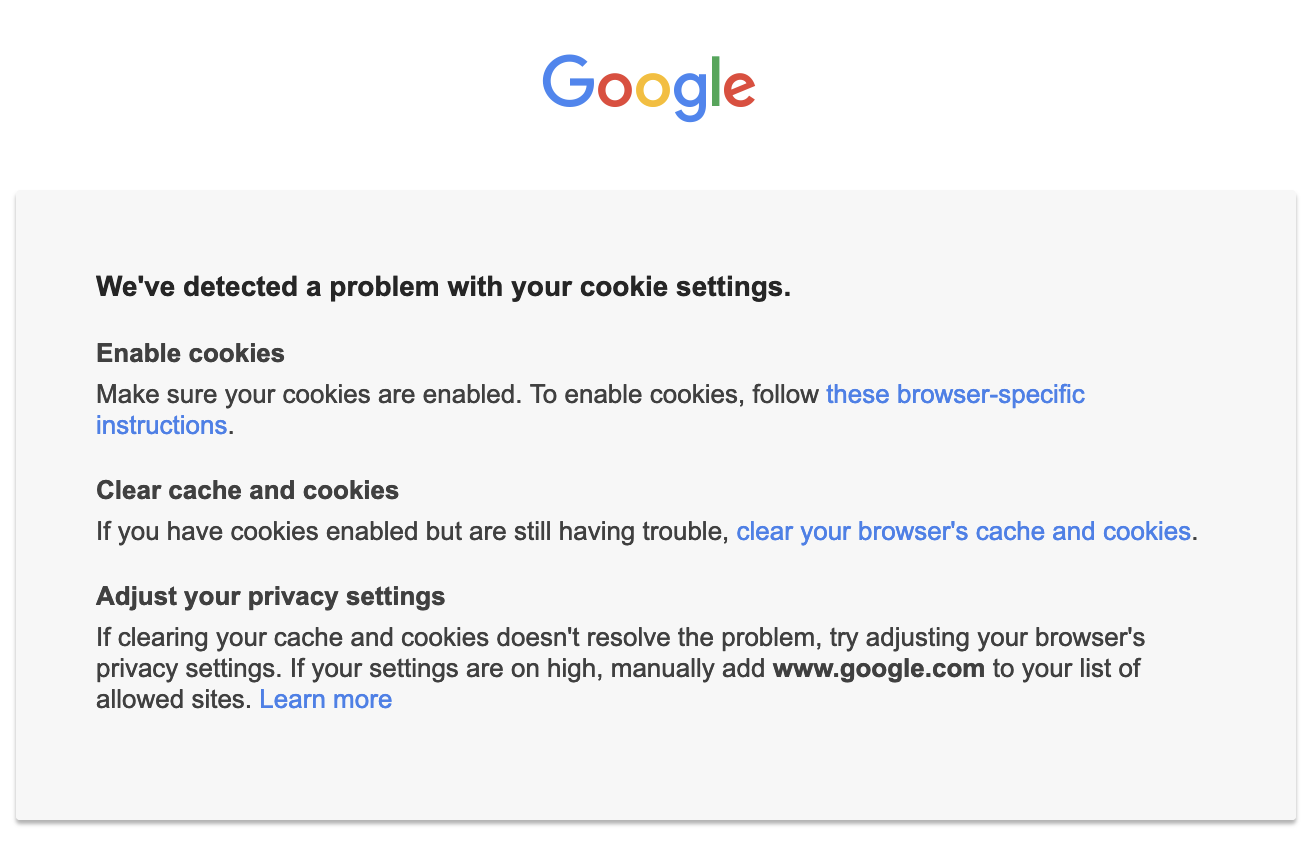
We've detected a problem with your cookie settings. Enable cookies
Make sure your cookies are enabled. To enable cookies, follow these browser-specific instructions. Clear cache and cookies
If you have cookies enabled but are still having trouble, clear your browser's cache and cookies. Adjust your privacy settings
If clearing your cache and cookies doesn't resolve the problem, try adjusting your browser's privacy settings. If your settings are on high, manually add www.google.com to your list of allowed sites. Learn more
Alle antwurden (1)
This issue can be caused by corrupted cookies or blocked cookies.
- check the permissions for the domain in the currently selected tab in "Tools -> Page Info -> Permissions"
You can try these steps in case of issues with webpages:
You can reload webpage(s) and bypass the cache to refresh possibly outdated or corrupted files.
- hold down the Shift key and left-click the Reload button
- press "Ctrl + F5" or press "Ctrl + Shift + R" (Windows,Linux)
- press "Command + Shift + R" (Mac)
Clear the Cache and remove the Cookies for websites that cause problems via the "3-bar" Firefox menu button (Settings).
"Remove the Cookies" for websites that cause problems:
- Settings -> Privacy & Security
Cookies and Site Data: "Manage Data"
"Clear the Cache":
- Settings -> Privacy & Security
Cookies and Site Data -> Clear Data -> [X] Cached Web Content -> Clear
- https://support.mozilla.org/en-US/kb/clear-cookies-and-site-data-firefox
- https://support.mozilla.org/en-US/kb/how-clear-firefox-cache
Start Firefox in Troubleshoot Mode to check if one of the extensions ("3-bar" menu button or Tools -> Add-ons -> Extensions) or if hardware acceleration or if userChrome.css/userContent.css is causing the problem.
- switch to the Default System theme: "3-bar" menu button or Tools -> Add-ons -> Themes
- do NOT click the "Refresh Firefox" button on the Troubleshoot Mode start window
- https://support.mozilla.org/en-US/kb/diagnose-firefox-issues-using-troubleshoot-mode
- https://support.mozilla.org/en-US/kb/troubleshoot-extensions-themes-to-fix-problems
- https://support.mozilla.org/en-US/kb/enhanced-tracking-protection-firefox-desktop
- https://support.mozilla.org/en-US/kb/smartblock-enhanced-tracking-protection
- https://support.mozilla.org/en-US/kb/trackers-and-scripts-firefox-blocks-enhanced-track
If clearing cookies doesn't help, it is possible that the cookies.sqlite file in the Firefox profile folder that stores the cookies got corrupted.
- rename/remove cookies.sqlite (cookies.sqlite.old) and when present delete cookies.sqlite-shm and cookies.sqlite-wal in the Firefox profile folder with Firefox closed in case cookies.sqlite got corrupted.
- https://support.mozilla.org/en-US/kb/profiles-where-firefox-stores-user-data