


How do I make "convert to" active, when it's grayed out?

When I right click on a task, convert to is grayed out, not allowing me to convert task to event
Alle Antworten (5)
What OS are you using eg: Windows 11,MAC or Linux ? What version of Thunderbird are you using ?
I've just tested in beta 150.0b1 and see the same But it works ok in version 140.9.0esr I'll check to see if a bug report has been created.
Windows 11 and Thunderbird Desktop Version 149.0.1 Released March 26, 2026
Many thanks - as I did not locate a current bug - I've created a bug report. I believe this must be something only just occurred in the 'Release' version as it's still ok in the current ESR version. This is a link to that report should anyone want to follow details, progress etc.
So can I revert to earlier version, or is there some other way to convert tasks to events, while I wait for the fix?
As a heads up, the developers were on to this bug very quickly and it has been marked as fixed. I believe the target is version 151.0, so should not be too long. As you are on the release version, updates are done more frequently - usually monthly, but it's likely to appear in the beta first for testing. You may feel that's too long to wait.
To go back to the version prior to the one you are currently using will mean you need to do the following. 1. Set up updates to inform you of updates, but not update unless you say do it.
- Settings > General
- scroll down to 'Updates' section
- Select: 'Check for updates, but let me choose whether to install them'
To check which version was previous installed click on 'Show Updates History' button I think it might have been version 148.0.1 (tell me if different)
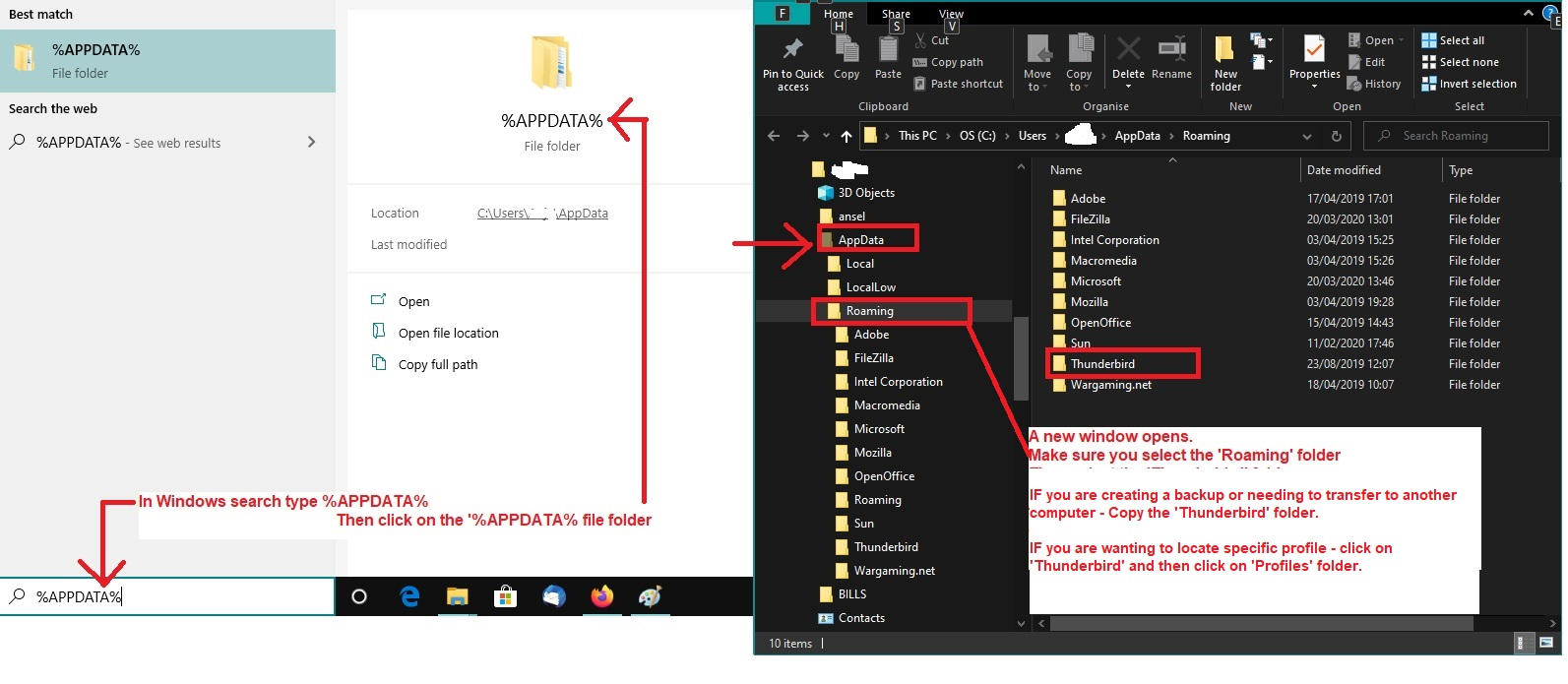
2. Exit Thunderbird 3. Uninstall Thunderbird 4. Access Profile and delete the 'compatibility.ini' file Assuming you installed Thunderbird from the official website and NOT via Windows App Store (please tell me if you did install Thunderbird from Windows App Store) Image below as a guide
- In windows search type : %Appdata%
- Select : %Appdata% file folder
- Select: Roaming folder
- Select: Thunderbird folder
- Select: Profiles folder
- Select: the profile name folder
- Delete: 'compatibility.ini' file
5. Download and install a previous version - which I think was version 148.0.1
- Use this link: https://ftp.mozilla.org/pub/thunderbird/releases/148.0.1/win64/
- Select the relevant language: eg: en-GB = English British
- Click on the text link: 'Thunderbird Setup 148.0.1.exe ' to get download.
Geändert am von Toad-Hall