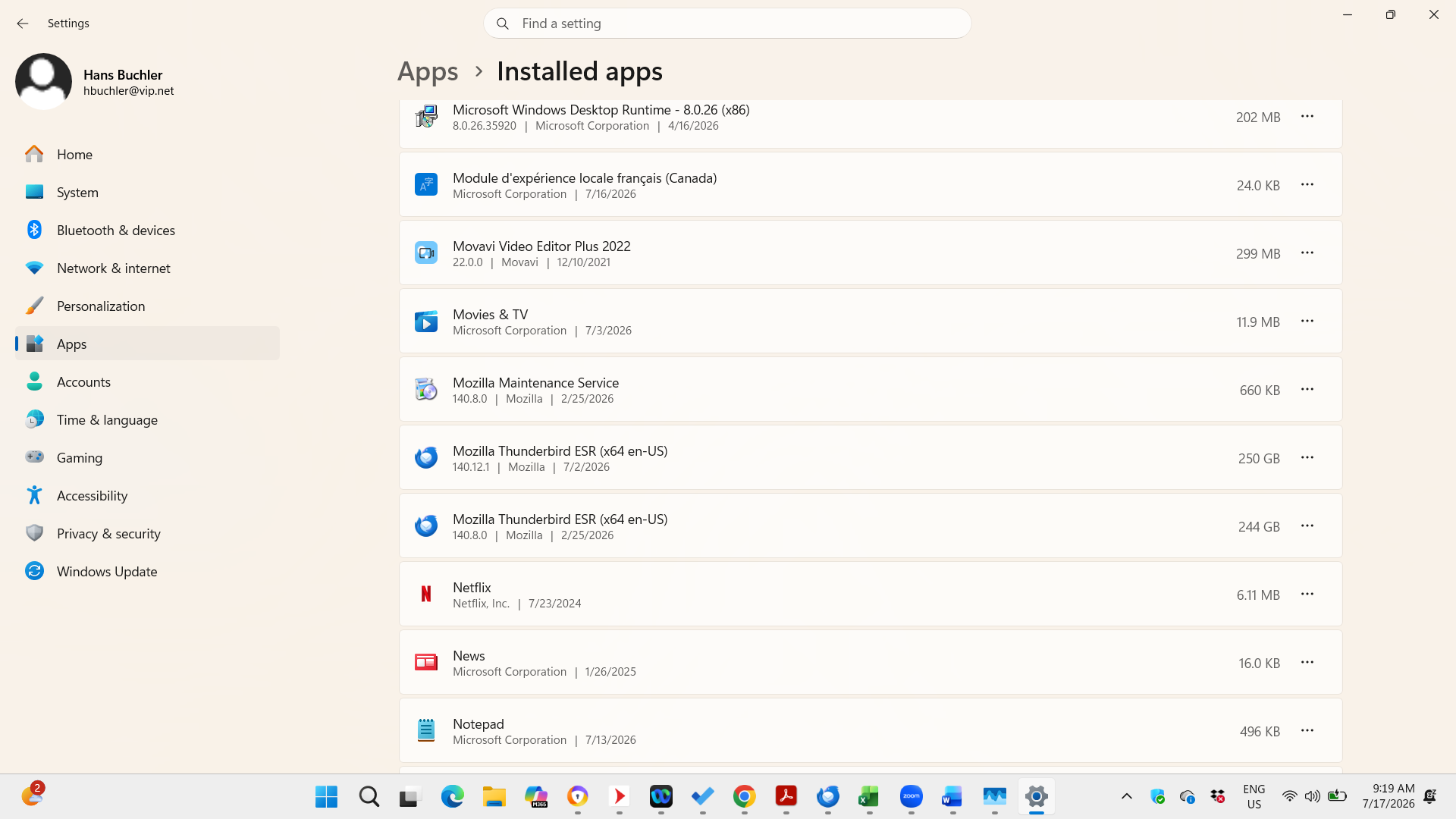
Under installed apps I have two entries for Thunderbird: 1) 140.8.0, 2/25/2026, 244 GB (sic) and 2) 140.12.1, 7/2/2026, 250 GB. Is it safe to temove 1), and how is it possible to be that large an app?

Please let me know if it is safe to remove the older version of Thunderbird in the Installed Apps list. I also question whether the size of the app in the list is accurate; 250 GB seems quite enormous in a 500 GB hard drive. Thanks, Hans
All Replies (3)

Can I assume this is on Windows?
Did you install either or both from an installer downloaded from < https://www.thunderbird.net/ > or from the Microsoft store, or other? Are they both 64-bit versions?
In Windows. if installed from the official source, the default program would is "C:\Program Files\Mozilla Thunderbird". If installed from the Store, it would be installed somewhere like "C:\\Users\USER\AppData\Local\Microsoft\WindowsApps\"
The reported size does seem way off. In my case. my Thunderbird program folder is about 300 MB. I have a fairly large Profile, with many years of saved email, and that folder is "only" about 7 GB. So, unless you have a gigantic archive (maybe tons of large attachments?), 250 GB seems unlikely. Seems to me that the OS is misreporting the size.
What I would do is FIRST make a backup copy of my Profile. Then I would uninstall both versions, then re-install using an official installer. Finally, I would move my Profile copy into its proper place, if necessary (your original copy might show up on its own.)
The exact steps depend on your operating system, so let us know what you have and we can proceed from there.
Izmjenjeno od strane Lin
Windows 11, both are 64 bit, updates are automatic, so I assume it is from Mozilla or Thunderbird. I have added the apps screencapture with the Mozilla Thunderbird entries.
On a somewhat different, but related topic: I have recently considered to completely wipe out the hard drive, reformat the disk and re-install all the apps I am using. Is there an easy way to do this, or is this primarily a one by one process, installing every app separately?
Thanks for the help, Hans
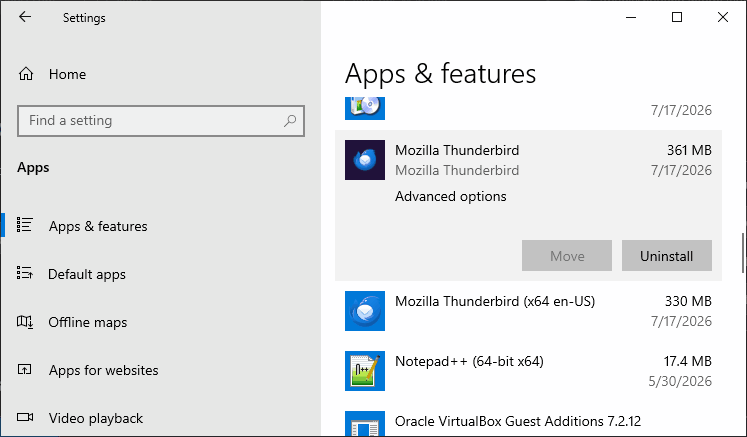
It is very possible to have to Thunderbird installations in different locations. For example, one could be a 32-bit version and the other a 64-bit. Or one could have been from an official Thunderbird installer and the other from the Microsoft Store. Unless there's some specific reason to have both, it's a waste of disk space and confusing. I would make a safety backup of my Profile, uninstall both existing installations, and re-install using an official installer from
Here's how I would go about it. This is Windows 10, but it should be similar on 11, maybe some names are slightly different:
- Make a safety backup of my profile. To do that, open Windows File Explorer and in the address bar, type $APPDATA$ . This will take you to your AppData folder where there are sub-folders for many or most of your various installed programs. One will be called "Thunderbird". While Thunderbird is closed, make a copy of that folder to a convenient location (Desktop?)
- Now go to Windows' <Settings | Apps and Features>. You should see two entries for Thunderbird, similar to the attached image. Uninstall them both, perhaps starting with the older version. The uninstall should leave your Profile in place, but you have a backup of it just in case.
- Reboot (probably not necessary, but it can't hurt.)
- Now run the installer you downloaded earlier. If all goes well, it will see your Profile in the default location and you should be back in the saddle again. If not, it's easily fixable.
- If things are back to normal, you can delete the safety copy of your Profile, or better yet, save it as a backup and start making regular backups of the original folder. They can be ZIP compressed to save space. But that's another topic.
Please let me know how it goes.