


How to restore local folders when upgrading from windows 10 to windows 11
I upgraded from windows 10 to 11 My son was able to recover my e-mail folders, but some large folders are missing and the remainder only have e-mails from 2019 or earlier. How do I recover those e-mails? I am no longer conversant with the current technology or terminology. I need simplistic instructions.
Chosen solution
- for any missing data from a POP account, look in the Mail folder and then the POPaccount folder. Files such as Inbox and Sent would have messages
- for any missing Local Folders, look in the Mail\Local Folders folder. Message files tend to be in twos: inbox, inbox.msf, sent, sent.msf
If you find files that do not appear in Thunderbird, copy them from where you found them, and pasted into the Mail\Local Folders folder of the active profile.
If unsure, please post screenshot of what you see and we can advise on that.
Read this answer in context 👍 0All Replies (12)
Do you have any backup of the profile? If the upload was windows 11 overlaying windows 10, the profile should have remained. If this was fresh install to the disk, your son may have deleted everything. there may be multiple profiles, and that requires a bit of digging on your part. Try this:
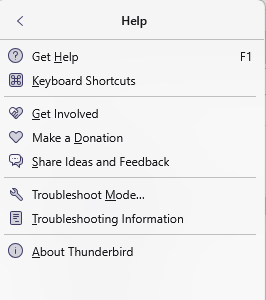
- click help>troubleshootinginformation
- scroll down to 'profiles' and click 'about:profiles'
- the next screen lists all profiles, if any
- in each one, you can check the Mail folder for any missing POP accounts and the Mail\Local Folders folder for any missing local folders
- if you find such in other than your default profile, I can assist in reconstructing to the active profile. Otherwise, I don't know, as I have no idea exactly what was done. Good luck. Let me know if you see anything.
I got to profiles what am I looking for next? I have a default and a 1 profile What do I look for in these profiles?
Chosen Solution
- for any missing data from a POP account, look in the Mail folder and then the POPaccount folder. Files such as Inbox and Sent would have messages
- for any missing Local Folders, look in the Mail\Local Folders folder. Message files tend to be in twos: inbox, inbox.msf, sent, sent.msf
If you find files that do not appear in Thunderbird, copy them from where you found them, and pasted into the Mail\Local Folders folder of the active profile.
If unsure, please post screenshot of what you see and we can advise on that.
How do I access the Mail\Local Folders folder This does not appear in the new version of windows 11 Where do I find the .msf files?
Please see my original response, which explains how to get to the profiles. When you get to a possible folder of messages, create a screenshot and we can assist from there.
Downloaded the utility. Now what? No instructions from utility on how to screenshot a page
OK, follow these steps:
- recreate the problem prior to doing the screenshow
- without closing Thunderbird, start Picpick
- Click the 'Region' item from options. That allows you to selectively take a screenshot of any rectangle area (see attached)
- that should open the screen showing Thunderbird with a crosshair cursor. drag it to highlight the desired area and the release mouse
- that should now show the captured area in Picpick. click save
- now, when you post a response here, click the 'browse' button at bottom of screen to include the snapshot.