


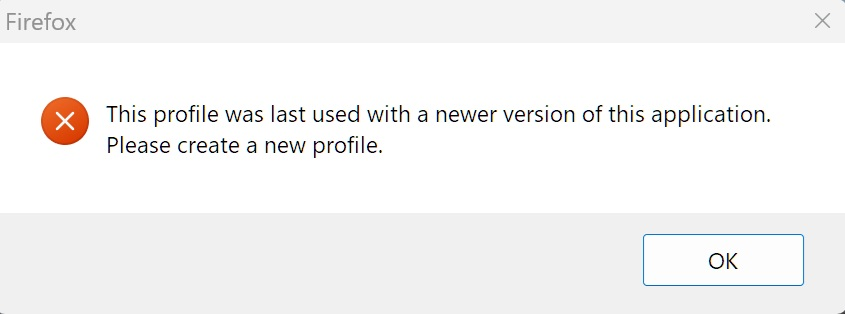
Need new profile for Firefox 140.7.0esr Windows 11 browser
Need new profile for Firefox 140.7.0esr Windows 11 browser. Existing profile is for Firefox 140 Windows 10 browser.
All Replies (3)
Hello,
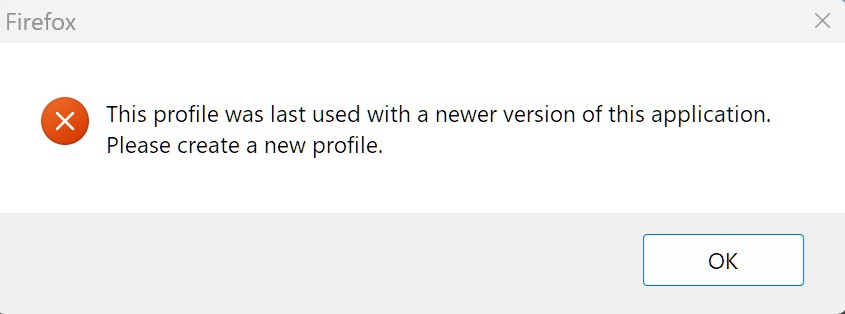
This means that the profile is incompatible with the version that it has been upgraded to, therefore it is advised to create a new profile and copy all the data fom the "Old Firefox Data" folder and copy it into the new profile folder.
If you still want to use the old profile, modify the compatibility.ini file in the firefox folder.
Where is this compatibility.ini folder physically located and what information needs to be modified. What I am asking is what needs to be done step by step to make Firefox happy again.
For modifying the compatibility .ini file, follow this file path (windows) %APPDATA%\Mozilla\Firefox\Profiles<your-profile-folder> To get into %appdata% folder just press win + r and type %appdata%
Once you found it, open the compatibility.ini file using an app, ex(Notepad++)
Modification: find and delete lastversion=... line or modify the value to the version of firefox it has been updated to
Keep in mind: make sure to make a copy of the file before editing the code, as to make sure that if the file gets corrupted, you can replace it.