I would like to know how you change the IMAP to POPn(POP3) for the server, without loosing all the date. I use Mailwasher and it will not clear downloaded or deleted unwanted emails unless the email porgram uses POP3 configuration.

How do you change the settings for email accounts in Mozilla from an IMAP to POP. With IMAP I cannot download emails to the Mozilla program, with POP3 I can. Your help would be much appreciated.
Thanks Dennis Leadbetter.
All Replies (1)
Is there a reason why you want to use another program called Mailwasher to scan emails etc ? Some people do like it, but I've never needed another program just to sift through emails. Thunderbird does have it's own methods of scannning and sorting mail by training the adaptive spam/junk mail controls and using Message Filters. New incoming mail can only be scanned if it is still in the 'Inbox' and has not been previously sorted via webmail filters into other folders.
You cannot change a current Imap account into a Pop account as it's set up is completely different. You can create a new account for same email address and set it up as Pop.
Some servers will need you to select to allow the Pop download options. This can only be done via the webmail account. So worth checking Pop is enabled/allowed in webmail before you start.
Pop accounts can only access the server Inbox and download whatever is in that folder. Pop accounts do not synchronise any folder with the server. They can be considered as completely independent of the server as all emails are stored on your computer assuming you download full copies.Obviously, as all incoming new mail will be in the Inbox, Thunderbird's adaptive spam controls would scan all incoming mail.
Please note - anything the server filters deems as spam will be put into the server Spam folder and therefore will never be seen by any Pop account.
That means anything in the server Inbox as seen in Imap account can easily be downloaded again into Pop account. Assuming your Imap account has a load of other folders containing emails, this presents a problem.
Emails in other server folders eg: Sent or anything you created, cannot be seen by Pop account. There are few methods you could use. I've mentioned three below. It really depends upon how many folders and how many emails are involved. If not too many because most are in Inbox, then method 1 may be ok. If a few folders but not loads, then you could try method 2. If you have a ton of emails in loads of folders then it might be a lot quicker to do a manul copy paste of files directly - use method 3.
1. Access webmail account and move emails from a folder into the 'Inbox' and then in Thunderbird pop account click on 'Get Messages' to download them. Then you create a new folder in Pop account and move those emails into the new folder. Repeat for each folder - this is not exactly that quick, but it depends upon how many folders and emails you are talking about. Ideal if not too many.
2. Create suitably named folders in the 'Local Folders' mail account. Make sure you have got full downloaded copies of all emails: Using the 'Menu Bar' toolbar (it's not enabled by default so you might need to enable it)
- 'File' > 'Offline' > 'Download/sync now'
- Select 'Mail Messages'
- click on 'Select'
- Suggest you also select 'Work offline once download and or synchronisation is complete'
- For the imap account, select all the checkboxes for all the folders where you want to have full downloads of all emails and click on 'OK'
- Then click on 'OK' to start the sync.
Once complete, you should be in offline mode so that nothing can interfer with the next process.
- Highlight batches of emails
- Right click on highlighted emails
- select 'COPY-TO' and choose an appropriate folder in the 'Local Folders' account.
- Repeat until you have copies of all emails in the Local Folders account.
Advise you always use Copy-to just in case something goes wrong - you can easily repeat the action. This means you end up with all your previously sorted emails now stored in 'Local Folders' and fully accessible. Do check you can select randon emails to test you really can read the content. Once complete, you can go back to the 'online' mode.
Note: you can remain in online mode and still do the 'Copy-to' Local Folders. Please do not use 'Move-to' because that will m ean a delete off server and if something goes wrong in transfer you could lose emails. At least with a 'Copy-to' you can repeat the action.
The Pop account will still downloaded everything that is in the 'Inbox' and can be used from that moment onwards for all new incoming mail.
Then, as you now have good copies of all emails in 'Local Folders' and Pop account, you can delete emails from the imap account or directly off the server via webmail account. Finally, remove the Imap account via Account Settings. The reason I say delete old emails off server is because a lot of servers expect pop downloads to not store so mnay emails on server. Please note: for some servers eg: gmail, they can only delete emails that get put in the server Trash. Pop accounts cannot delete and put into server Trash as they have no access to it. This means periodically, you would need to access webail account and check older emails have been properly deleted and not still stored in eg: 'All Mail'.
3. Make sure you have got full downloaded copies of all emails - see the download/sync now info in 2 above.
- Exit Thunderbird - very important
- Access Profile folder
- Click on 'Mail' - right click on 'Local Folders' folder and select to open in a new window
- Click on 'ImapMail' folder and select the relevant imap account folder.
Now you should see two windows - one has the contents of 'Local Folders' and the other has contents of the imap account.
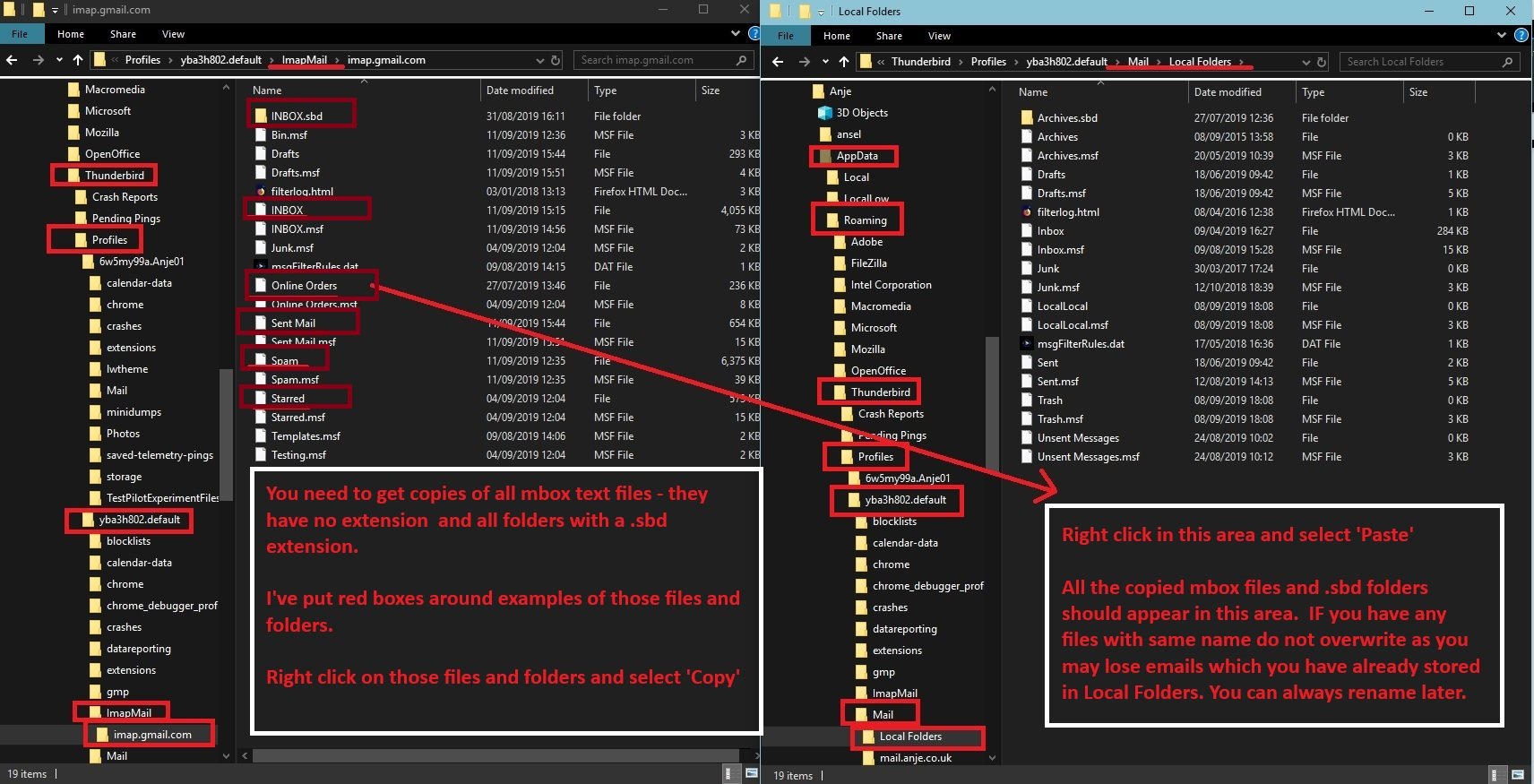
- You need to get copies of all mbox files (they have no extension) and any folders with a .sbd extension.
- Paste copies into 'Local Folders' folder - do not overwrite anything just in case you do have emails already stored in Local Folders.
Image below as guide.
Then Start Thunderbird and check the Local Folders account.